





AI Auto Video Edit
With just one upload, AI automatically turns your photos and videos into eye-catching videos in any style—from daily vlogs to travel memos, with zero effort.
Skip the Editor. Let AI Take You Straight to a Video That Shines.
One Upload. AI Does the Rest
Upload photos, videos, or both; AI automatically turns them into a stylish, scroll-stopping video, from cinematic reels to fun social clips, with built-in voiceover, captions, and a soundtrack. Every step is just a tap away, and the effort stays at zero.
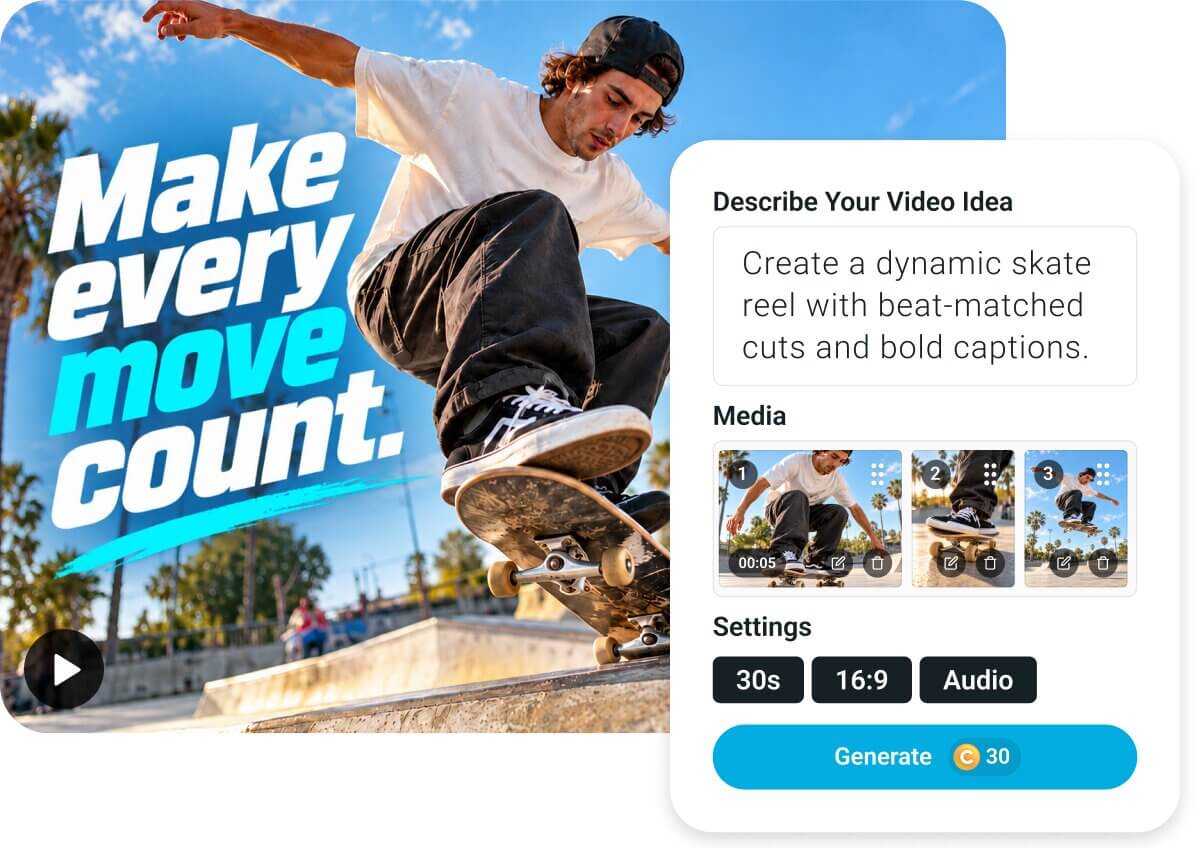
No Timeline Needed. Just Pro-Level Polish.
Forget scrubbing, splicing and syncing by hand. AI Auto Video Edit lands every cut on the beat, lets each highlight shine and glides captions in on cue, delivering a pro-finished video while you simply sit back.
How to Use AI Auto Edit? From Upload to Finished Video in 5 Steps
5 quick steps between your raw footage and a video worth sharing.

Import your media
Add your videos and photos and let AI Auto Video Edit take it from there.


Pick a style, or describe your video
Tap Daily Vlog or Travel Memo to set the whole mood at once, or write a line about what happened. Names and places make the story feel even more like yours.
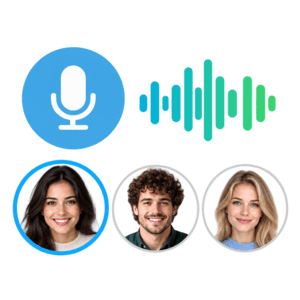
Add a voice-over
Turn on Voice-Over and pick a sample voice, or clone your own for a narrator that sounds like you.

Adjust your video settings
Set your duration and aspect ratio, and fine-tune music and audio to match your style.
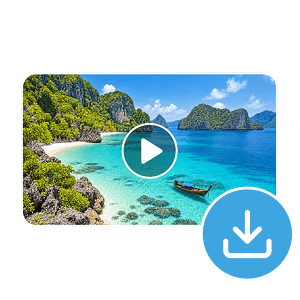
Generate and download
Generating runs in the background, so keep browsing or start your next project while you wait. Your finished video lands in your history, ready to download.
Beyond Editing. 3 AI Features That Turn Raw Moments Into Showpieces
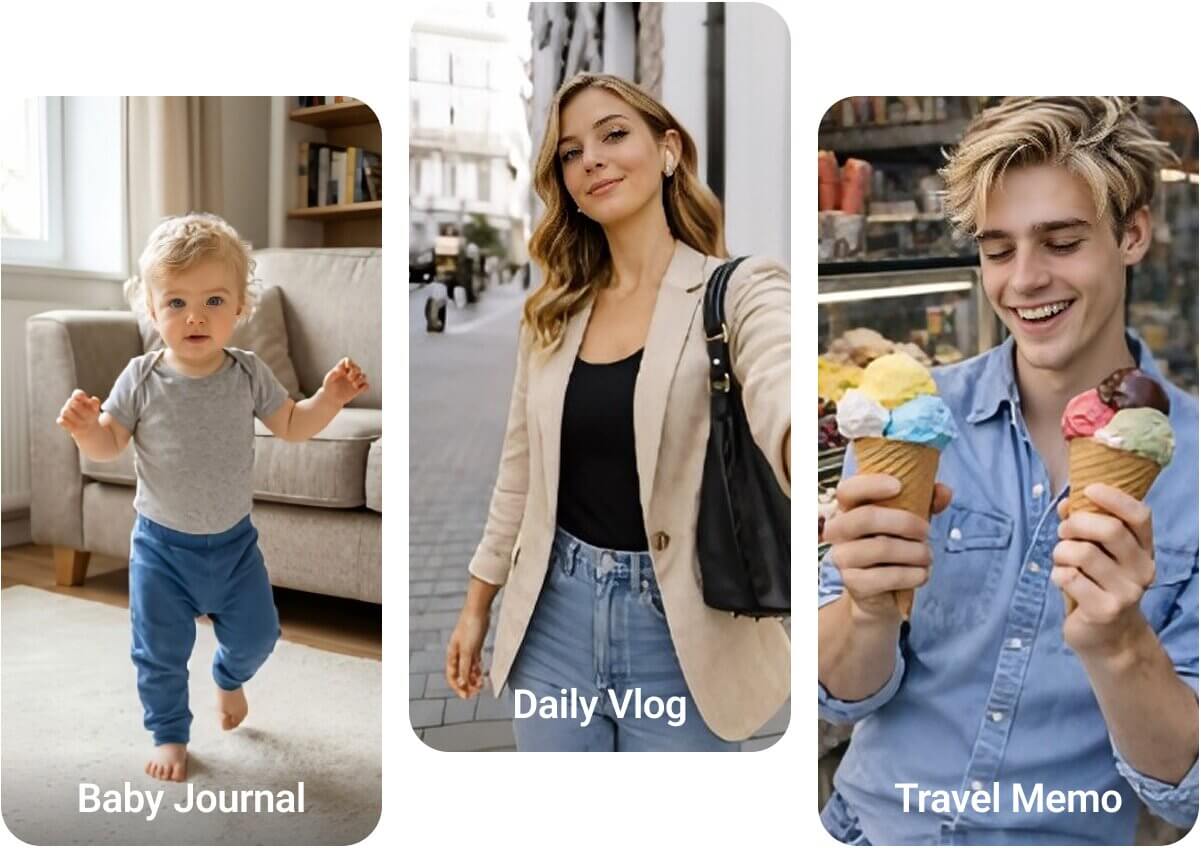
Style Presets: Daily Vlog, Travel Memo & More
Last weekend's footage as a cozy Daily Vlog, or a sweeping Travel Memo? Tap a preset and the narration, pacing and mood all shift with it. Prefer your own angle? One line is enough for a fully custom story.
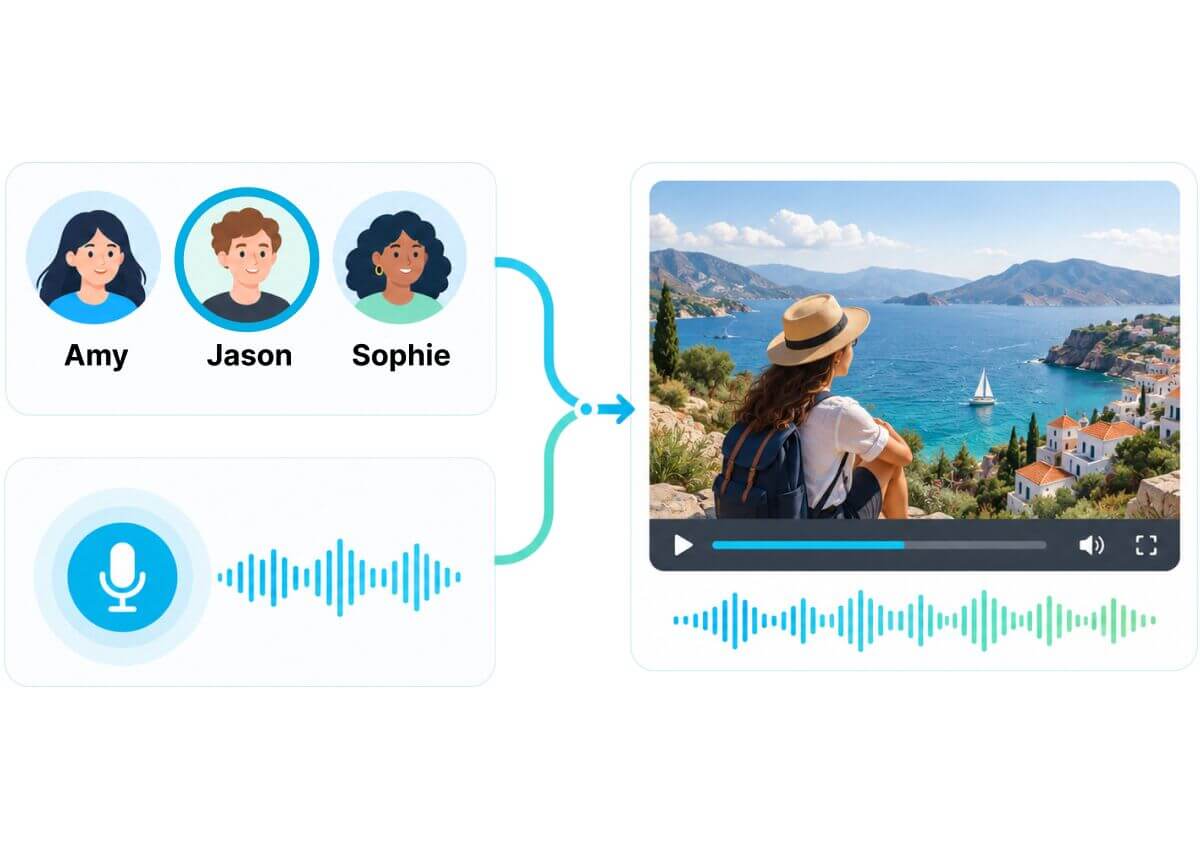
Auto Voice-Over: Studio-Quality Narration
Choose from a range of sample voices — choose your preferred tone — or clone your own from a short recording, so every video sounds like it's narrated by you, without you having to record a thing.
Auto Captions, Music & Reformatting
Shot something for your camera roll but want it everywhere? Every video comes with auto-generated captions, a background track that matches the mood, and smart audio balancing that keeps your footage's own sound front and center. Reformat instantly into 9:16, 16:9, or 1:1, so the same footage goes straight from a family archive to a Reels-ready clip — no reshooting.

Why Use YouCam AI Auto Video Edit
Social KOLs, Post Daily Without Living in an Editor
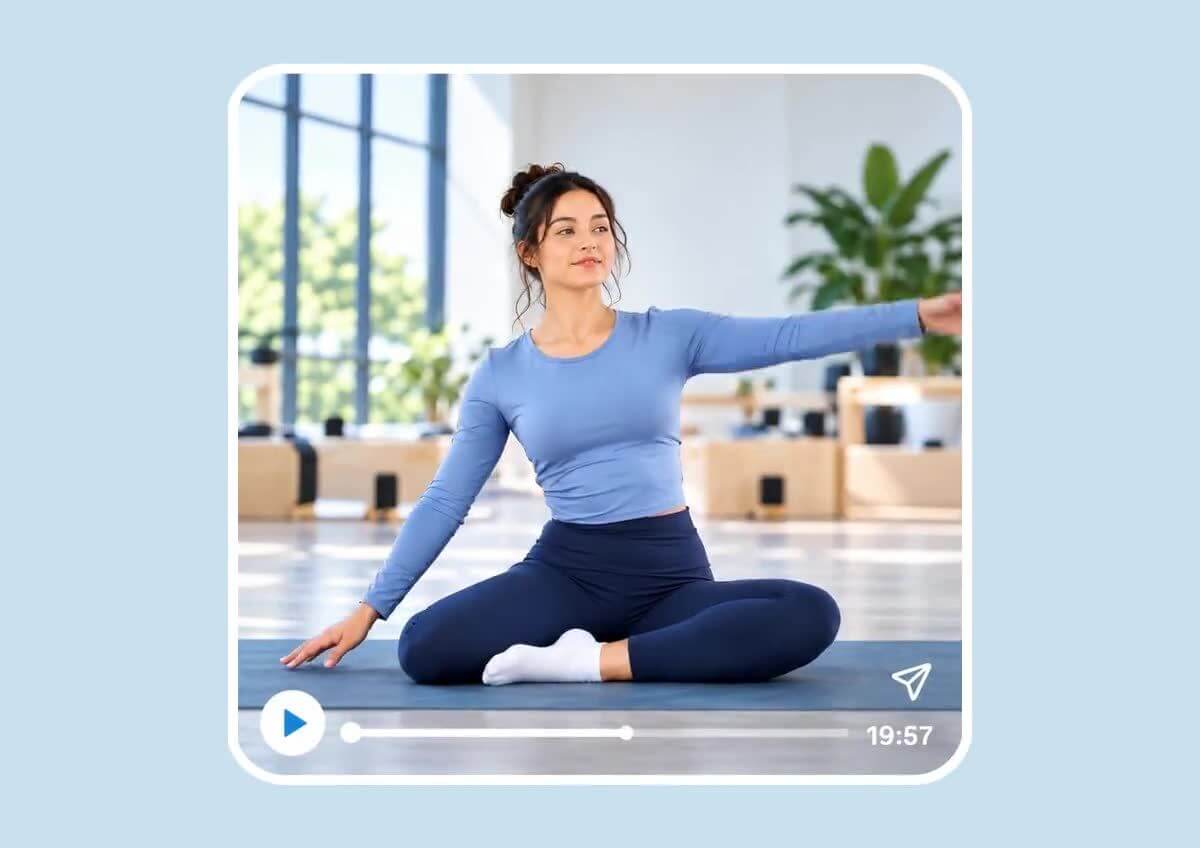
Juggling brand deals and a posting schedule across YouTube, Instagram, and TikTok, but editing every clip yourself is eating your whole week? Drop in your raw footage, and AI Auto Video Edit hands you a polished, ready-to-post video in minutes, so you keep your audience engaged without editing becoming your full-time job.
From Travel Clips to a Story Worth Watching
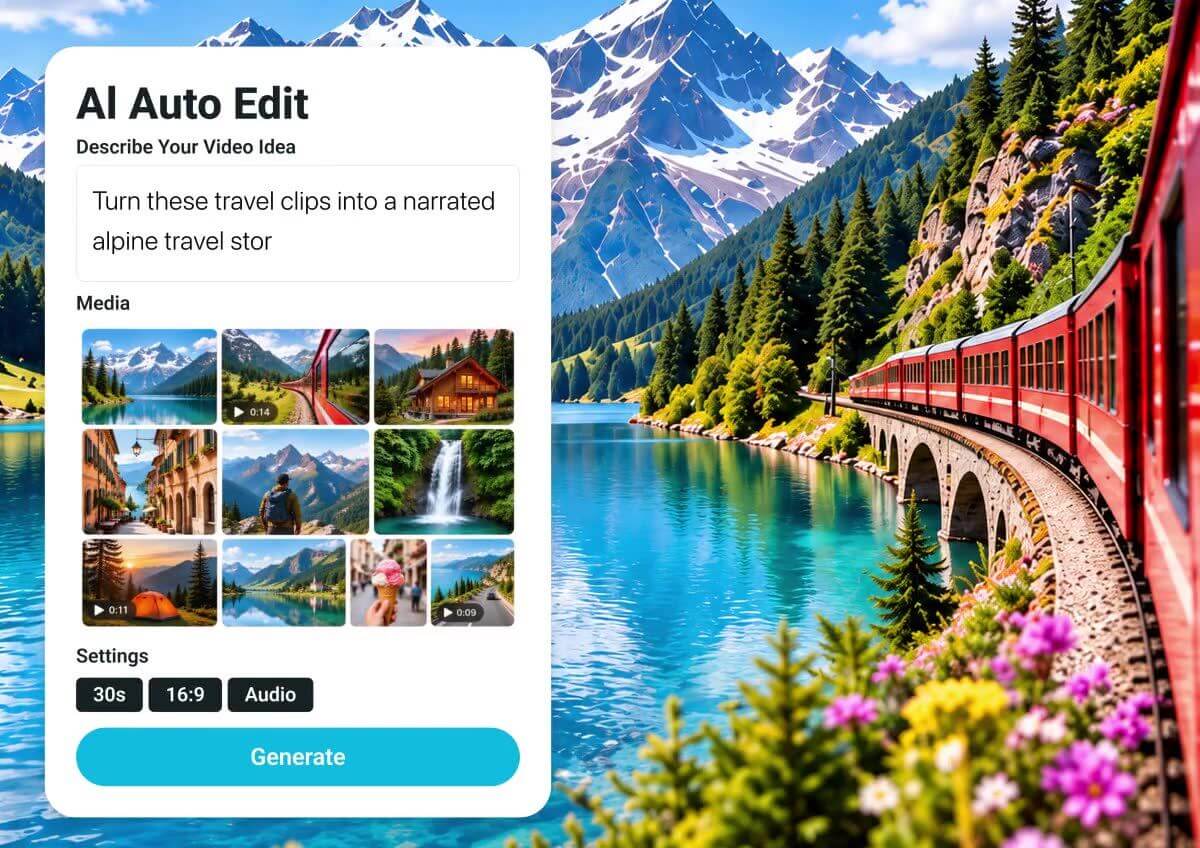
Came home from a trip with a camera roll you know you'll never get through, and already dreading the edit? Say one line about where you went, and AI Auto Video Edit turns it into a narrated travel video — ready to post while the trip is still everyone's favorite story.
AI Auto Video Edit FAQs
What media can I upload, and how much?
Up to 60 videos or 300 photos, each video up to 10 minutes, 30 minutes combined maximum, with at least 30 seconds needed to generate (one photo counts as 5 seconds).
Does it cost credits, and how is the price calculated?
Yes — cost depends on your footage length, output length, and which optional features (like voice-over) are turned on. The exact credit cost shows live on the Generate button before you commit.
How does voice cloning work, and what are its limits?
Record or import a 10–60 second sample to clone a reusable voice for a one-time credit cost. A clear, single-speaker sample with minimal background noise gives the best likeness.
How long is my generated video available?
Generated videos stay available for 30 days and remain visible if you reload or come back later. Download anything you want to keep.
Can I put a video like this together manually, without AI?
Yes, with more time — trimming clips, writing captions, recording or licensing a voice-over, and mixing in music by hand often takes an hour or more per finished minute. Auto Video Cut automates each step in one pass.
Can I animate illustrations or AI-generated characters, not just real photos?
Yes — illustrated and AI-generated character images are supported alongside real photos.

