




Generatywne wypełnianie AI
Zaznacz obiekt, opisz zmianę i pozwól AI wygenerować idealnie dopasowane elementy w kilka sekund.





Jak zamienić obiekt na zdjęciu za pomocą AI?
Prześlij swoje zdjęcie
Wybierz obraz z urządzenia. Najlepiej sprawdzi się wyraźne oświetlenie i dobrze zarysowane obiekty — dla płynnego połączenia z nowymi generowanymi elementami.

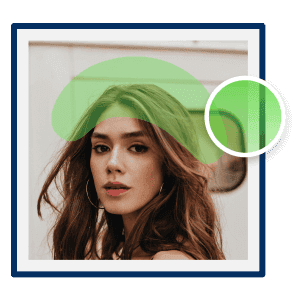
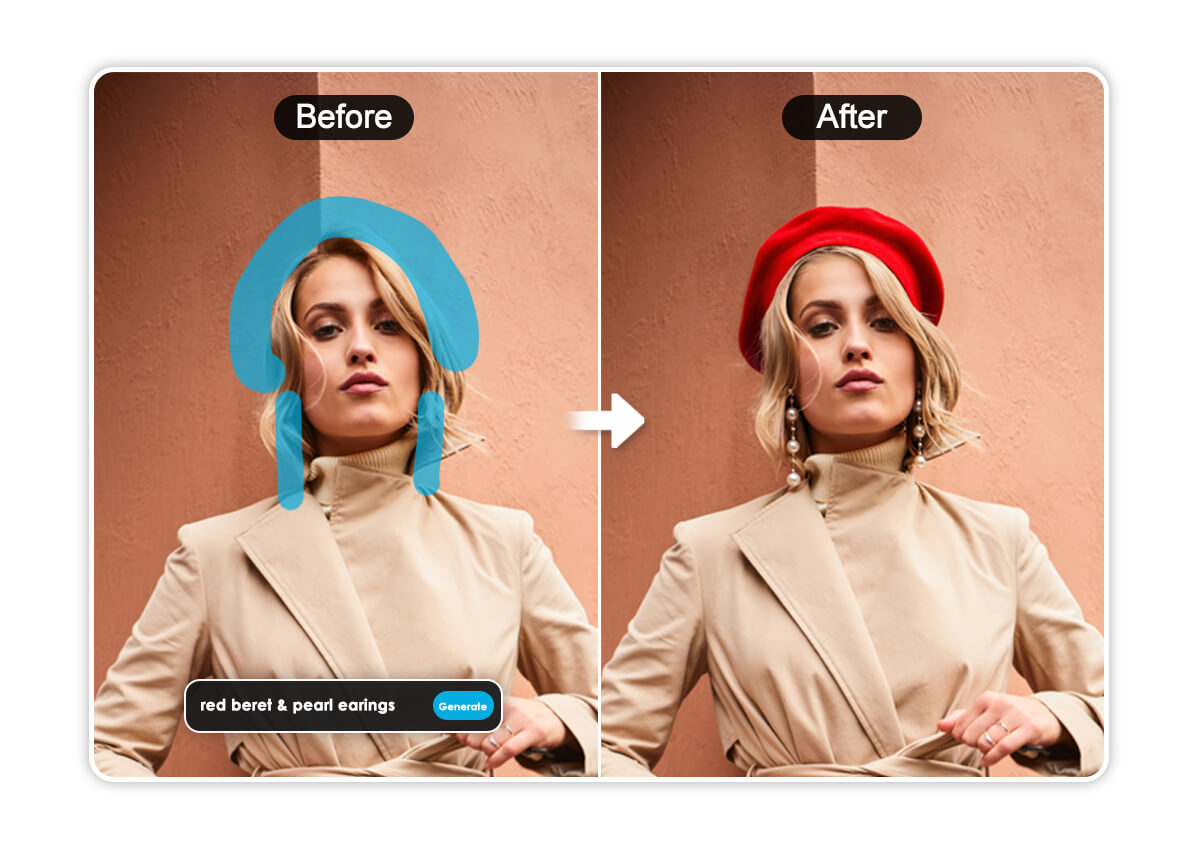
Pomaluj obszar lub obiekt
Użyj Pędzla, aby zaznaczyć konkretny obiekt lub obszar, który chcesz przekształcić.
Porada Pro: Dla najbardziej realistycznych efektów maluj delikatnie poza krawędziami obiektu, żeby AI miało wystarczająco dużo „kontekstu”, by płynnie połączyć nowe tekstury.

Wpisz prompt tekstowy
W polu promptu dokładnie opisz, co chcesz zobaczyć.
Porada Pro: Dokładnie określ, co chcesz zamienić. Napisz „Umieść na głowie czerwony beret z płaskim rondem” zamiast „Dodaj kapelusz do zdjęcia”.
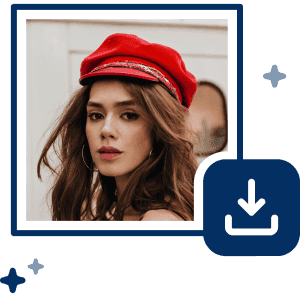
Kliknij „Generate”, aby zacząć
Kliknij „Generate” i zobacz, jak AI zastępuje Twoje zaznaczenie zupełnie nowym, realistycznie wygenerowanym obiektem.
Nieskończone możliwości kreatywne dla Twoich zdjęć z AI Replace
Dlaczego AI Replace automatycznie dopasowuje światło i cienie?
Zapomnij o godzinach spędzonych w skomplikowanych programach. AI Replace analizuje źródło światła, kierunek cieni oraz teksturę powierzchni na oryginalnym zdjęciu, zanim wygeneruje nową treść, dzięki czemu zamienione tło lub obiekt wyglądają, jakby były częścią pierwotnego ujęcia — a nie dodane później.
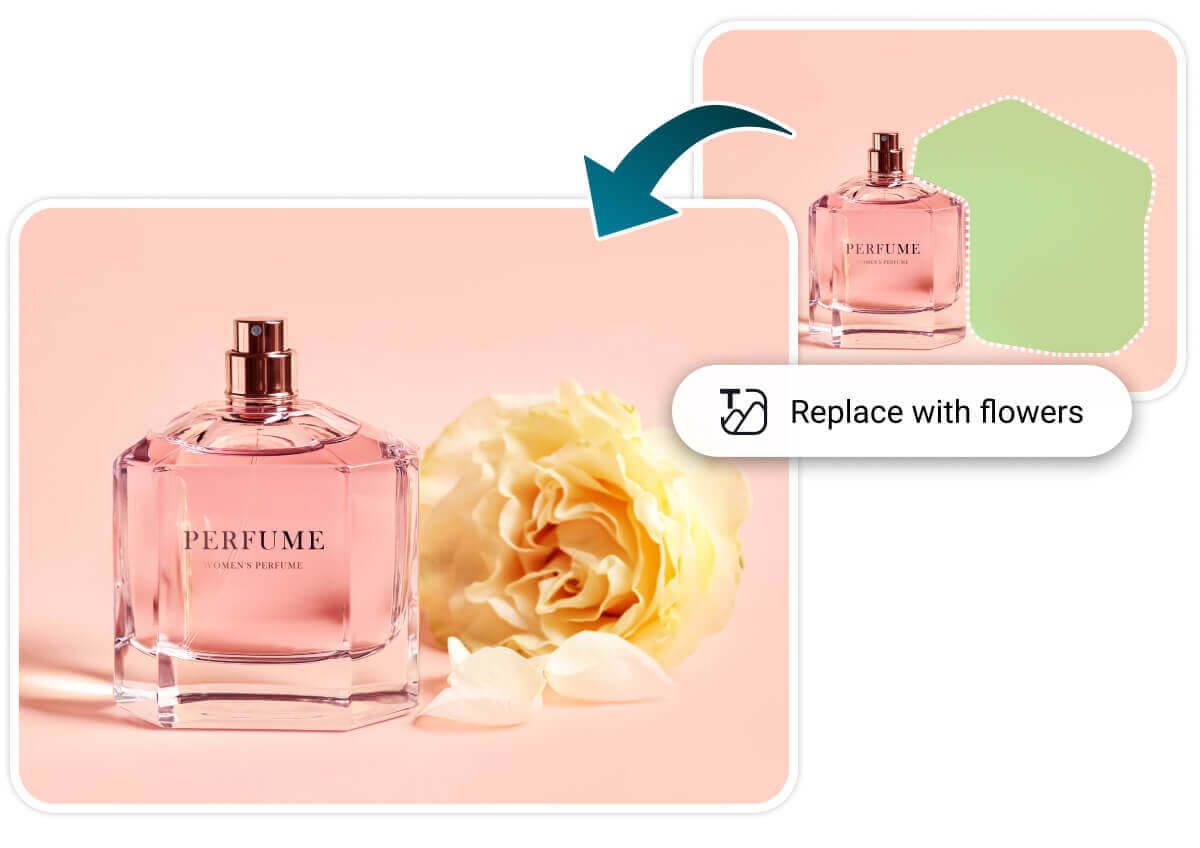
Czy możesz dodać obiekty, których nie było na oryginalnym zdjęciu?
Skorzystaj z naszego intuicyjnego generatywnego wypełniania, aby dodawać obiekty, których wcześniej nie było, zmieniać tła lub eksperymentować z zupełnie nowymi stylami. Niezależnie od tego, czy chcesz „dodać tort urodzinowy”, czy „wstawić bukiet róż”, AI generuje te elementy od zera. Narzędzie automatycznie analizuje otoczenie sceny, aby nowe dodatki pasowały do oryginalnego oświetlenia i kompozycji.
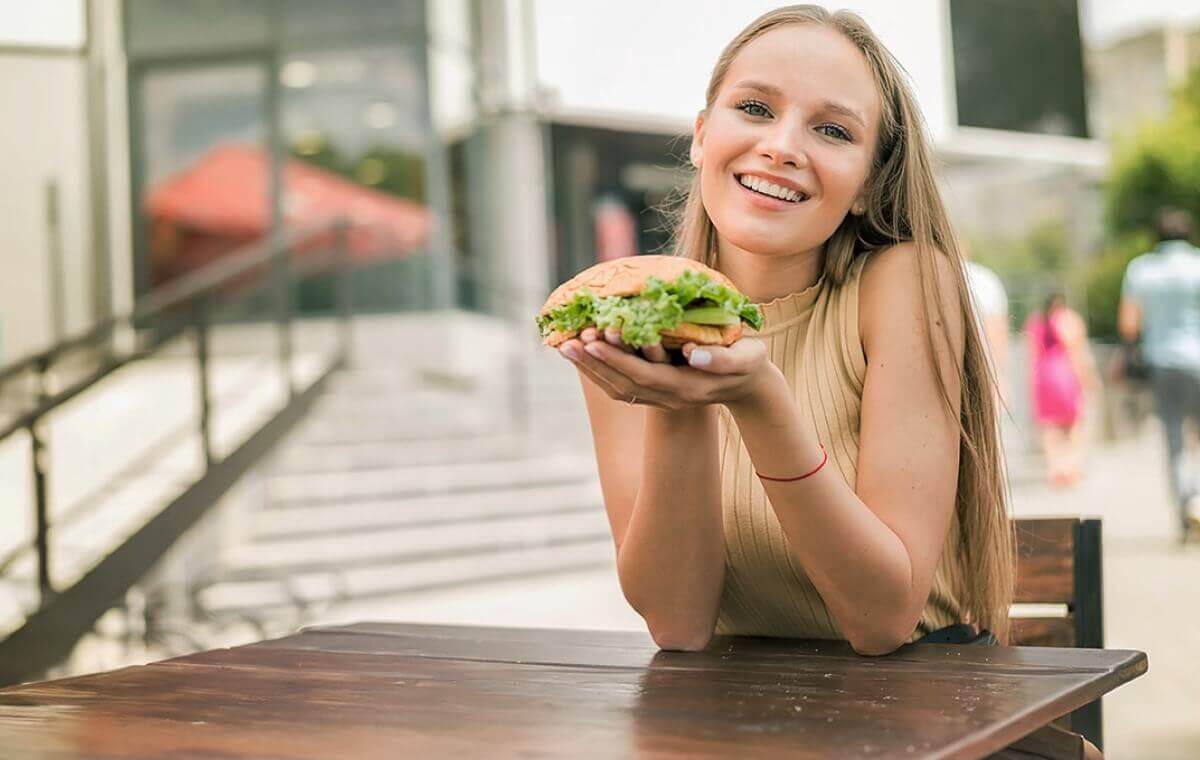
Jak szczegółowy powinien być Twój prompt do AI Replace?
Bądź konkretny i opisz obiekt, materiał, kolor i styl. Nie kończ na jednym słowie. Zaznacz to, co chcesz zmienić, a potem wpisz prompt tak, jakbyś opisywał to znajomemu: „czerwony wełniany beret z małą kokardką” zamiast po prostu „kapelusz”.
Ogólne prompty zostawiają zbyt duże pole do interpretacji, więc AI uzupełnia luki ogólnymi domysłami. Im więcej szczegółów podasz, tym bardziej spójny i realistyczny będzie efekt.
Jak ludzie naprawdę korzystają z AI Replace?
„Najlepsze narzędzie do śmiesznych przeróbek.”
Moi znajomi i ja używamy tego, żeby robić najbardziej odjechane zdjęcia. Raz zamieniłem tort urodzinowy kolegi na gigantycznego burgera. AI jest tak sprytne, że nawet zostawiło świeczki na właściwym miejscu. Nie mogliśmy przestać się śmiać!
– Chris W., twórca treści
„O wiele łatwiejsze niż Photoshop.”
Generatywny inpainting jest zaskakująco inteligentny. Mogę w kilka sekund zamienić nudne tło na pasmo górskie. Oświetlenie i cienie za każdym razem idealnie się zgadzają.
– Sarah L., fotografka amator
„Uratowało mój launch produktu.”
Potrzebowałem, żeby mój produkt wyglądał „świątecznie” na wyprzedaż. Po prostu użyłem AI Replace, żeby dodać kilka sezonowych dekoracji do istniejących zdjęć. Zaoszczędziłem mnóstwo pieniędzy na nowej sesji!
– Jordan M., właściciel sklepu na Etsy
AI Replace: najczęściej zadawane pytania (Ostatnia aktualizacja: lipiec 2026)
Czym jest AI Generative Fill i jak działa?
AI Generative Fill (znane także jako AI Replace) to technologia, która pozwala zaznaczyć obszar zdjęcia i przekształcić go za pomocą promptów tekstowych. Wykorzystuje zaawansowane inpainting AI do analizy otaczających pikseli, oświetlenia i cieni, dzięki czemu nowy wygenerowany obiekt idealnie stapia się z oryginalnym obrazem.
Jaka jest różnica między AI Replace a AI Object Removal?
Usuwanie obiektów wymazuje coś ze zdjęcia i wypełnia lukę tłem. AI Replace idzie o krok dalej — generuje zupełnie nową treść w tym miejscu na podstawie Twojego promptu tekstowego, niezależnie czy jest to inna stylizacja, nowe tło czy obiekt, którego wcześniej nie było. Użyj usuwania, gdy chcesz tylko coś zlikwidować; użyj Replace, gdy chcesz, by pojawiło się tam coś nowego.
Jak pisać najlepsze prompty do zamiany obiektów na zdjęciu przez AI?
Im bardziej szczegółowy prompt, tym bardziej przewidywalne rezultaty. Oprzyj go na czterech elementach: obiekt, materiał, kolor i styl — na przykład „czarna skórzana kurtka motocyklowa, dopasowana, matowe wykończenie” jest o wiele lepsze niż jednowyrazowy prompt „kurtka”. Ogólne prompty zostawiają zbyt wiele miejsca na interpretację, więc AI wypełnia luki ogólnymi domysłami. Jeśli pierwszy wynik nie jest idealny, nie ograniczaj się do poprawy maski — doprecyzuj prompt, dodaj więcej szczegółów i wygeneruj obraz ponownie.
Dlaczego cienie lub odbicia wyglądają nienaturalnie po podmianie?
Dzieje się tak, gdy maska pędzla obejmuje sam obiekt, ale pomija jego „efekty uboczne”, takie jak rzucany cień czy odbicie na pobliskiej powierzchni. AI może dopasować oświetlenie tylko w obszarze, który zaznaczysz, więc jeśli cień wypada poza maską, pozostaje z oryginalnego zdjęcia i nie pasuje do nowego obiektu. Pomaluj także obszar cienia lub odbicia, a następnie wygeneruj obraz ponownie, aby uzyskać czystsze połączenie.
Czy mogę użyć AI, aby dodać do zdjęcia obiekty, których wcześniej nie było?
Tak! To coś innego niż zwykła podmiana. Pomaluj pusty obszar zdjęcia, opisz to, co chcesz zobaczyć (np. „bukiet róż” lub „tort urodzinowy”), a AI Replace wygeneruje to od zera na podstawie Twojego promptu oraz oświetlenia i perspektywy otoczenia. Najlepiej działa, gdy dodawany obiekt pasuje do kontekstu zdjęcia (ten sam kierunek światła, zbliżona skala), dzięki czemu efekt się wtapia, a nie wygląda jak wklejony.
Dlaczego mój obraz wygenerowany przez AI wyglądał rozmazany lub nierealistyczny?
Zwykle chodzi o dwie rzeczy: rozmiar maski i precyzję promptu. Jeśli malujesz zbyt ciasno wokół obiektu, AI nie ma wystarczająco dużo kontekstu, by gładko wtopić nową treść — zawsze zaznaczaj nieco poza krawędziami. Ogólne prompty również pogarszają jakość; „kapelusz” daje AI mało informacji, podczas gdy „czerwony wełniany beret z małym rondkiem” wskazuje wyraźny cel generowania. Jeśli efekt wciąż nie wygląda dobrze, spróbuj wygenerować obraz ponownie — jakość wyników może się różnić między próbami.

Zastępuj obiekty bezpośrednio w telefonie
Pobierz YouCam AI Pro już teraz!