




Add Hat to Photo Online Free
Add a hat to any photo using AI—instantly try virtual hats and change your style in seconds. Sign up now for 5 free credits!





How to Use Add Hat to A Photo?
These are the simple steps for you to recreate!
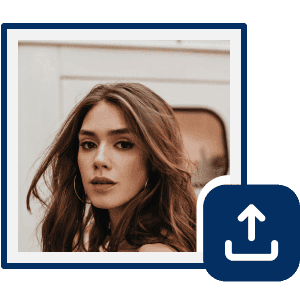
Upload Your Image
Upload the image you want to transform using AI Replace. (Supported formats include JPG, JPEG, PNG, TIFF, and GIF.)

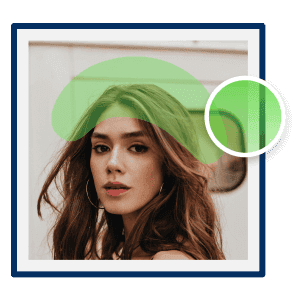
Mark With AI Brush
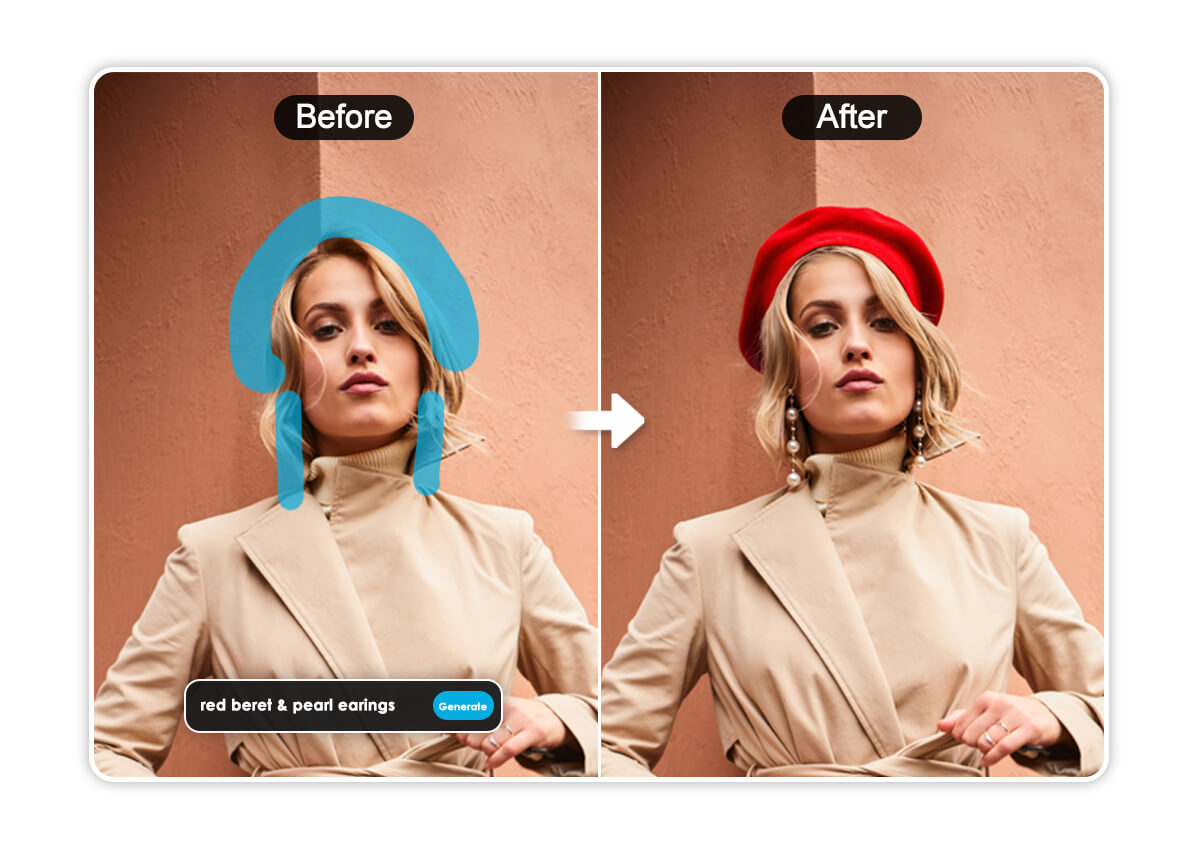
Use the AI brush tool to mark the areas in your photo that you want to replace with a hat.

Enter Text Prompt
Enter a text description of the new object you want to use to alter the original object in your photo.

Click "Replace" to Start
Let the AI Replace tool process your photo. Once done, save on your device and share.
When to Add a Hat to your Image?
Holiday & Celebration
Use a holiday photo editor to add Christmas hats, birthday hats, and festive accessories to photos, making seasonal and celebration pictures instantly fun and shareable.
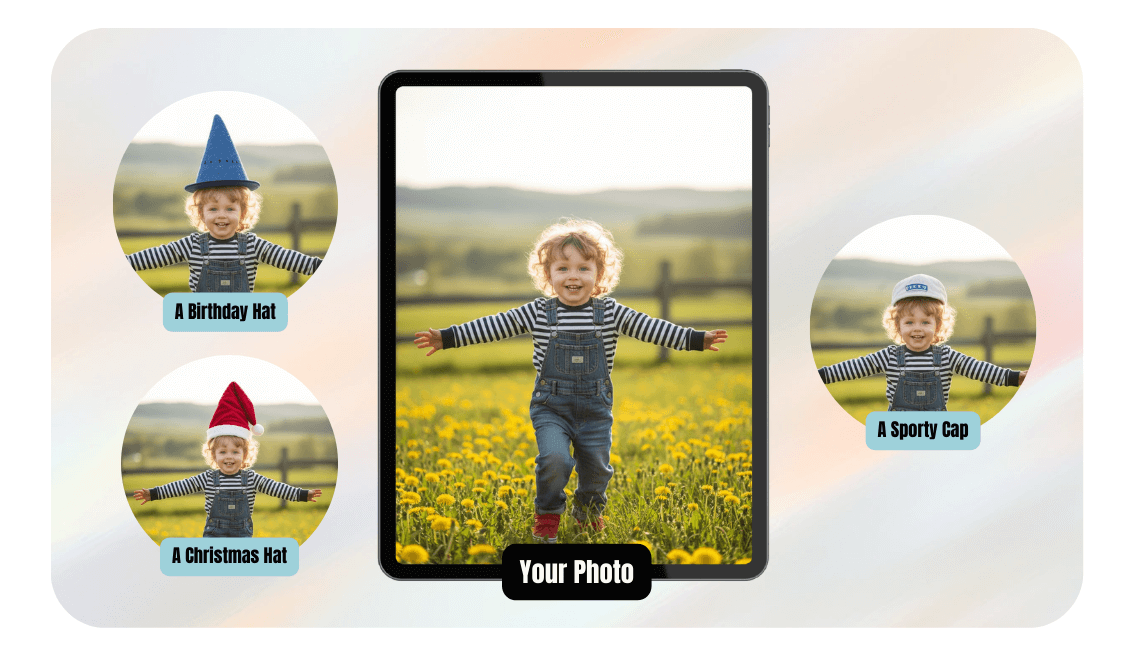
Virtual Hat Try-On
With a virtual hat try-on feature, users can add hats to photos to see how different styles and colors look before buying hats online.
Social Media Photo Effects
Create eye-catching content with a social media photo editor that adds fun hat effects to selfies for Instagram, TikTok, and profile photos.
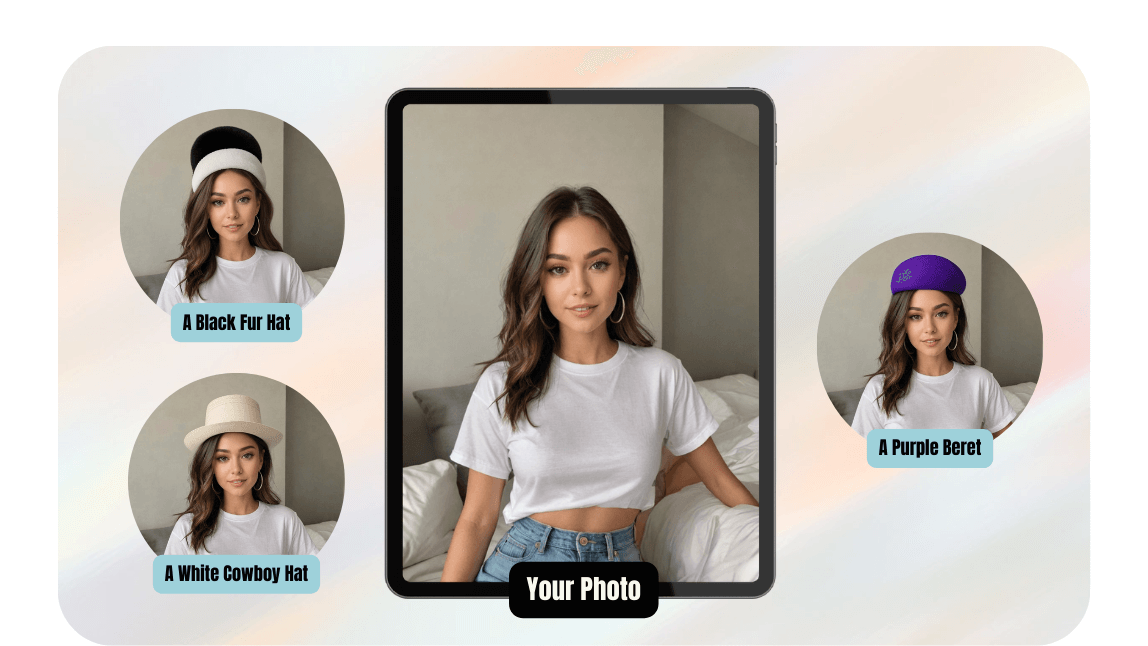
Add Hat to Photo FAQs
How do I add a hat to a photo using AI?
You can add a hat to a photo by using YouCam AI Replace. Simply upload your image, highlight the area where you want the hat, and type a prompt like “baseball cap” or “winter beanie.” The AI will generate a realistic hat that blends naturally with your photo.
Can I try different hat styles on the same photo?
Yes. YouCam Online Editor's AI Replace feature lets you experiment with multiple hat styles by changing your text prompt. You can quickly test different looks — from party hats to fashion hats — without re-uploading your image.
Will the AI hat look realistic?
YouCam Online Editor's AI Replace uses generative AI technology to match lighting, angle, and perspective. The result looks naturally integrated into your photo instead of pasted on.
Can I add hats to group photos or selfies?
Yes. YouCam Online Editor works with selfies, portraits, and group photos. You can select individual people in the image and apply a hat effect to each one.
Is it free to add a hat to a photo with YouCam?
YouCam offers free features and trial options depending on your plan. You can try AI Replace to add hats and explore different styles before upgrading.

