






Add VHS Filter to Your Images Online
Add a VHS filter to your photos in seconds with an easy-to-use VHS effect app. Create retro, nostalgic visuals with authentic VHS-style distortions—perfect for social media and creative content.





How to Add VHS Filter to a Photo
Here are the simple steps about how to add a retro film filter to your photos.
Start Editing
Click on “AI Photo Editing” from the side context menu.

Upload Photo
Click “Upload” and select the image you want to edit.
Choose “Effect”
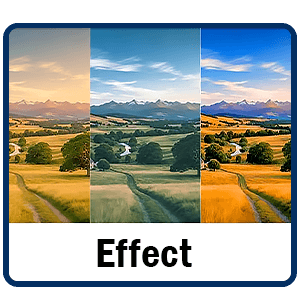
Pick from themes like “Film” to find the one you desire.
Adjust Intensity
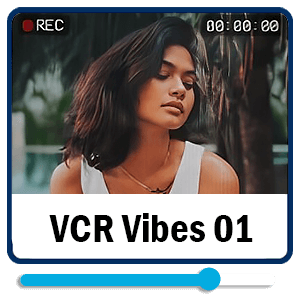
Tap the intensity bar to adjust the effect.

Download Image
Once you’re happy with the result, click download to save.
When to Add a VHS Filter to Photo
Turn Up the Nostalgia
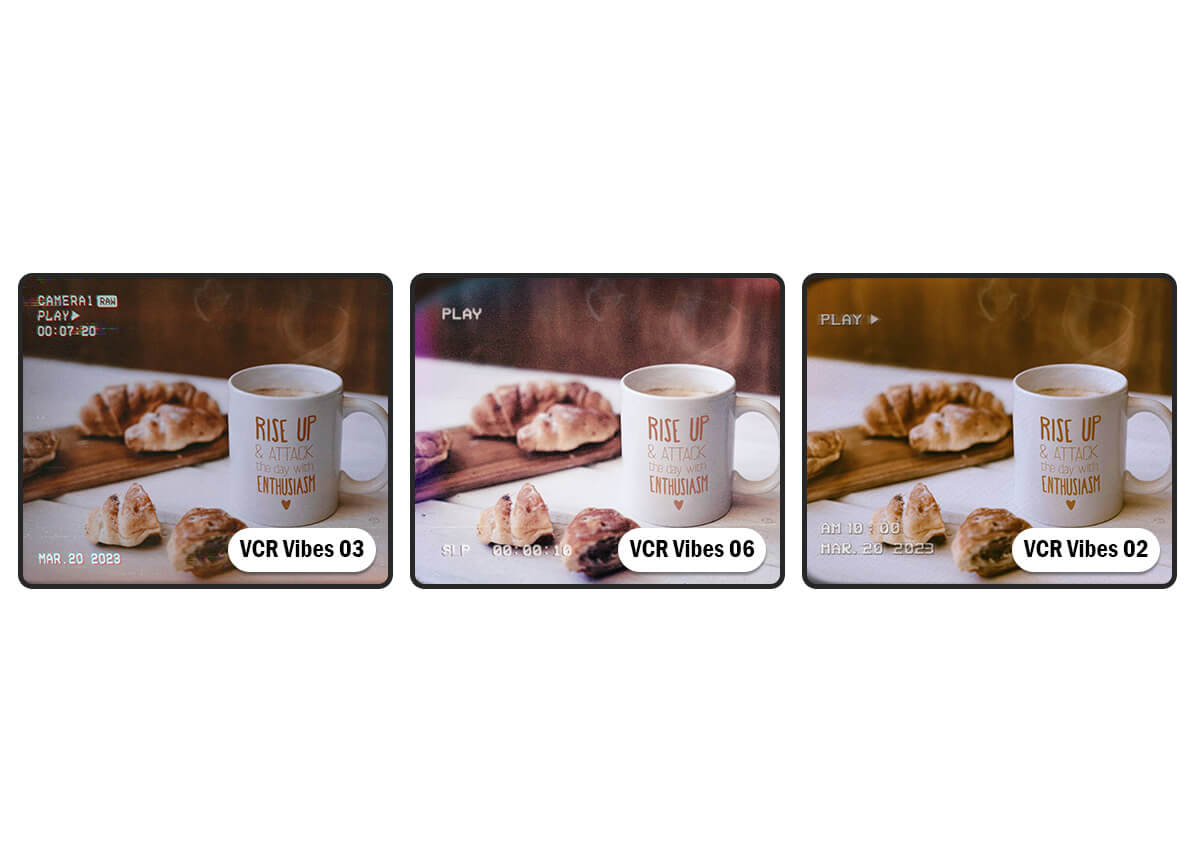
Create VHS-inspired visuals with nostalgic glitch effects. Experiment with retro scanlines, color distortion for social media or personal projects—no design skills needed.
Eye-Catching Social Posts
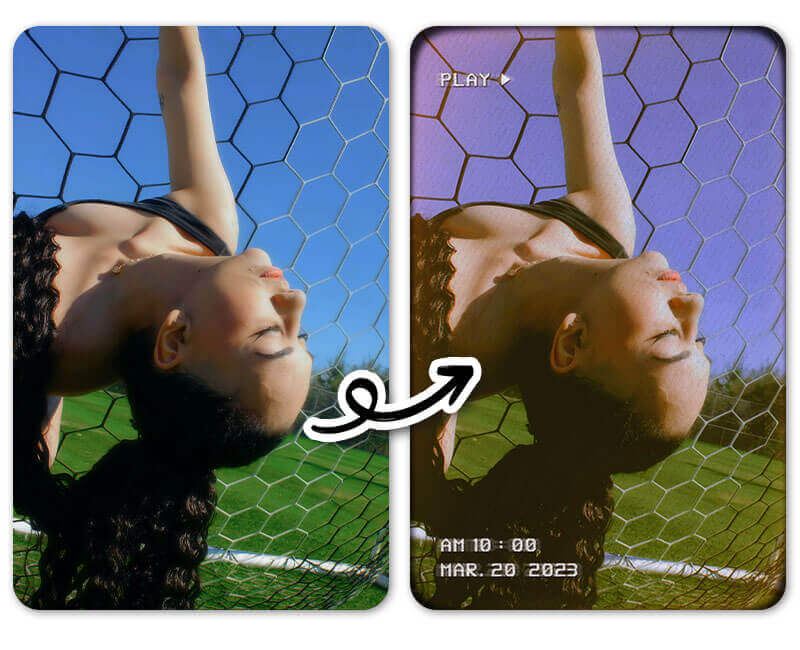
Apply a VHS filter to make your posts pop in fast-scrolling feeds, adding retro scanlines, color distortion, and static for a bold, nostalgic-modern aesthetic.
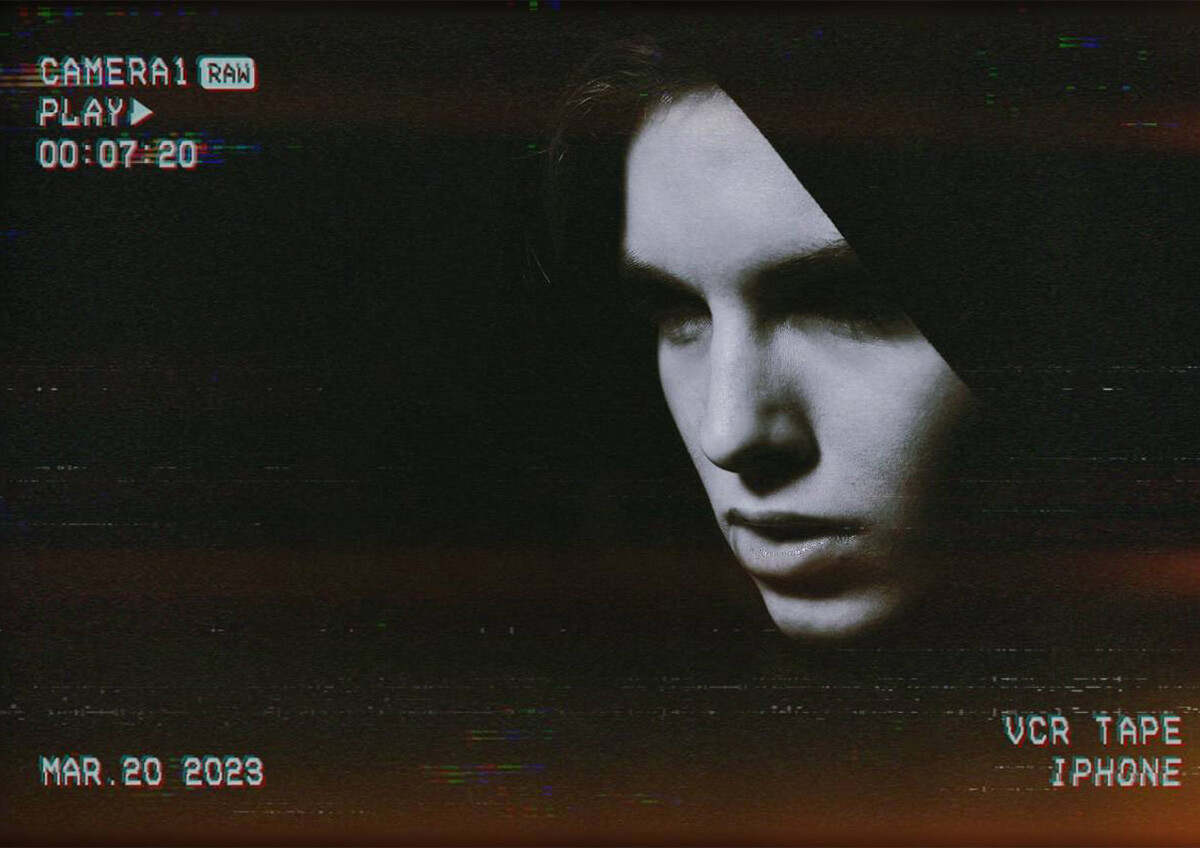
Horror Teaser with B&W
Apply a black & white VHS filter to your posts, using static, scanlines, and high-contrast distortion to create a striking, retro-modern look that stands out in fast-scrolling feeds.
FAQs About Vintage Filters
What is a VHS filter in YouCam Online Editor?
A VHS filter in YouCam Online Editor adds a retro, old-photo style to your images using soft colors, warm tones, and subtle grain for a classic look.
How do I add a VHS filter to my photo using YouCam Online Editor?
Simply upload your photo to YouCam Online Editor, select the VHS filter category, apply your favorite effect, and download the edited image instantly.
Are VHS filters in YouCam Online Editor free?
YouCam Online Editor offers 5 free credits for sign-up users, try out now!
Can I customize the VHS effect in YouCam Online Editor?
Yes, YouCam Online Editor lets you adjust the intensity of VHS filters and fine-tune settings like brightness, contrast, and grain for a personalized result.
Will my photo quality stay high after using a VHS filter?
Yes, YouCam Online Editor maintains high image quality, allowing you to download clear, detailed photos even after applying VHS effects.
What photo formats does YouCam Online Editor support for VHS filters?
YouCam Online Editor supports common image formats such as JPG and PNG, making it easy to upload, edit, and download your photos.

