

AI Breast Enlarger Online
Preview a chest reshape on a photo with an AI breast enlarger. Upload a photo, adjust the Chest slider and compare it with the original.





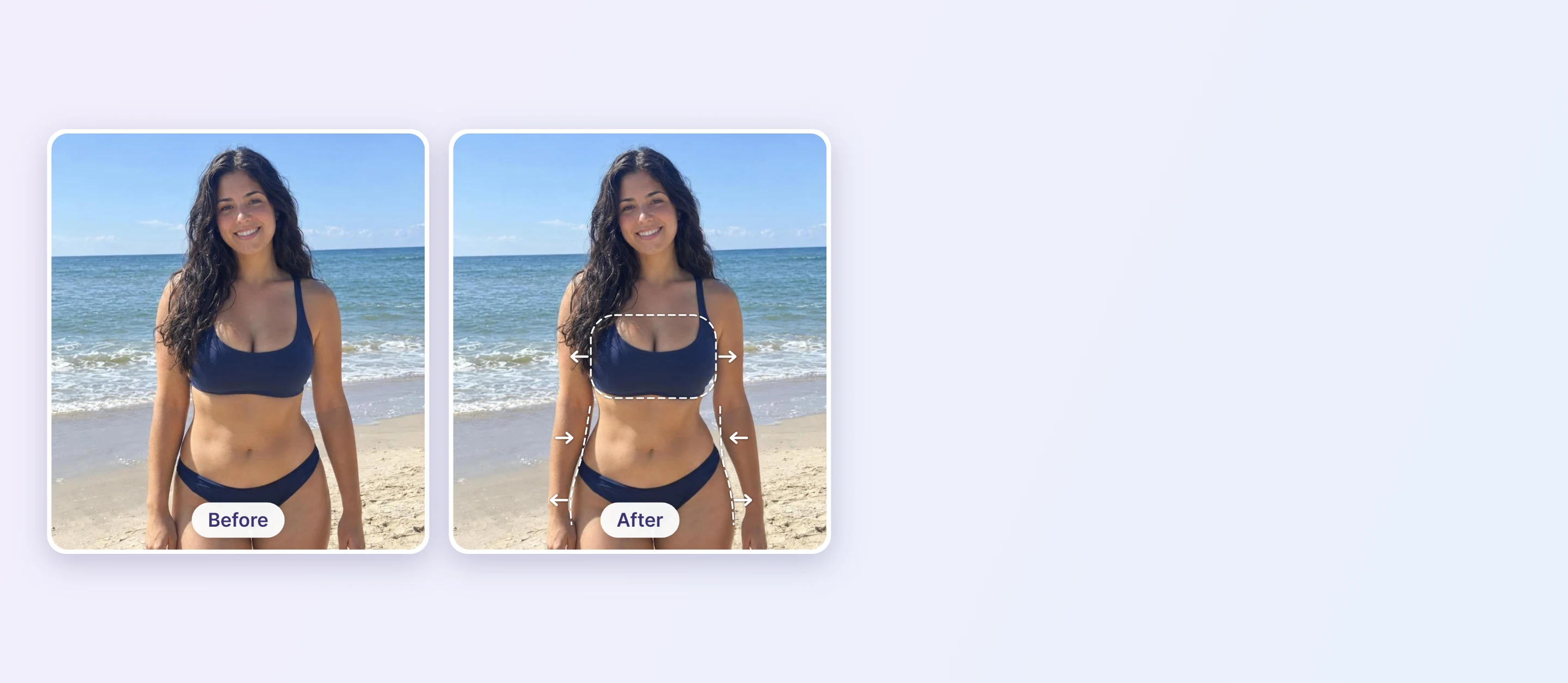
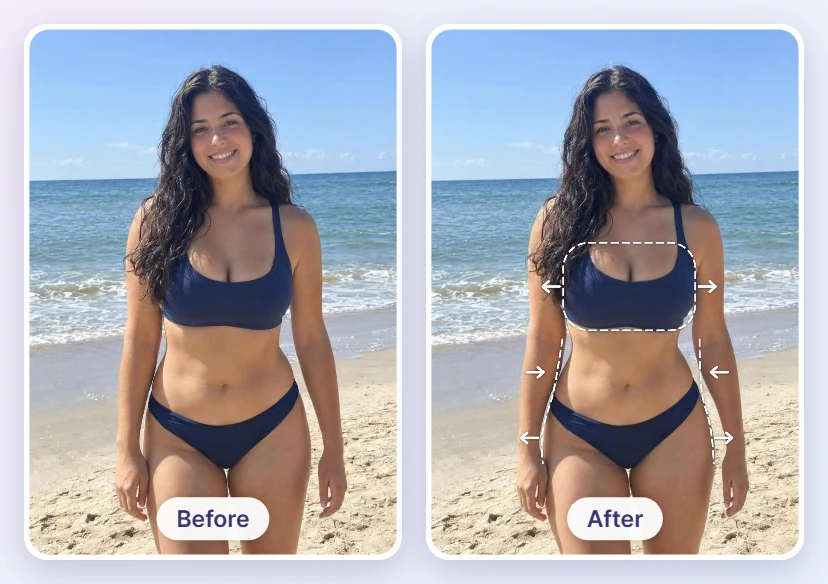
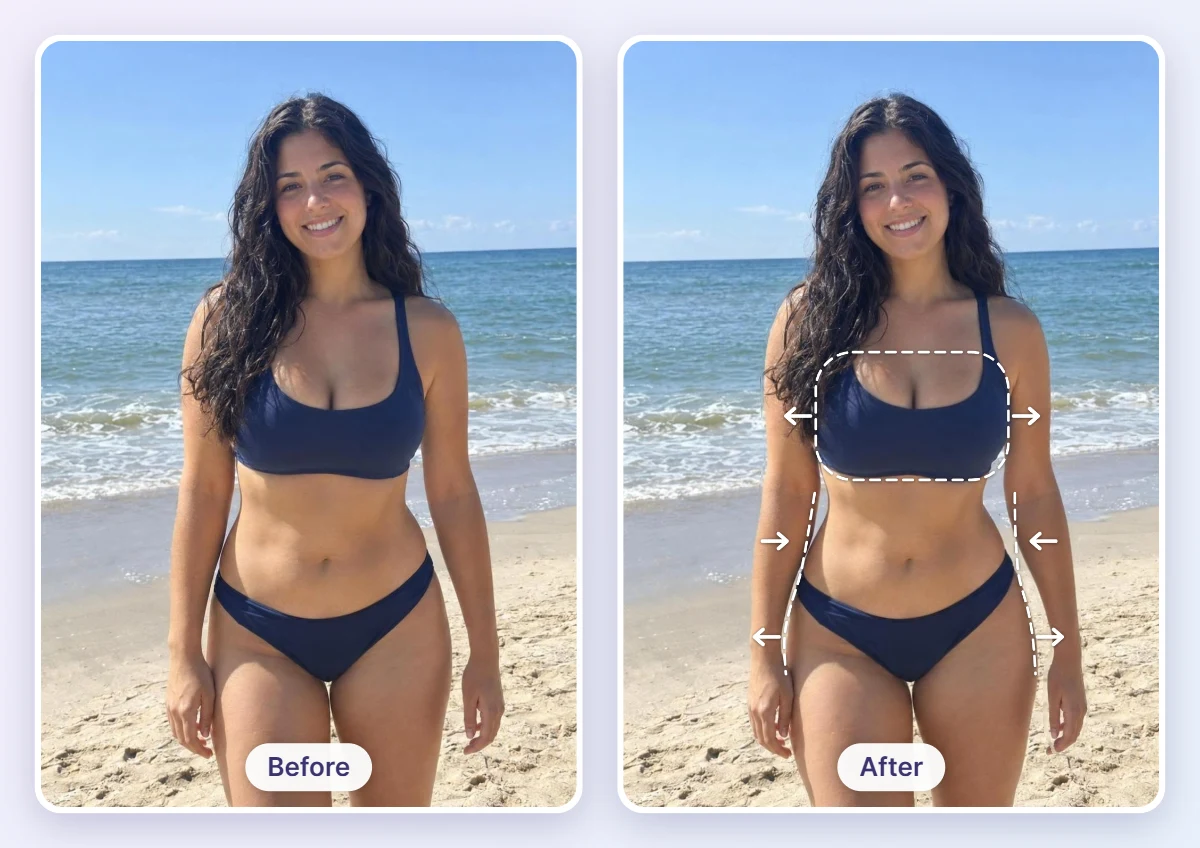
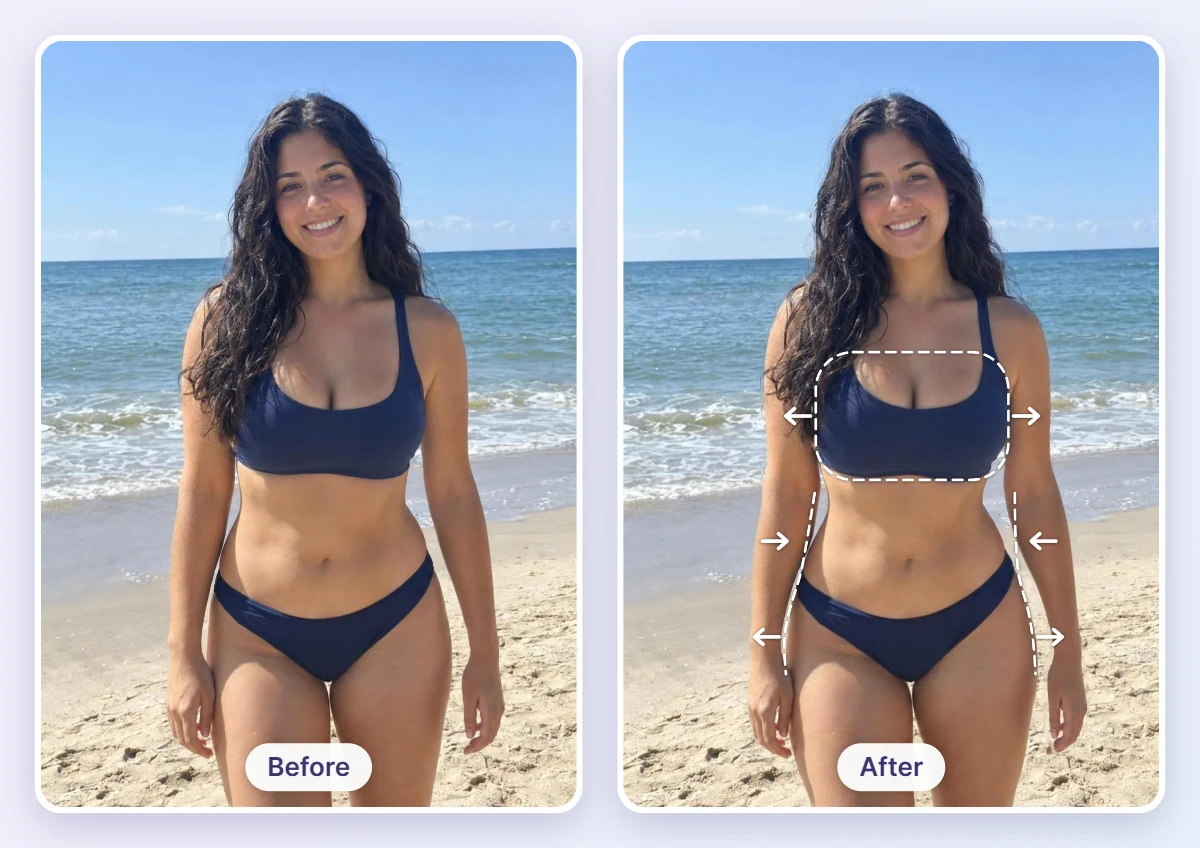
See the Chest Reshape Before and After
The white dashed outlines show where the original silhouette was. In this example the Chest slider enlarges the bust, while the Waist and Hip Size sliders slim the waist and add hip curve. Compare the two photos side by side.
How to Use an AI Breast Enlarger
Upload a Photo
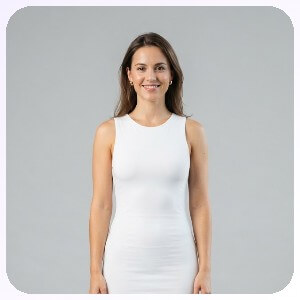
Use a photo where the upper body is clearly visible, facing the camera in even light, so the tool can detect the body.

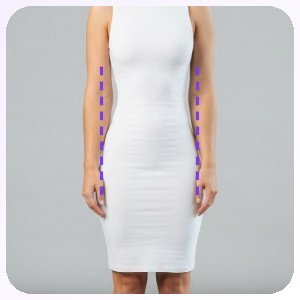
Adjust the Chest Slider
Open Body Reshape, choose Chest and drag the slider a little at a time.
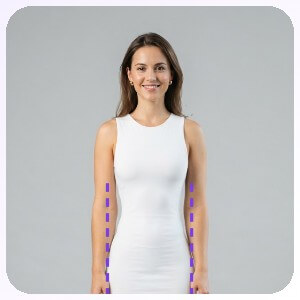
Apply and Download
Apply the change, compare it with the original photo and download the result.
Reshape Chest, Waist and Hips
Body Reshape adjusts the chest, waist and hips and leaves the rest of the photo in place. Use it to preview how an outfit or a pose looks in a photo. It does not predict the result of any real procedure.
FAQs: AI Breast Enlarger
What is an AI breast enlarger?
An AI breast enlarger edits a photo to reshape the chest area. On this page it is done with Body Reshape: you upload a photo, adjust the Chest slider and compare the result with the original.
What photo works best?
A front-facing photo with the upper body clearly visible, in even light and a fitted top, gives the clearest result.
Does it predict real results?
No. It is a visual edit of one photo and does not predict the result of any real procedure, product or exercise.
How strong is the effect?
You control it. Move the Chest slider a little at a time and compare with the original; higher settings give a more visible change.
Does it work on every outfit and pose?
It works best on fitted clothing and straight poses. Loose clothes, crossed arms or heavy shadows can make the edit less accurate.
How do I save the edited photo?
After you compare the result with the original, download the photo from the editor.

