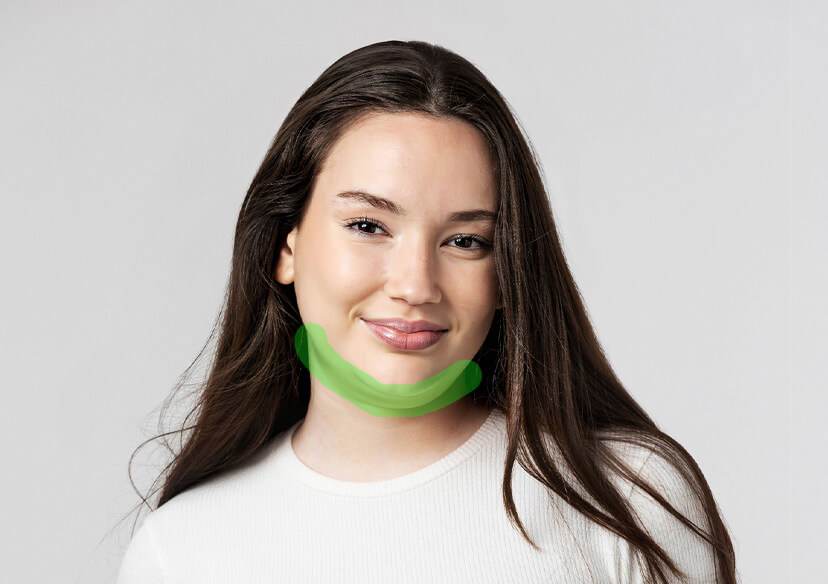





AI Double Chin Remover
Want to remove a double chin from photos instantly?
The AI Double Chin Remover smooths your jawline for you with just one click.





When To Use An AI Double Chin Remover
Perfect for Social Media
With our AI Double Chin Remover, you can remove a double chin from a profile headshot or new selfie. Get 100% non-invasive and delivers natural, professional-quality results in seconds!
Before-and-After Photos
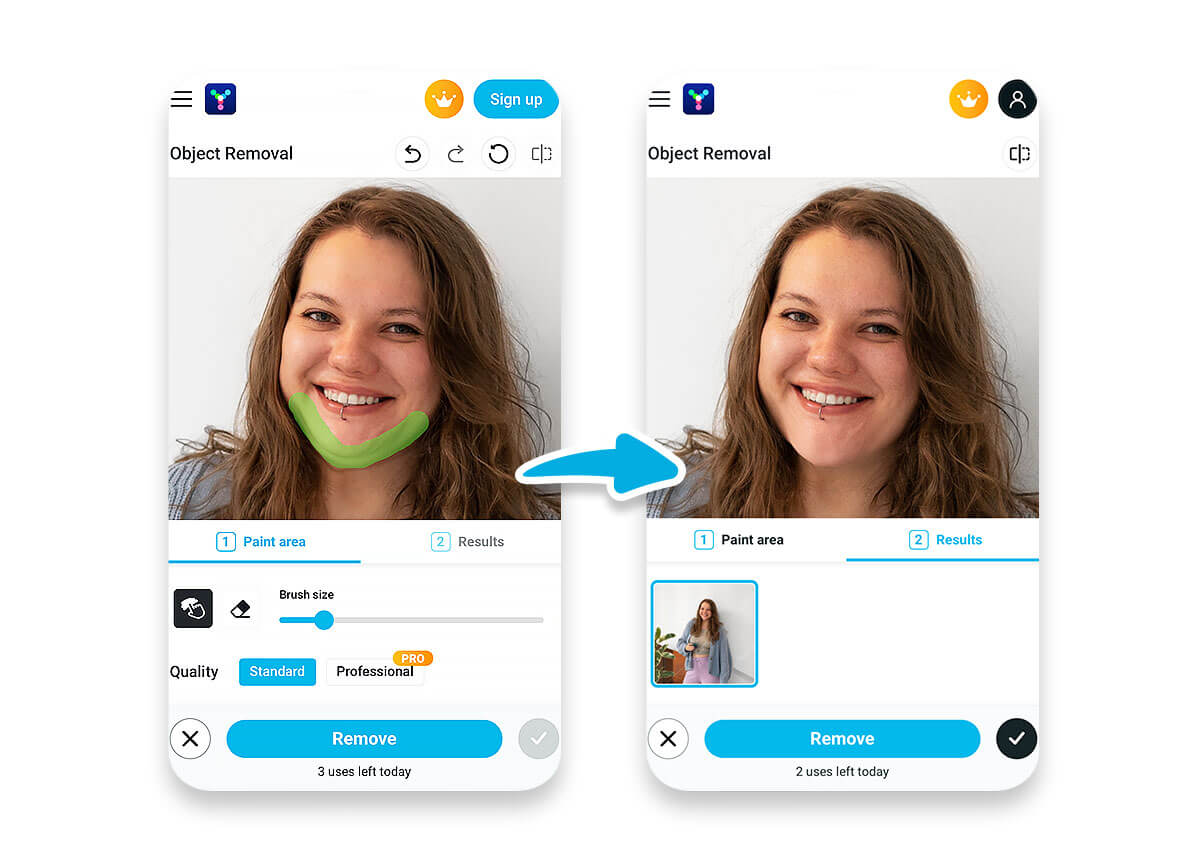
If you’re a skincare clinic or aesthetician, the AI Object Remover is perfect for showcasing the before and after chin fat removal results.
Quick Fix for Online Looks
Need a polished look fast? The AI Object Remover intelligently detects and refines the under chin fat, giving you a defined jawline that looks realistic.
Creating Branding Content
Need photo-perfect visuals? Our AI Object Remover helps you maintain a cohesive, confident online image for you!
FAQs for AI Double Chin Remover
How to Remove Objects From a Photo Online?
Use Al-powered eraser tools like YouCam to effortlessly remove unwanted objects from your photos. These advanced algorithms detect and seamlessly erase distractions, making anything you don't want vanish in seconds.
STEP 1 Upload Your Photo
Start by clicking the "try for free" button or drag and drop the image files to directly upload the photo from which you wish to remove objects. Use AI Object Remover and select “Advance” to enable Gen AI mode, the background will automatically repair itself after object removal.
STEP 2 Select Areas to Remove
Use the object-removing brush to paint the object you'd like to remove from your photo with the mouse or finger. Adjust the brush size for greater precision when refining the painted area.
STEP 3 Remove and Save
Lastly, click the "Remove" button to erase the painted objects. Download the edited photo to save it on your device or on your mobile phone.
How to remove an object from a photo?
To remove an object from a photo, you can use specialized image editing software or online tools. Import the photo into the chosen tool, select the object you want to remove, and use the editing tools to easily erase or replace it with the surrounding background or content.
How to remove the background of an image?
Our Background Removal tool is available to use. Simply upload your image, and the tool will automatically detect the subject and remove the background, leaving you with a transparent or custom background of your choice. It's a quick and easy way to isolate objects or people in your photos for various creative or professional purposes.
How does this AI tool actually remove a double chin?
It’s pretty simple! The AI scans your face, figures out where your chin is, and then reshapes and smooths that area. It also tweaks shadows and highlights so it looks natural—basically giving you a sharper jawline without messing with the rest of your face.
Will the AI Double Chin Remover make me look fake or over-edited?
Not at all! With YouCam Online Editor, the AI keeps everything looking natural and subtle. Even if your photo isn’t perfect—like tricky angles or lighting—it does a great job of smoothing and reshaping without making your face look overdone.

