





Best AI Video Enhancer App
Enhance your video quality instantly with the best AI video enhancer app, YouCam Video. No skills needed and get high resolution videos effortlessly!
Download App for FreeTry It OnlineHow to Increase Video Quality with YouCam Video

Upload Low-Quality Video
Open YouCam Video and upload videos from your gallery. MP4, M4V and MOV formats are supported.


Start AI Enhance
After uploading the video, tap Video Enhance and wait for the AI to do its magic.

Save Upgraded Video
Preview the result and download your video in HD for sharing or future use.
Increase Video Clarity without Quality Loss
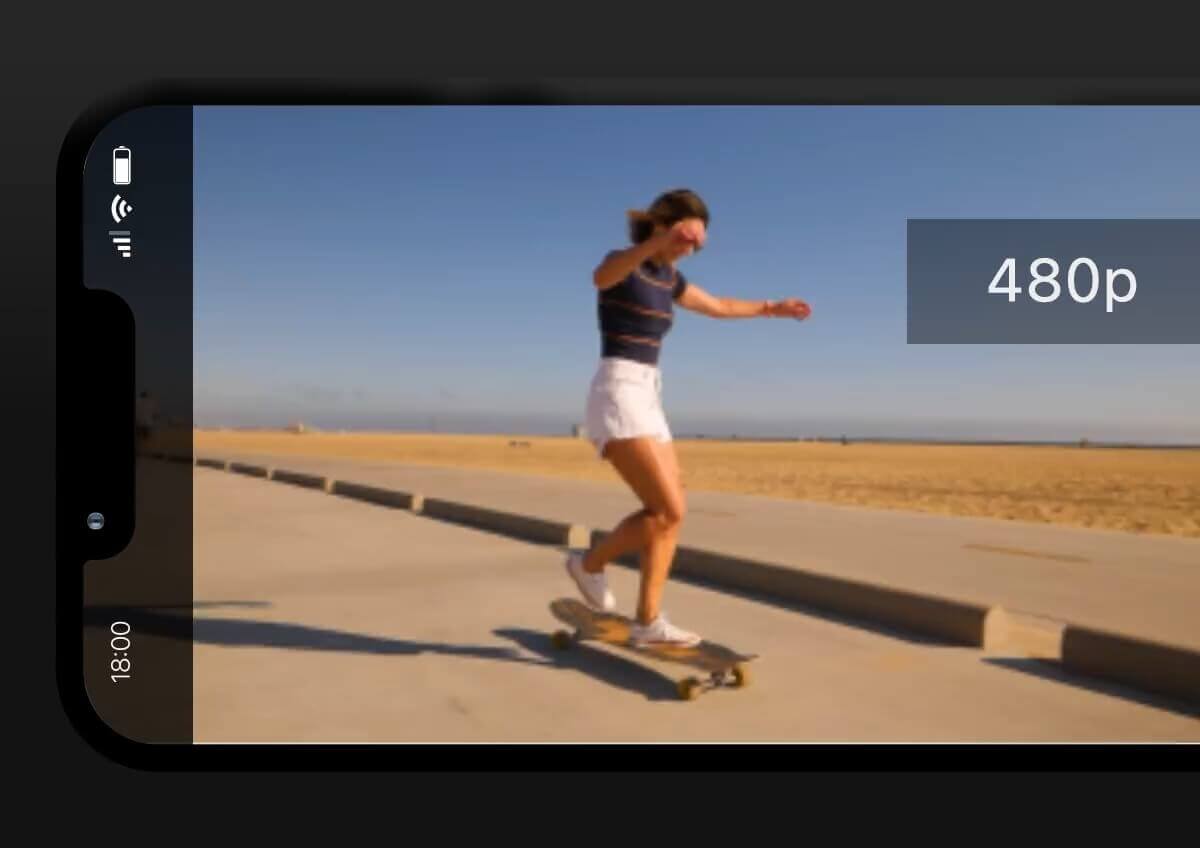
Struggling with blurry videos? YouCam Video’s AI Video Enhancer unblurs, sharpens, and improves resolution up to 4K at 30FPS.
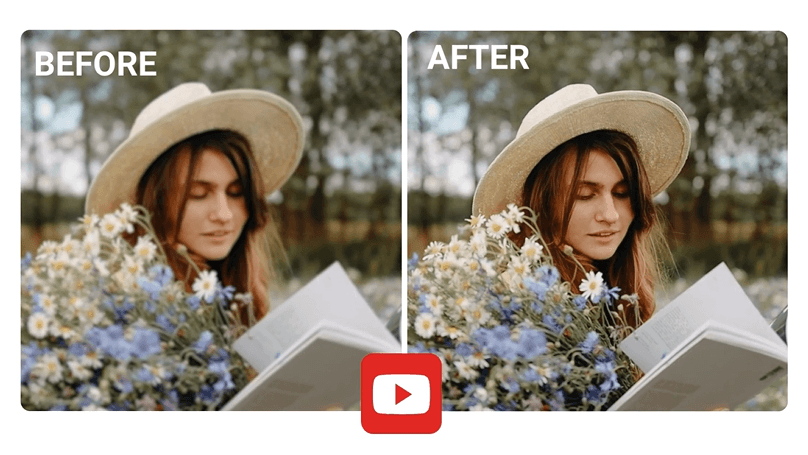
Showcase Details in Videos
Clarity is essential for sales. By increasing the resolution by up to 2x and enhancing details, YouCam Video can make a product's material, design, and features stand out.
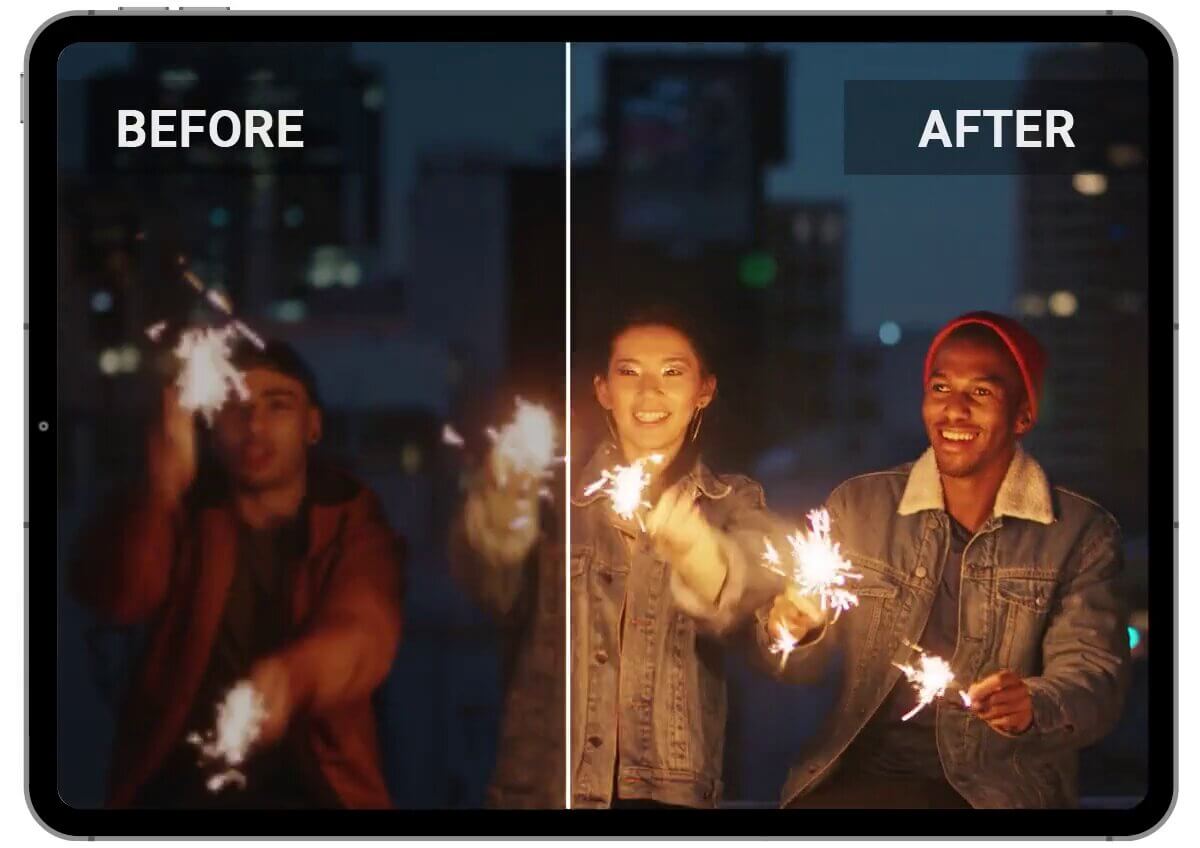
Enhanced Night Videos for Unmatched Clarity
Don't let low light ruin your footage. For scenes like night views or fireworks displays, our AI video enhancer removes blur and grain, and can upscale it to a stunning 4K.
Best AI Video Enhancer App FAQs
Can I enhance a video with AI?
Of course, AI can enhance videos by sharpening details, correcting colors, reducing noise, and upscaling resolution. Tools like YouCam Video make this process easy and effective.
To improve video quality, follow these steps:
- Use high-quality source footage.
- Choose the right editing app or software.
- Adjust resolution and bitrate.
- Apply video filters and effects to enhance color, contrast, and sharpness.
- Adjust brightness and contrast for better visibility and overall image quality.
By combining these techniques, you can enhance your videos and achieve a more professional, visually appealing result.
How to enhance a video?
Applying features like AI upscaling, noise reduction, color correction, and stabilization to improve overall quality. Modern AI tools like YouCam Video can automatically sharpen details, reduce blur, and even increase resolution up to HD or 4K in just a few clicks.
What is the best AI video enhancer app?
YouCam Video is one of the best video quality enhancer apps available. Its advanced algorithms, including AI sharpening and color correction, provide effective enhancements, making it a popular choice for effortlessly improving video quality.
YouCam Video Top Features:
- Best AI Video Enhancer for 4K Resolution Video Upscaling
- Color-Fix Your Videos With AI Color Correction
- Stabilize Your Videos With AI Video Stabilizer

