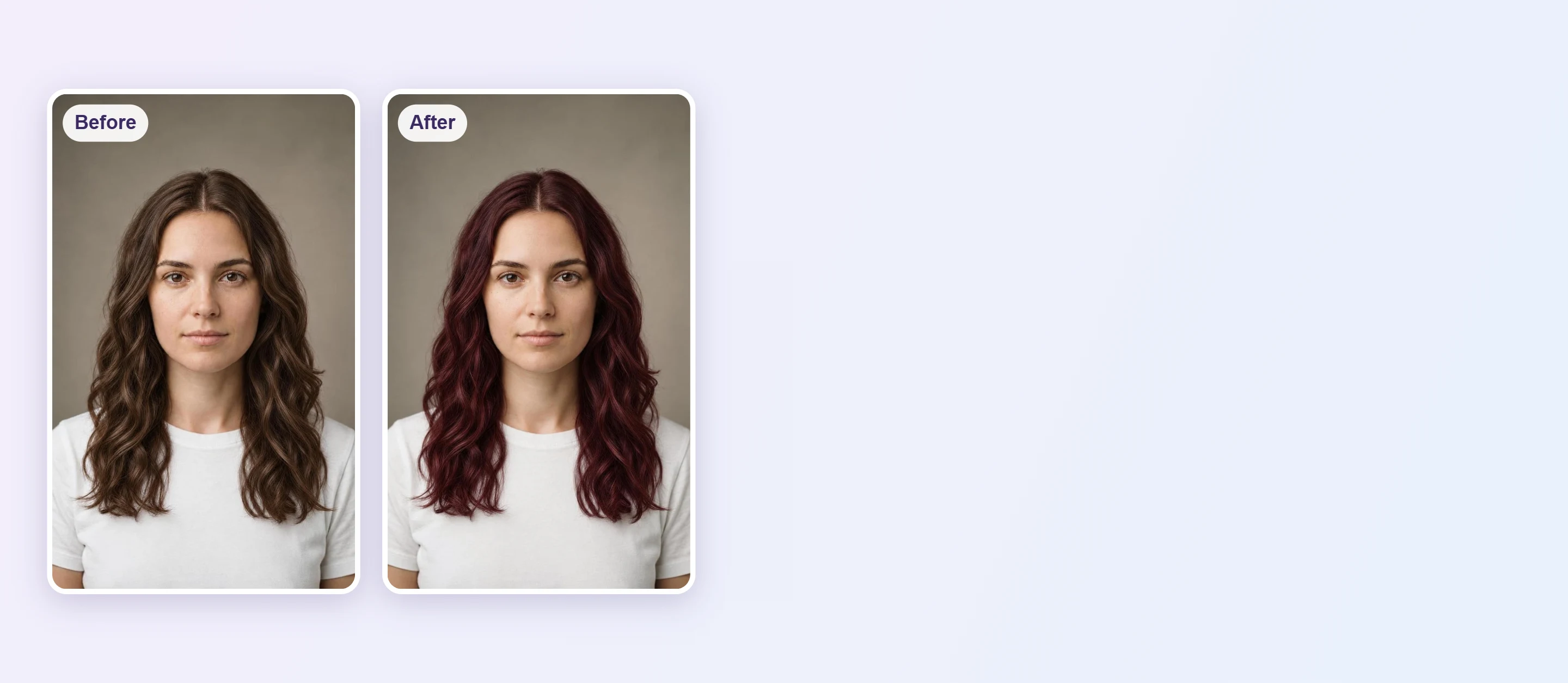
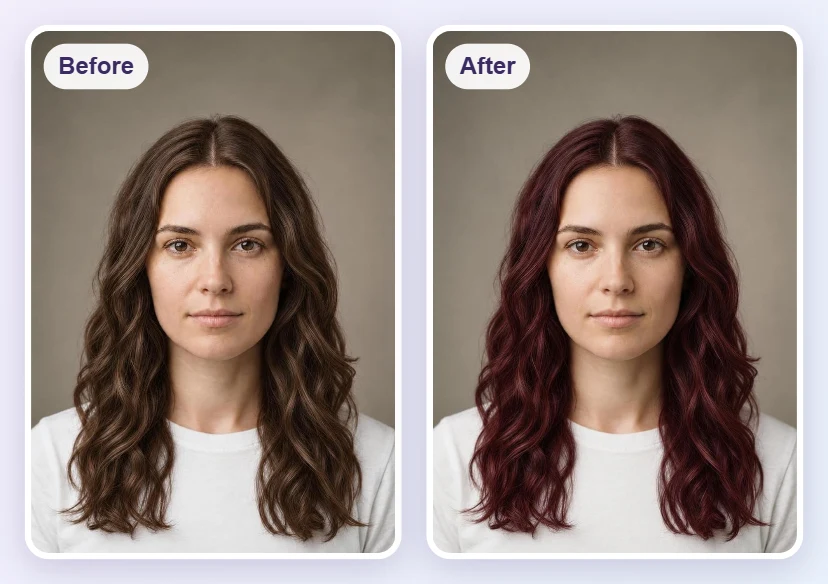


Burgundy Hair Color Filter Online
Looking for a burgundy hair color filter? Upload a front-facing photo and use the AI Hair Color Changer as a virtual hair dye try-on to see burgundy on your own hair before you book the appointment.





How to Try Burgundy Hair Color on Your Photo

Upload a Clear Photo
Choose a well-lit, front-facing photo with your hair fully visible. Natural daylight shows the true shade best.

Pick a Burgundy Shade
Open the AI Hair Color Changer and choose a burgundy shade, from deep wine to bright cherry red, to see it applied to your hair.
Compare and Save
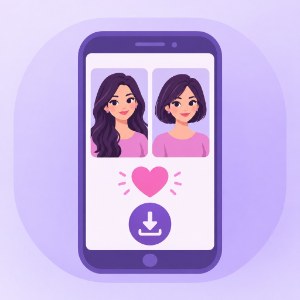
Try a few depths, compare each with your original photo and save the version you like best.
See Burgundy on Your Own Hair
The AI detects your hair and recolors it while keeping your face, skin tone and hair texture the same, so the only change you see is the color.
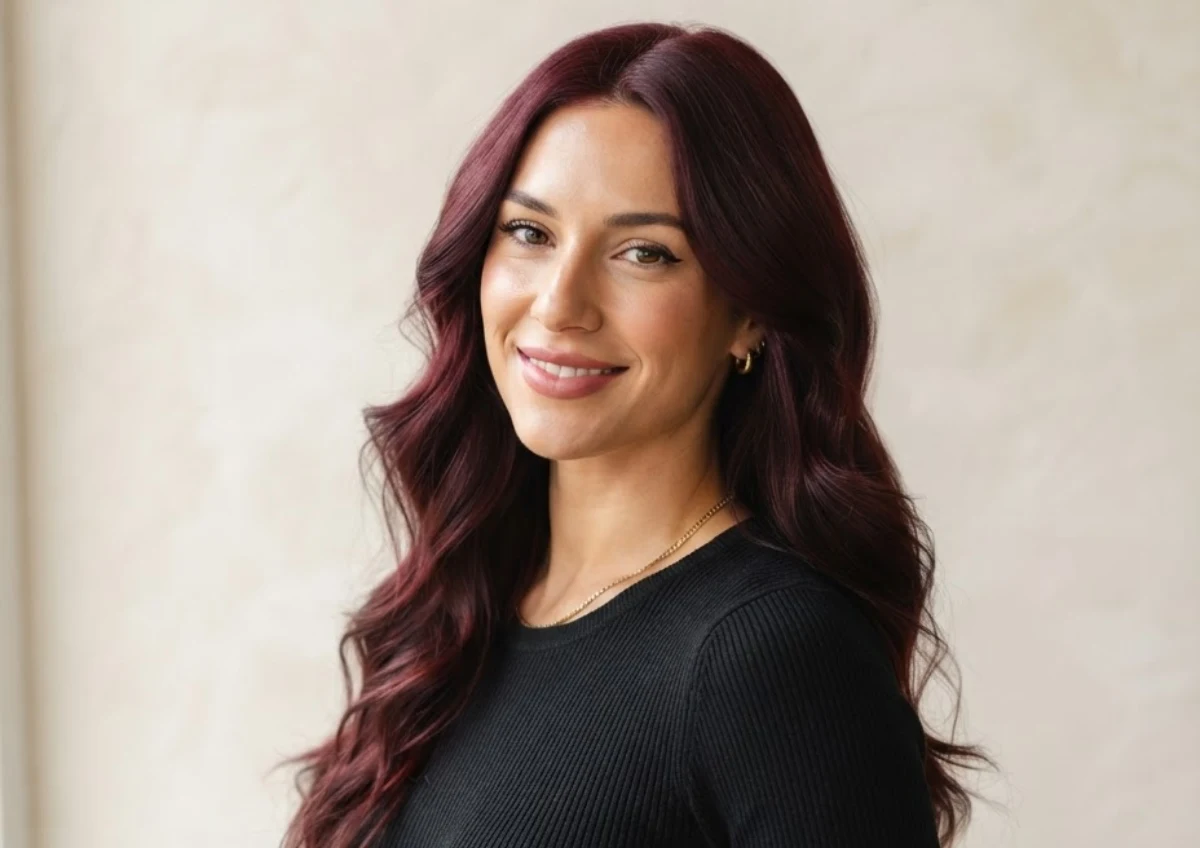
Check the Shade at Every Angle
Burgundy shifts with the light. Compare the preview with your original photo, or try a photo taken in different lighting, to judge how the shade will look at the salon.
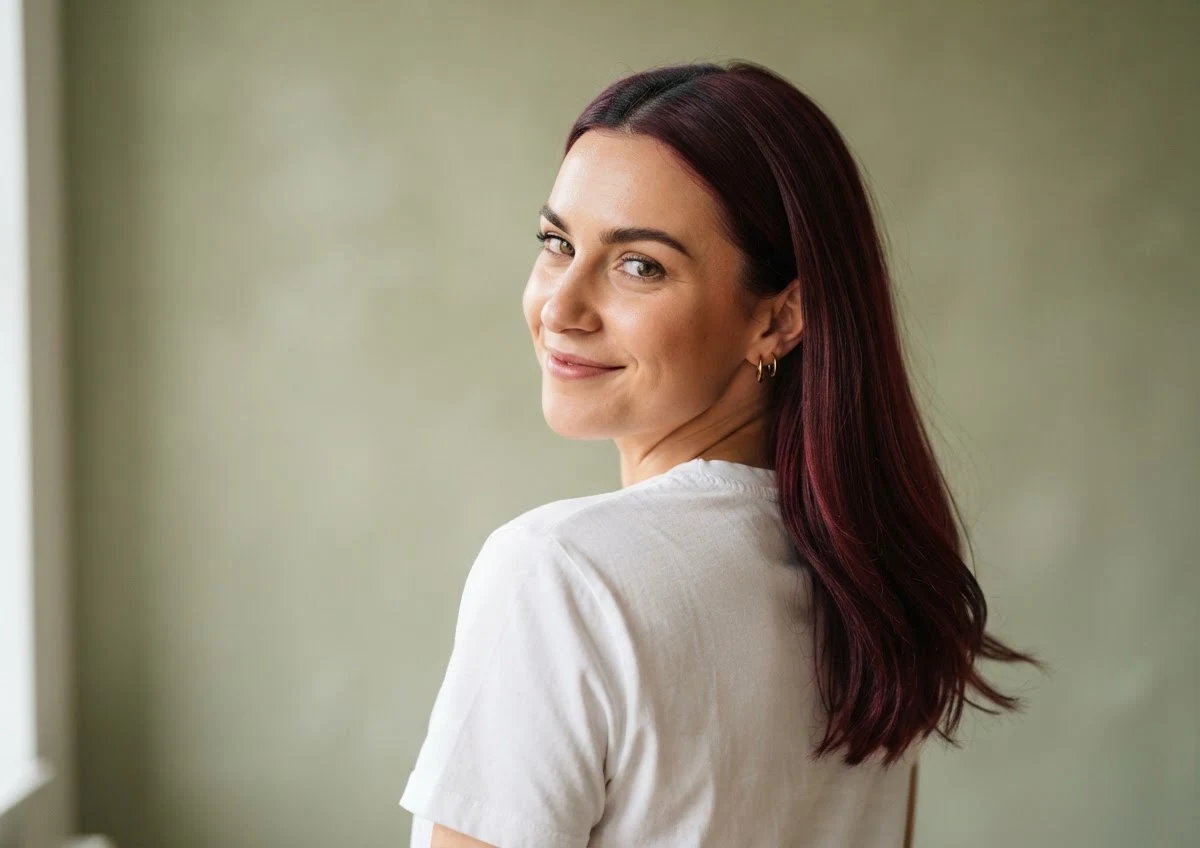
Who Suits Burgundy Hair Color?
Burgundy Hair Color FAQs
Is there a burgundy hair color filter?
Yes. Upload a photo to the AI Hair Color Changer in YouCam Online Editor and preview burgundy on your own hair in seconds.
How do I see burgundy hair on me?
Upload a clear, front-facing photo, choose a burgundy shade and compare the result with your original photo.
What skin tones suit burgundy hair?
Deep wine shades often flatter warm and neutral undertones, while plum leaning burgundy often suits cooler undertones. Preview a few shades side by side to compare.
Will burgundy look the same in real life?
The preview shows the color on your photo, but real results depend on your starting hair color, whether it is lightened first and the dye used. Treat it as a guide and talk to your stylist.
Can I try burgundy on dark hair?
Yes, the preview recolors dark hair too. In real life, dark hair often shows burgundy as a subtle tint unless it is lightened first.
Can I save and share the result?
Yes. After previewing, download the image to keep it or share it with your stylist.

