

AI Face Mashup Maker
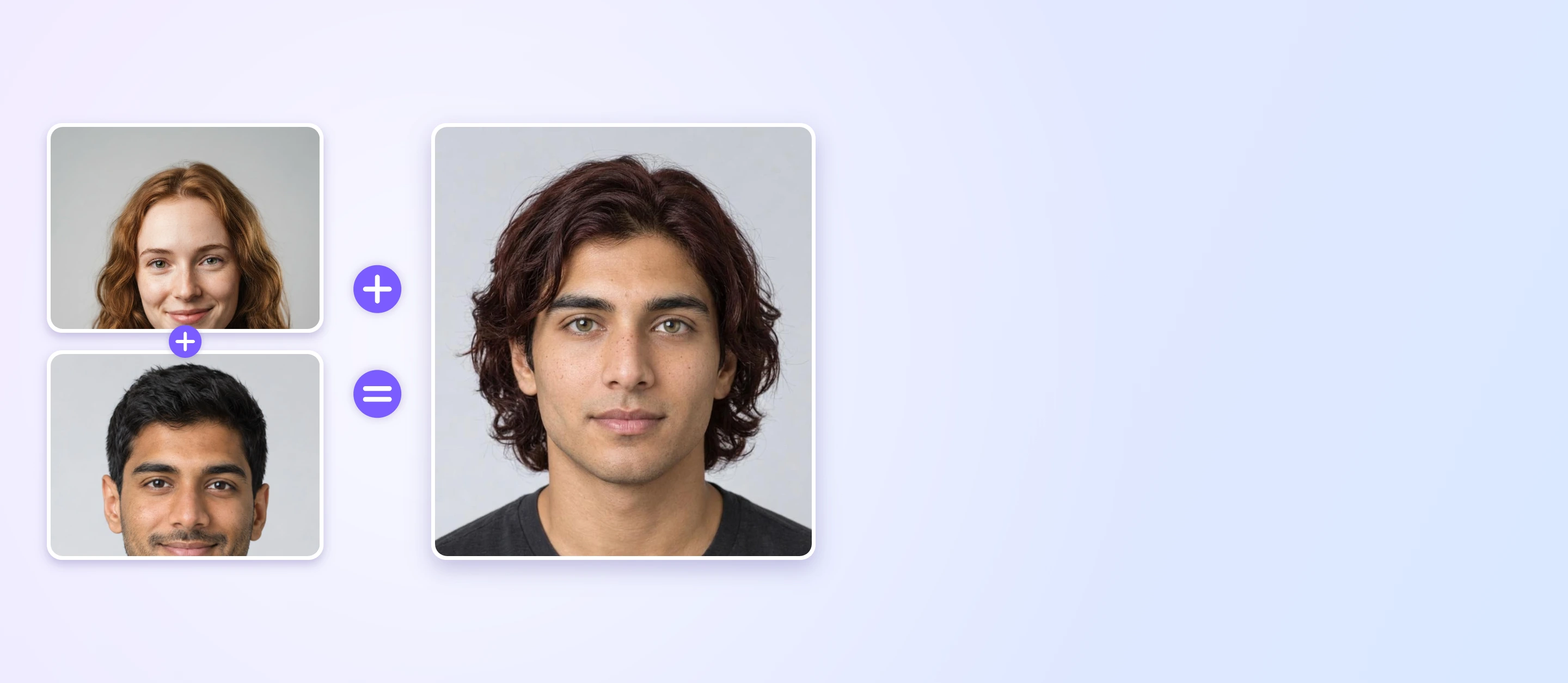
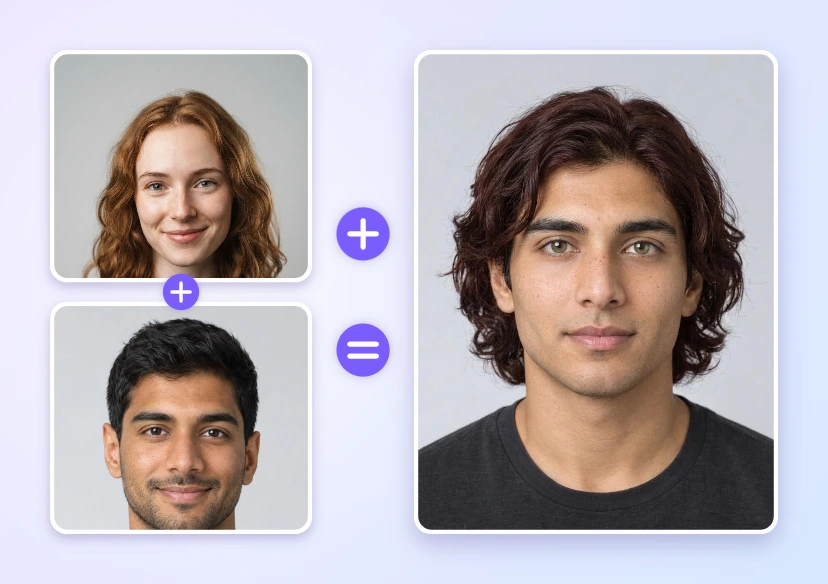
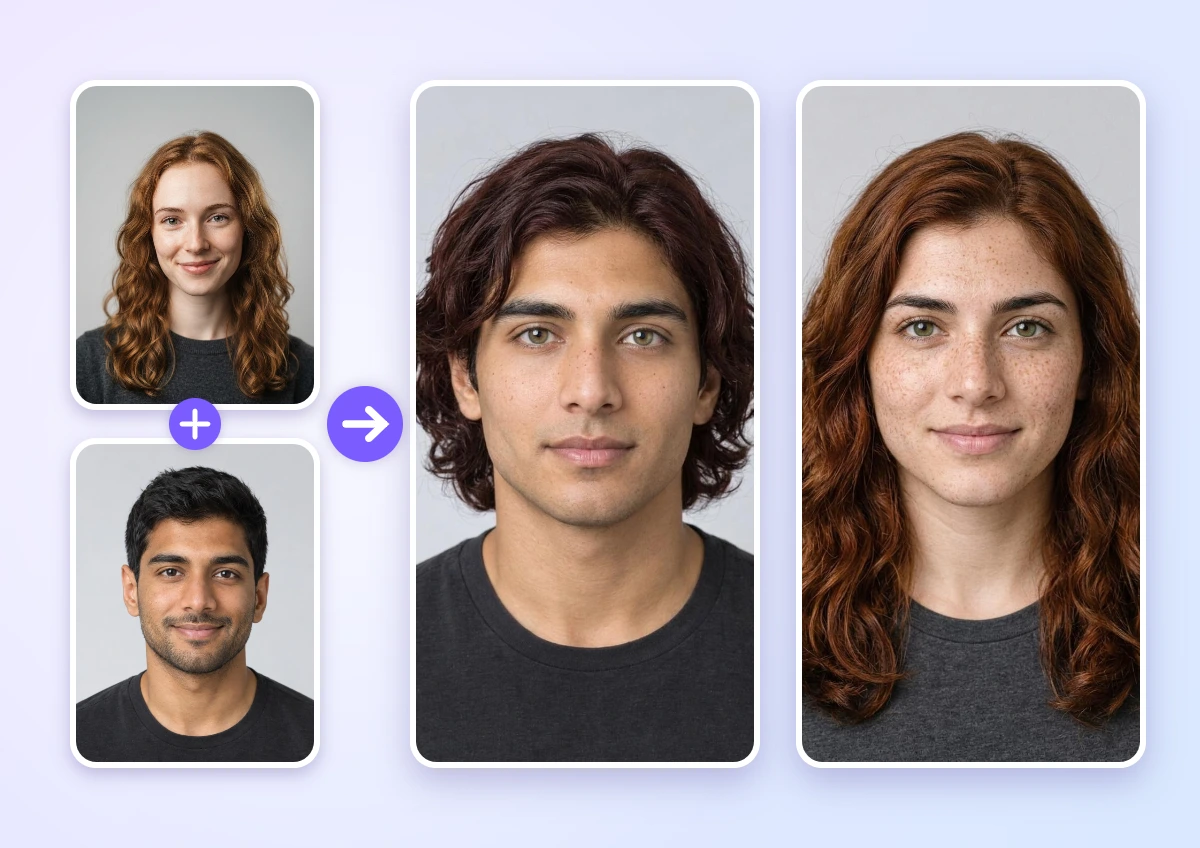
Blend two faces into one new face with YouCam AI Agent. Upload two portraits, describe the mix, and get a face that borrows from both.




Blend Two Portraits Into One Face
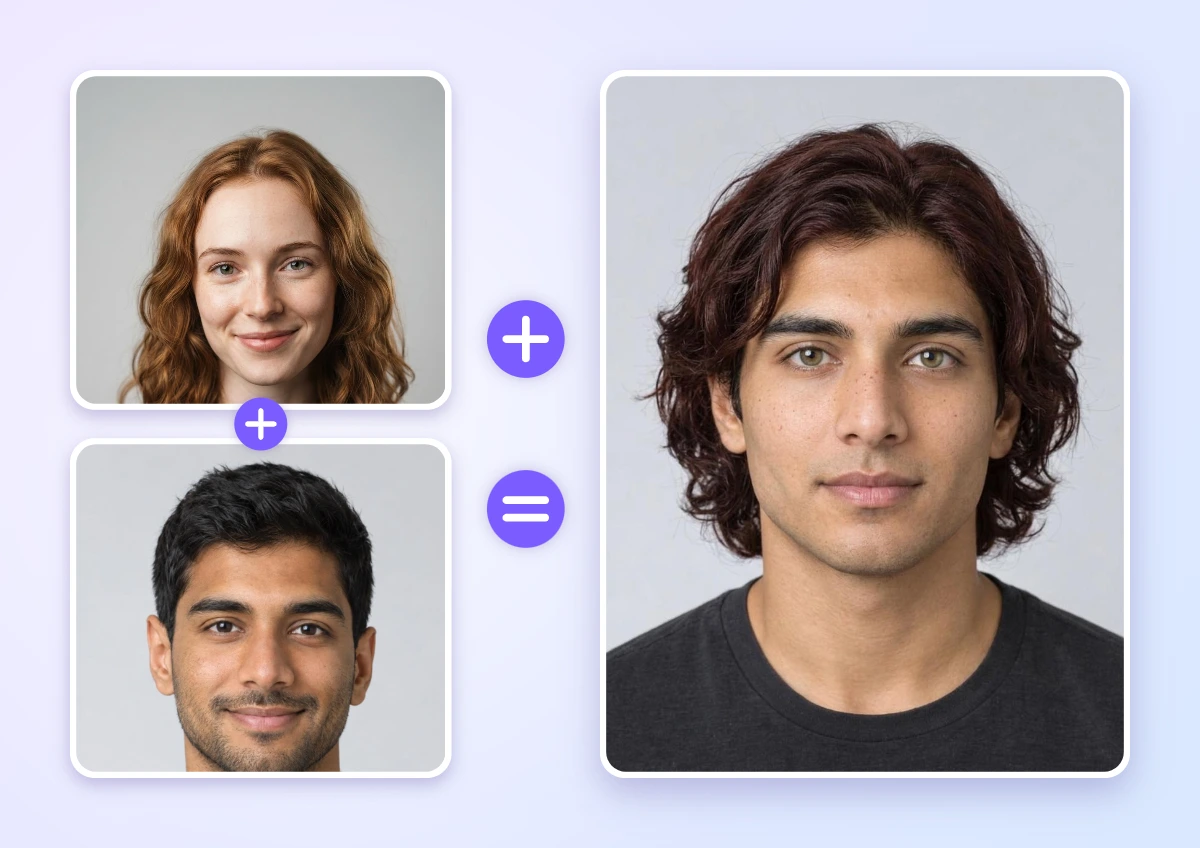
Upload two clear, front-facing portraits and tell the AI Agent how to mix them, for example: “Make one new person who is half the first photo and half the second.” It builds a new face that carries features from both people instead of pasting one face onto the other.
Tip: Name the features you want from each person, such as eyes from the first photo and jawline from the second. The more specific the prompt, the more both faces show up in the result.
How to Make a Face Mashup
Three steps in YouCam AI Agent.
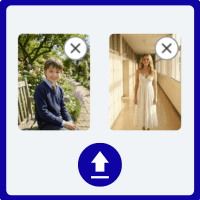
Upload Two Portraits
Add two clear, front-facing photos with good lighting.
Tip: Avoid sunglasses, heavy filters and faces that are cut off.

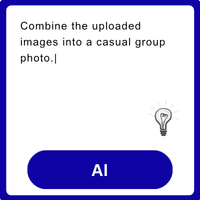
Describe the Mix
Write which features come from each person and the ratio, such as “eyes from photo 1, jawline from photo 2, 50/50 overall.”
Tip: Specific prompts give a more even blend.
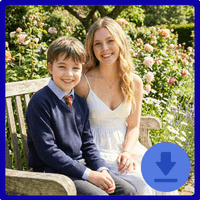
Generate and Refine
Run it, check the result and ask for changes in the same chat. Download the face mashup you like best.
Note: AI can make mistakes, so review the result before saving it.
Control How Much Each Face Shows
Set the ratio in your prompt. A 50/50 mix gives a balanced face, while something like “75% first photo, 25% second photo” keeps one person more recognizable with a hint of the other. Follow up in the same chat to adjust the mix.
Note: Results are AI generated, so each run can look different. If the mix leans too far toward one person, name the features you want from the other and try again.
FAQs: Face Mashup
What is a face mashup?
A face mashup combines features from two people, such as eyes, nose, jawline and hair, into one new face. The result is a new portrait that shows traits of both people instead of looking like just one of them.
How is a face mashup different from a face swap?
A face swap puts one person's face onto another person's photo. A face mashup creates a new face that blends two people, so the result is neither of the originals.
How do I make a face mashup with AI?
Open YouCam AI Agent, upload two portraits and describe the mix in the chat, for example which features come from each person and how much of each. Generate the image, then ask for changes in the same chat until you like the result.
What photos work best for a face mashup?
Use clear, front-facing portraits with even lighting and no sunglasses or heavy filters. Faces that are sharp and fully visible give the AI more to blend.
Can I choose how much of each face shows?
Yes. State the ratio in your prompt, such as 50/50 or 75/25, and name the features you want from each person. You can refine the mix with follow-up messages in the same chat.
Will the result always look like both people?
Not always. The result is AI generated, so it can change from run to run, and a vague prompt may lean toward one person. Naming specific features from each photo and trying again usually gives a more even blend.

