



Remove Filter from Photo Online
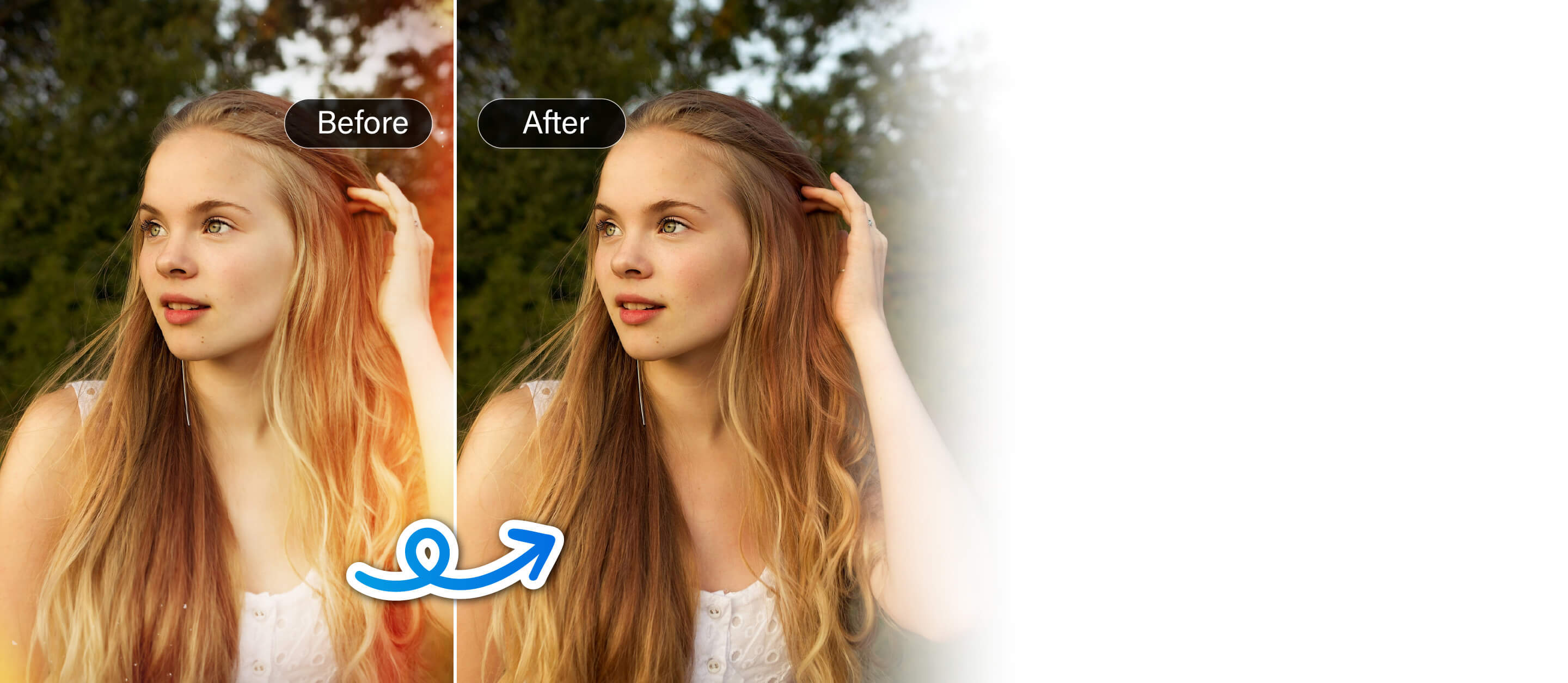
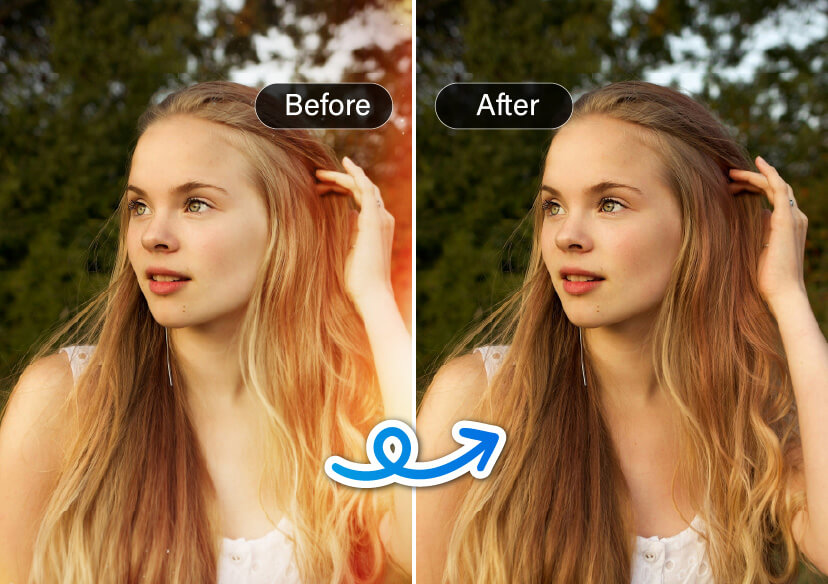
Easily remove filters like Snapchat, vintage, and black-and-white from any photo in seconds.




What You Can Do with Filter Removal:
- Remove Snapchat filters from selfies and group photos
- Restore color to black and white or sepia-toned photos
- Remove vintage filters and bring back natural lighting and tones
- Erase emojis or stickers layered over your face or background
- Enhance photos after filter removal to improve sharpness and color balance
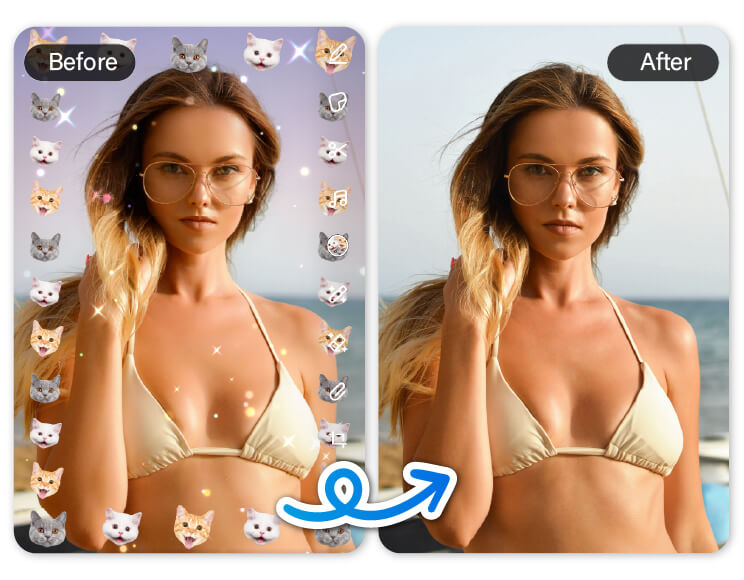
Remove Snapchat Filter
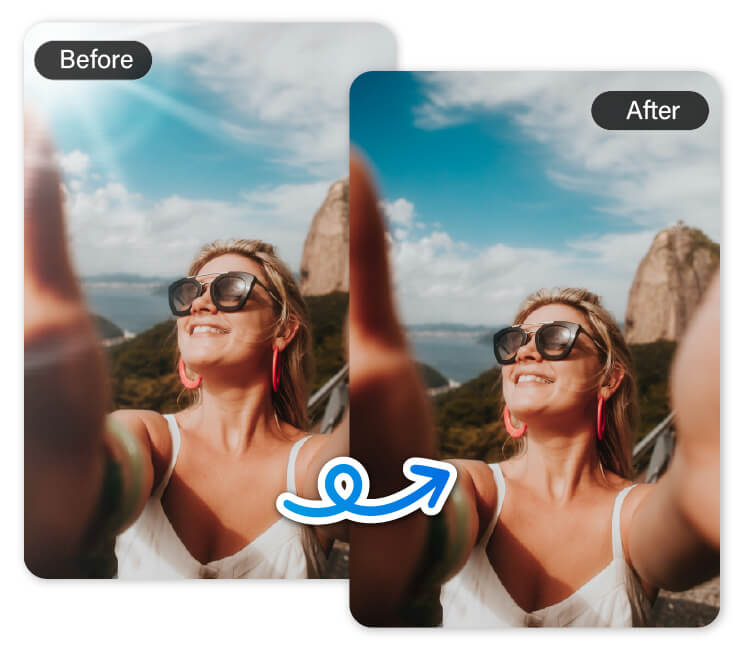
Snapchat filters can be fun, but they often distort your facial features or add effects you may no longer want. Use this tool to remove those filters and restore your natural face and original photo quality. Perfect for printing, re-sharing, or using on professional platforms.
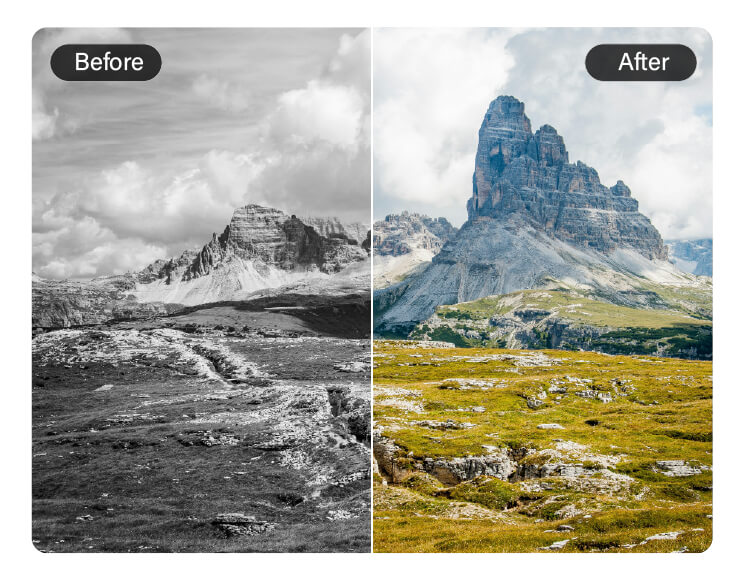
Remove Black & White Filter
If you’ve applied a black-and-white filter on landscape photos or have old monochrome photos, our AI can bring them back to life. Restore natural skin tones, background colors, and lighting for a more vibrant, realistic look.
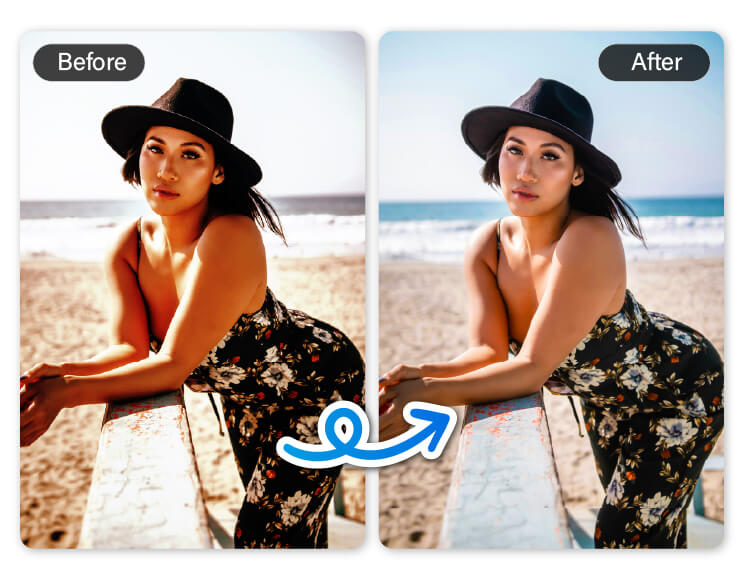
Remove Vintage Filter
Vintage or sepia filters can give photos a retro feel, but they often wash out the true colors. This tool removes those aged effects and helps recover natural tones, making your image look fresh, clear, and up to date.
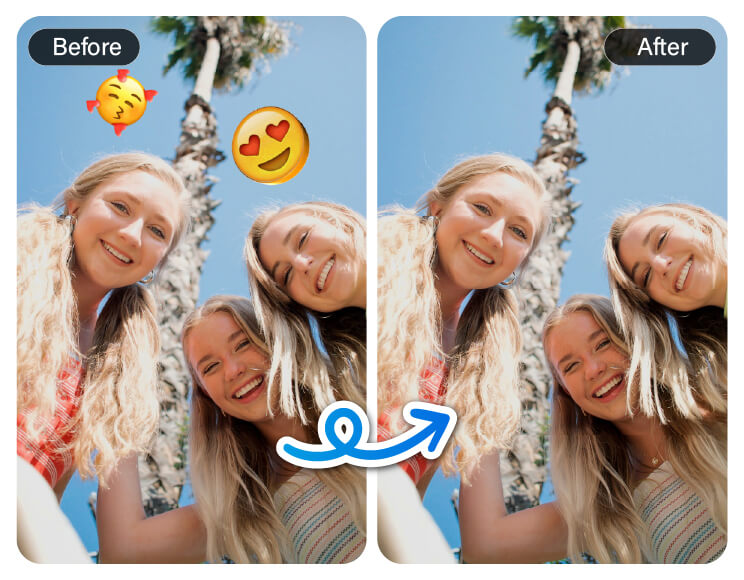
Remove Emoji from Photo
Accidentally covered something important with an emoji or sticker? Our AI tool detects and removes it, filling in the missing background seamlessly—great for cleaning up selfies or restoring full faces in group shots.
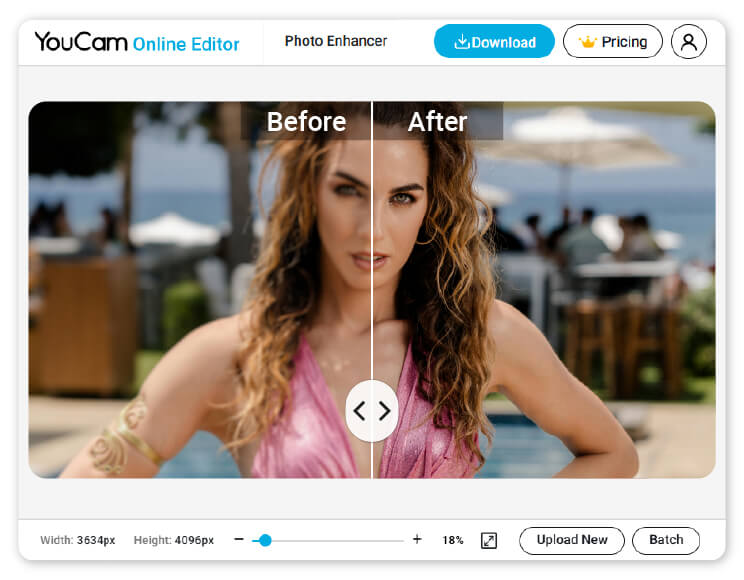
Enhance Photo After Filter Removal
Once the filter is gone, your photo may need a final touch. Instantly enhance brightness, contrast, sharpness, and color to make your image look polished and high-quality—all with a single click.
How to Remove Filter from Photo

Upload Your Filtered Photo
Click the upload button and choose a photo from your device.

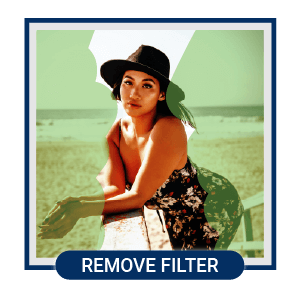
Let AI Remove the Filter
Our smart AI detects and removes added filters, adjusting tones and colors back to their natural state.
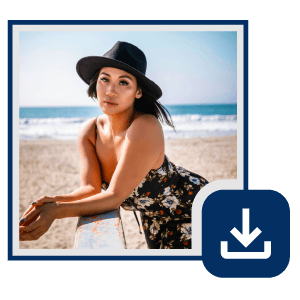
Enhance & Download
Use enhancement tools to perfect the photo after filter removal, then download your restored image in high quality.
Filter Remover FAQ
How can I remove a filter from a photo?
You can use an online filter remover or editing app with AI features.
For instance, in the case of using YouCam Online Editor:
- Simply upload your photo
- Use “AI Colorize” to remove color filter
- Or “Object Removal” to erase emoji from Snapchat filter
- These tools will detect and remove filters automatically, restoring more natural colors
Is it possible to remove a Snapchat or Instagram filter from a photo?
Yes, some advanced tools can reduce or remove common effects like beauty filters, makeup overlays, or color tones.
However, full reversal may depend on how heavily the filter was applied.
For example, YouCam Online Editor can help restore your photo to more natural colors and remove certain filter effects—like those from Snapchat or Instagram. While it significantly improves the image, it may not be able to return it to its exact original state.
How do I remove a black and white filter from a photo?
Use a photo colorization tool or an AI photo editor that restores color. These tools use machine learning to predict and apply realistic colors to black-and-white or desaturated images.
Can I remove a vintage or sepia filter from my image?
Yes, AI photo editors like YouCam Online Editor can neutralize the warm tones and grain from vintage or sepia filters.
Look for features “AI Colorize” to give it a try.
Will the original colors come back after removing a filter?
AI tools attempt to restore the original look based on common patterns, but results vary depending on how strong the filter was. You may need to adjust brightness, contrast, or saturation manually for best results.
Can I remove emoji or stickers along with the filter?
Yes, some editors include an object removal tool that can erase emojis, text, or unwanted stickers along with filters.
You can also find this tool in YouCam Online Editor. Just look for the feature called “Object Removal”, and brush over the elements you wish to remove.

