


How to Create Images with GPT-Image-2.5
Four quick steps from prompt to finished image in YouCam Online Editor.
Open the AI Image Generator

Pick GPT-Image-2.5
Write a precise prompt
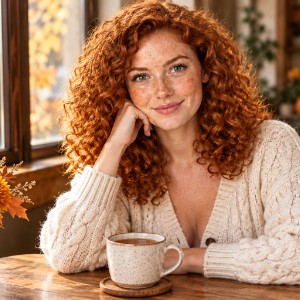
Generate and refine
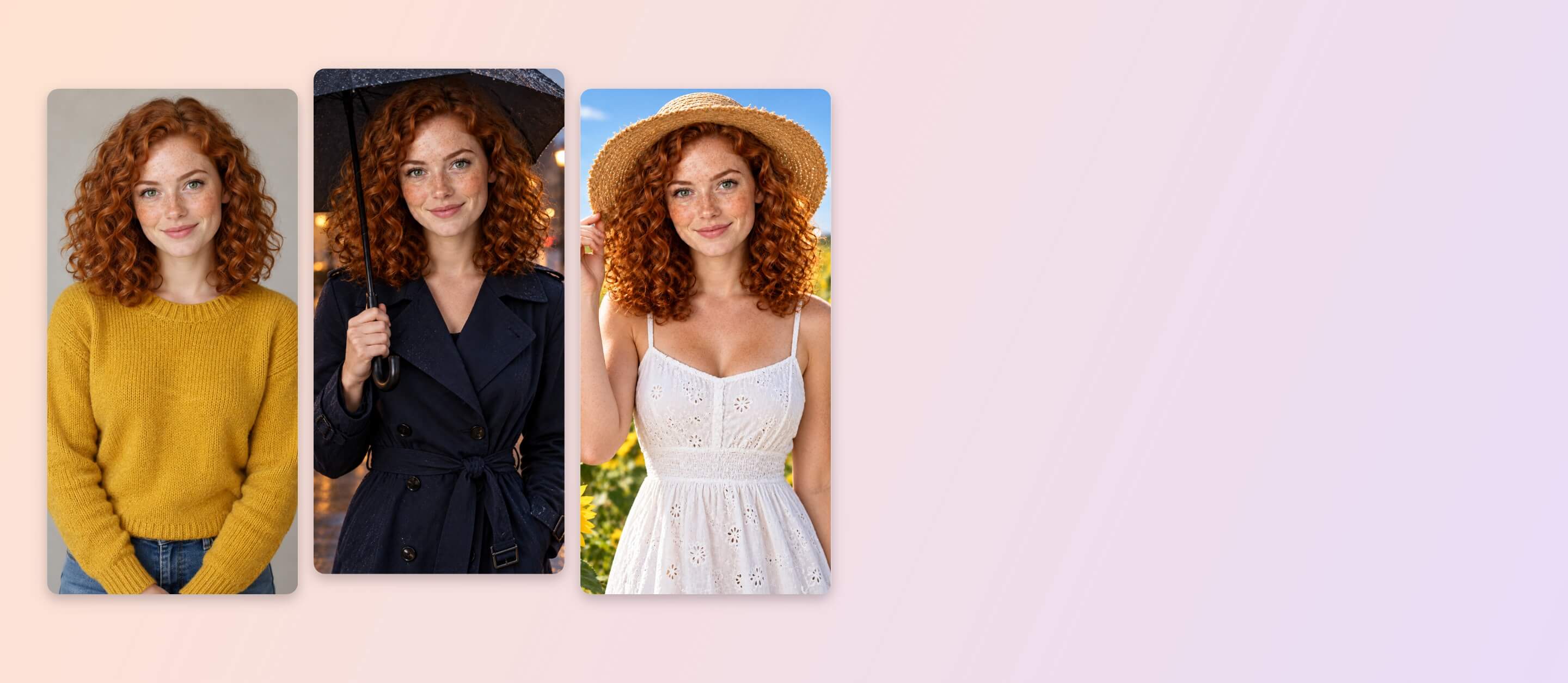
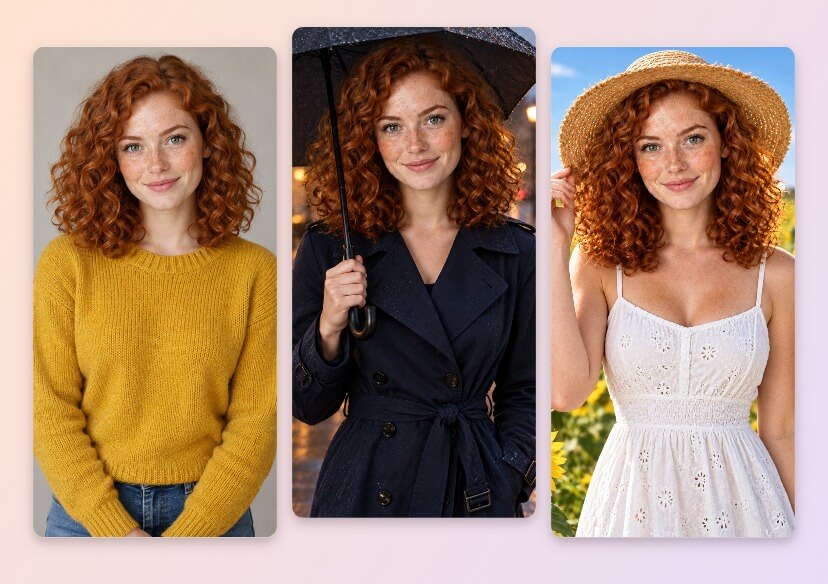
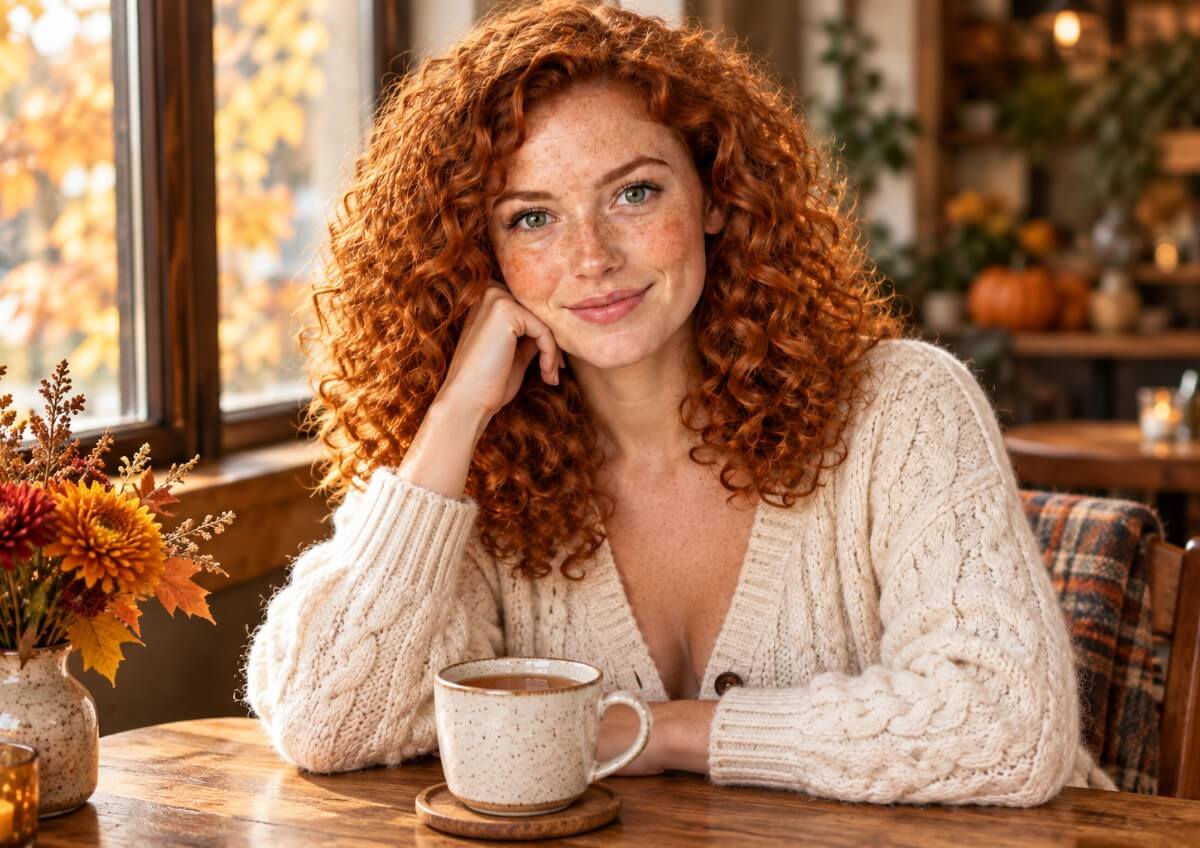
Keep the Same Face in Every Scene
Upload a reference photo in Image to Image and place the same person in new scenes, outfits and styles. GPT-Image-2.5 is built to keep a subject recognizable across a set, so one photo can become a whole series. Tip: describe only what should change.
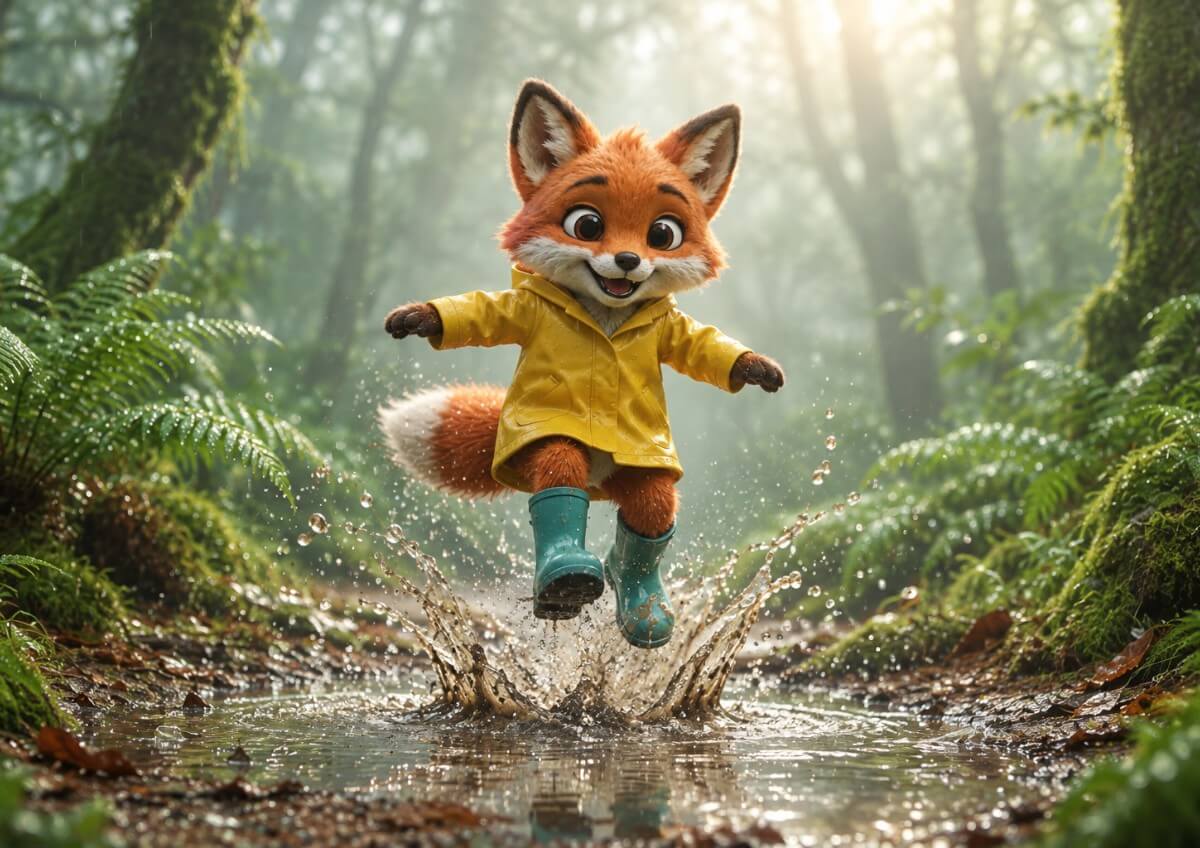
Show One Character From Every Angle
Start with one character, then ask for new poses, new scenes or a turnaround sheet with front, side and back views. The same fox keeps its orange fur, yellow raincoat and teal boots from view to view. Tip: list the outfit details you want repeated.
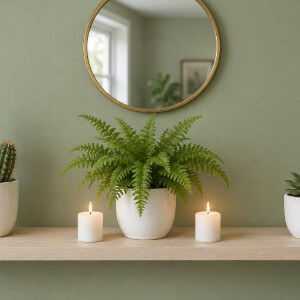
Exact Counts and Clean Layouts
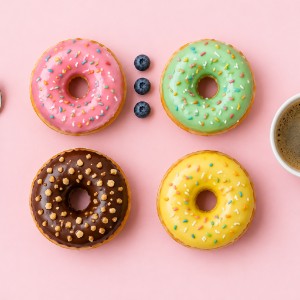
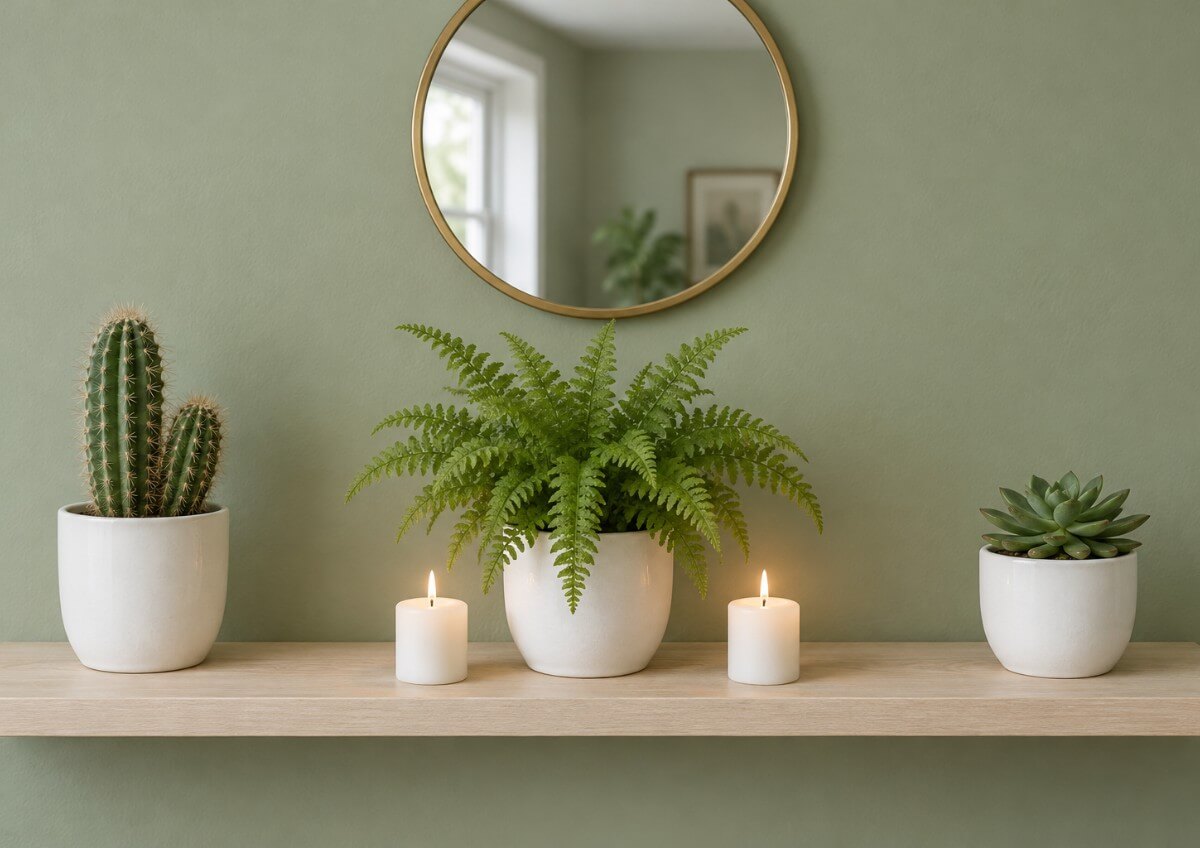
Tell GPT-Image-2.5 exactly what goes where: three plants, two candles, one mirror. It tends to follow counts and positions closely, which helps with flat lays, shelves and product layouts. Tip: write the numbers and the left to right order in your prompt.
Flare for Speed, Sunburst for Detail
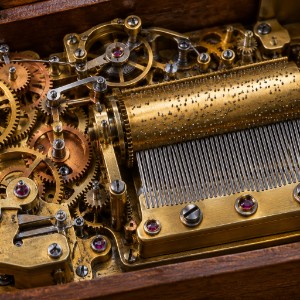
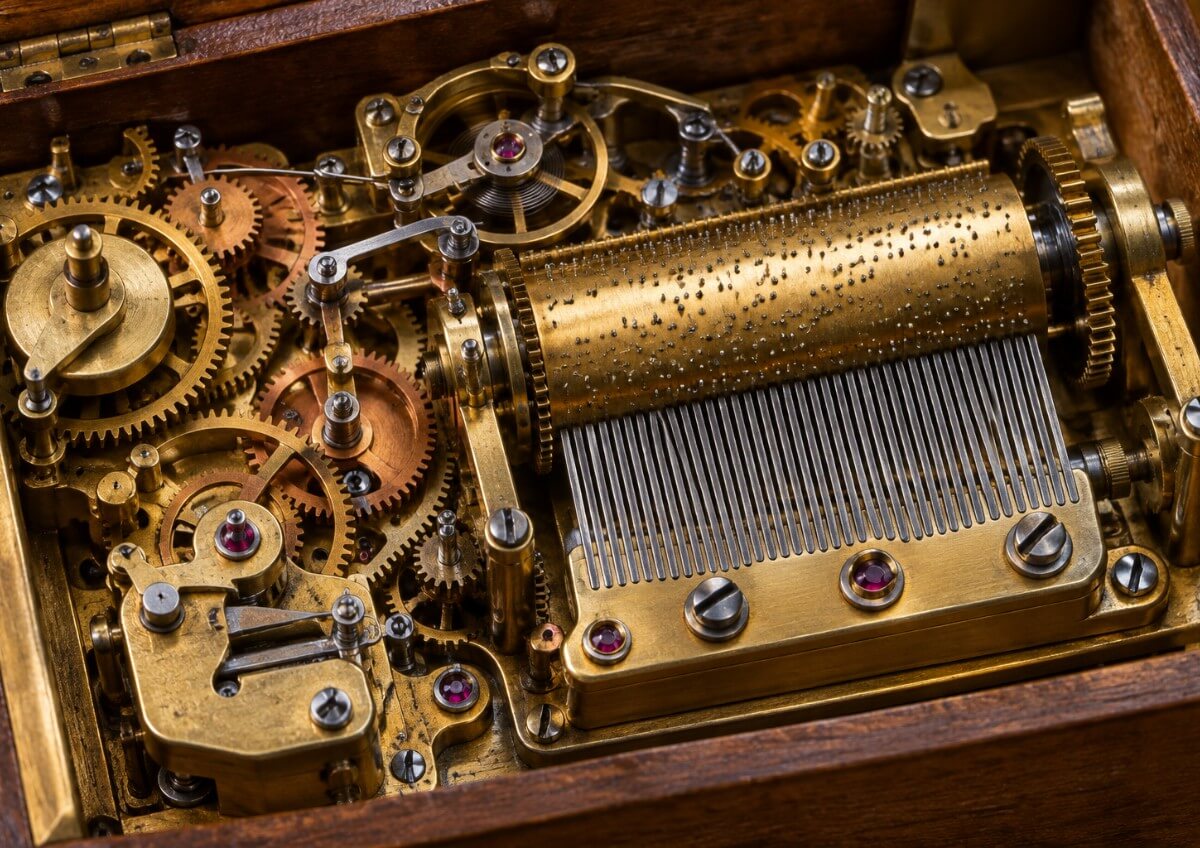
GPT-Image-2.5 comes in two variants. Flare is the faster choice for quick drafts and big batches. Sunburst takes longer and is aimed at fine, detailed work such as intricate textures. Tip: draft with Flare, then switch to Sunburst for the final.
Frequently Asked Questions for GPT-Image-2.5
What is GPT-Image-2.5 in YouCam Online Editor?
GPT-Image-2.5 is OpenAI’s newest image model, available in the YouCam AI Image Generator in two variants, GPT-Image-2.5 Flare and GPT-Image-2.5 Sunburst. You can use it for Text to Image or Image to Image right in your browser.
What is the difference between Flare and Sunburst?
Flare is the faster variant and suits quick drafts and high volume work. Sunburst gives extra precision for detailed work but takes longer to generate.
Can I use my own photos?
Yes. In Image to Image you can upload reference photos, up to 16 PNG or JPG images, with each file up to 10MB in YouCam Online Editor. Subjects from your references tend to stay recognizable in new scenes, though an exact match is not guaranteed.
How do I get the best results?
Be specific. Name the subject, counts, positions, colors and lighting. Change one thing per follow up, because several edits in a row can drift from the original look.
What are the limits of GPT-Image-2.5?
Prompts that combine many strict constraints at once can still produce mistakes, such as a repeated object or a misplaced detail. Text inside an image can also come out wrong when it is long, so keep any wording short. If something is off, simplify the prompt and try again.

