



Kling 4.0 AI Video Generator
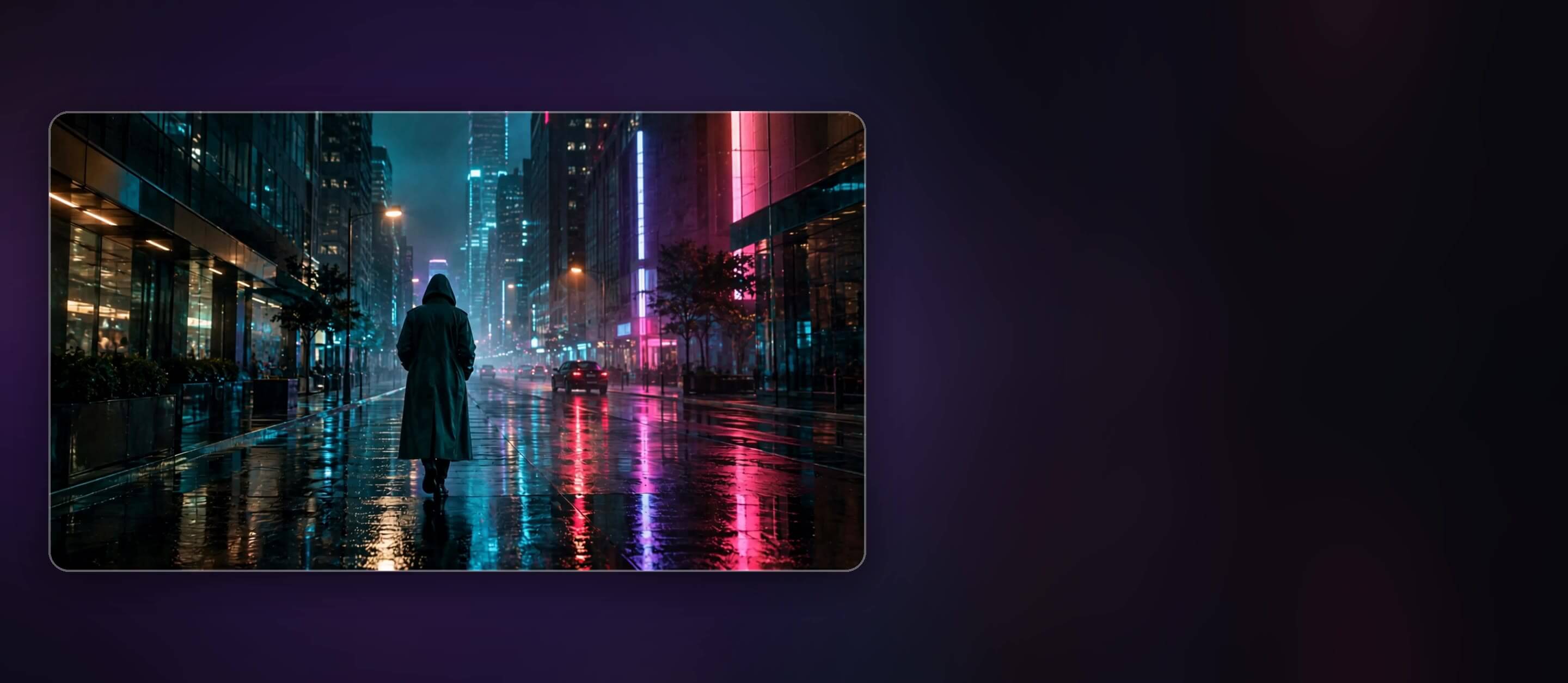
Direct cinematic scenes with Kling 4.0 in YouCam Online Editor. Upload up to 10 images, write a prompt and create videos of up to 30 seconds, right in your browser.
What Kling 4.0 Brings to AI Video
Kling 4.0 is the latest video model from Kling AI, and it is now one of the models you can pick in YouCam Online Editor. It is built for directed scenes: one continuous take of up to 30 seconds with stable motion, instead of short clips you have to stitch together. It also handles stereo sound with improved lip-sync, so results feel closer to a video you can post.
Guide the Scene with Up to 10 Images
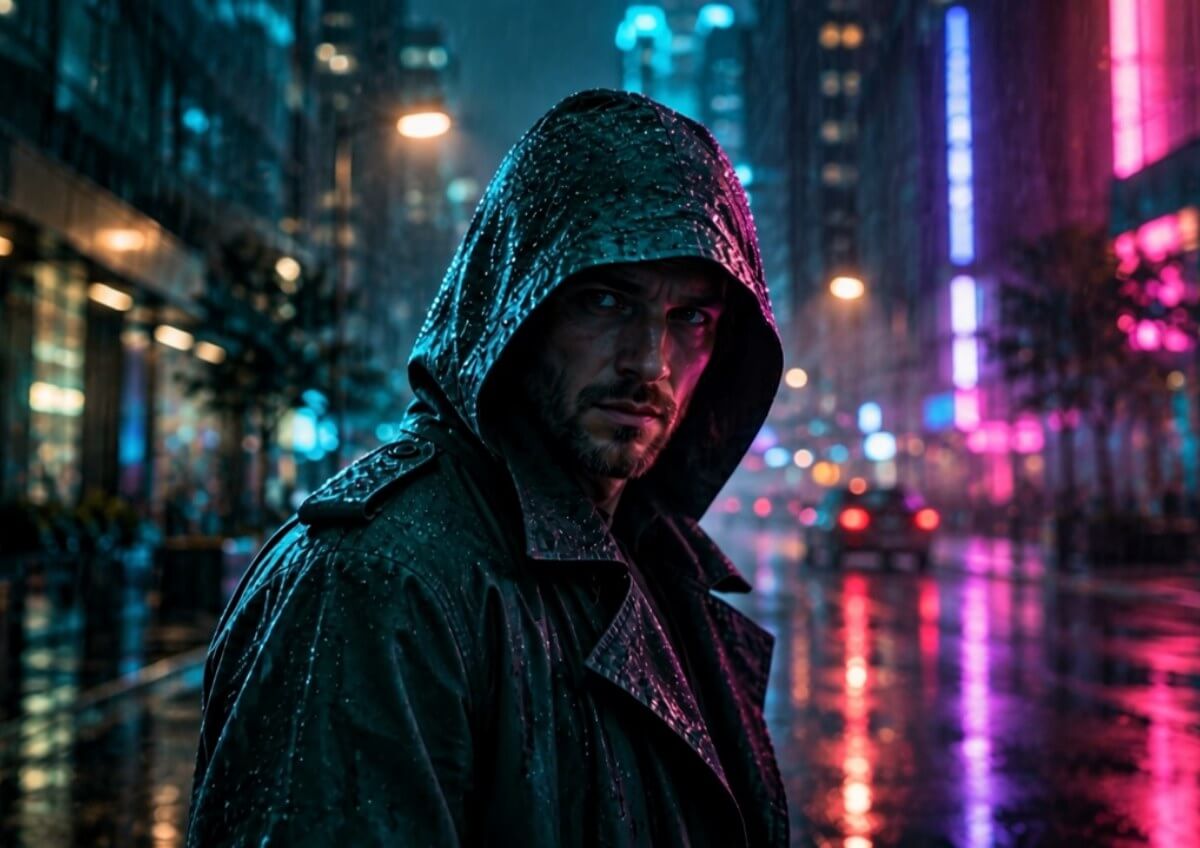
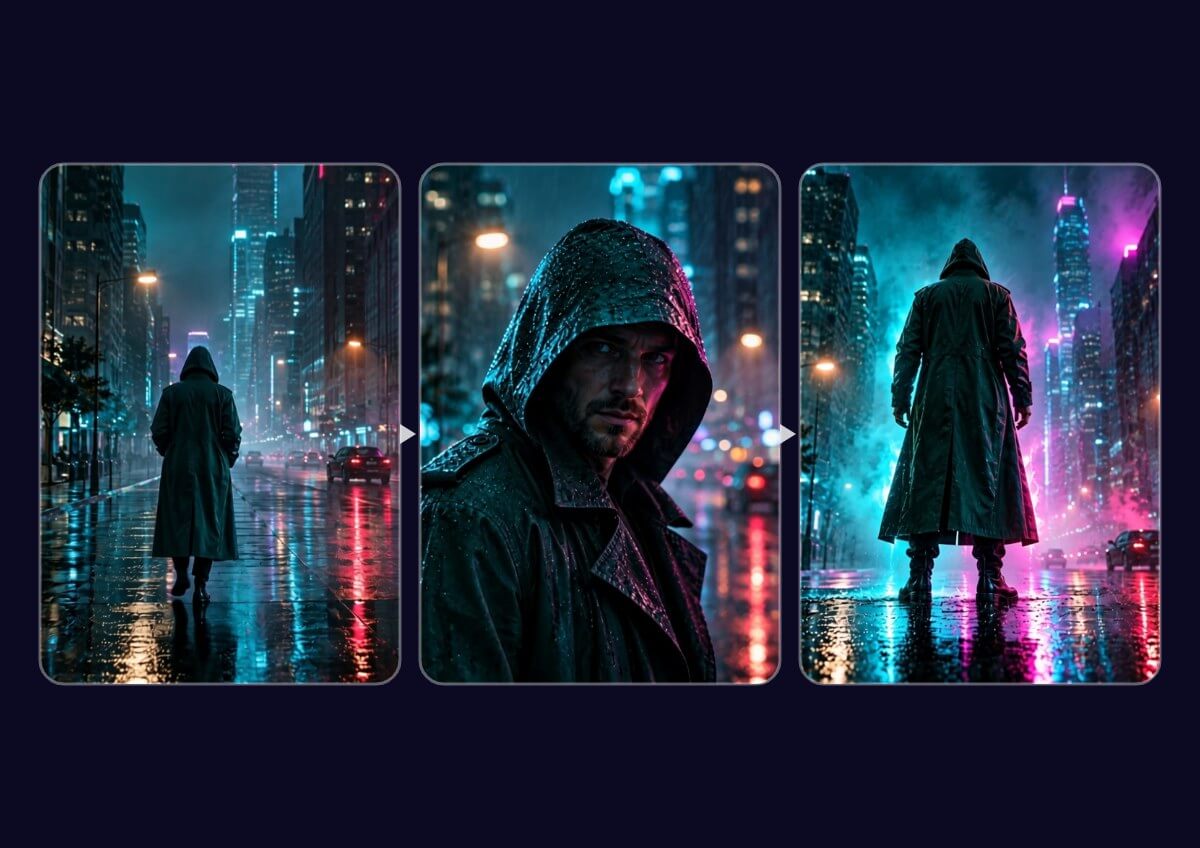
Instead of describing everything in words, give the model pictures. In the editor you can upload 1 to 10 images and turn on Start & End Frame to control how a shot begins and finishes. Think of your images as a storyboard: each one marks a moment that must appear, and the prompt fills in the movement between them. Use images only where the picture needs to change, because too many keyframes make a scene harder to direct.
Longer Takes at 720p or 1080p
Choose a duration from 5 seconds up to 30 seconds and pick 720p or 1080p before you generate. Start with a 5 second test to check the motion and framing, then render the longer version once you like it. Kling 4.0 also reads long prompts, so you can describe camera moves, actions and mood in detail.
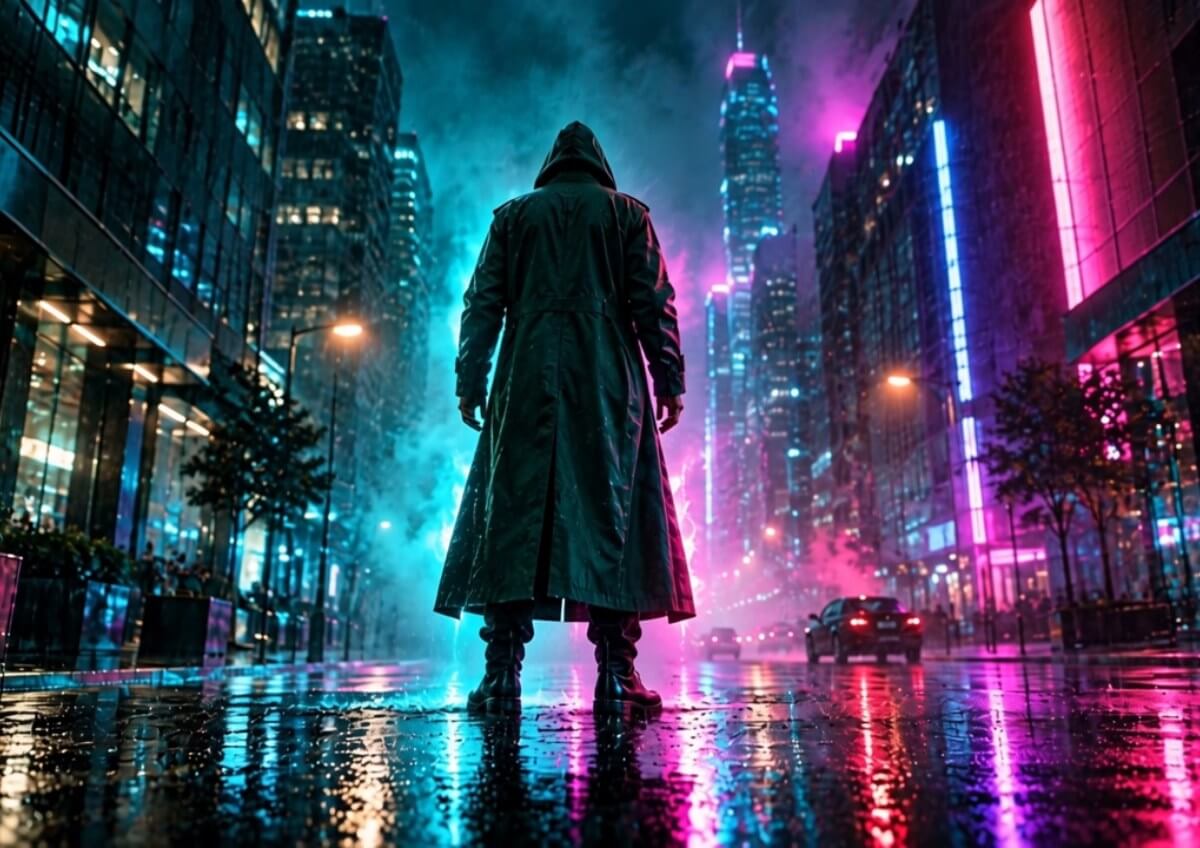
Kling 4.0 or Kling 4.0 Flash?
Kling 4.0 is the full model for longer, more directed scenes. Kling 4.0 Flash is a faster variant meant for high-volume, everyday clips. If you are planning a scene with several beats, choose Kling 4.0. If you are testing many ideas quickly, a faster model can save time. Model options in the editor can change, so check the model list when you start.
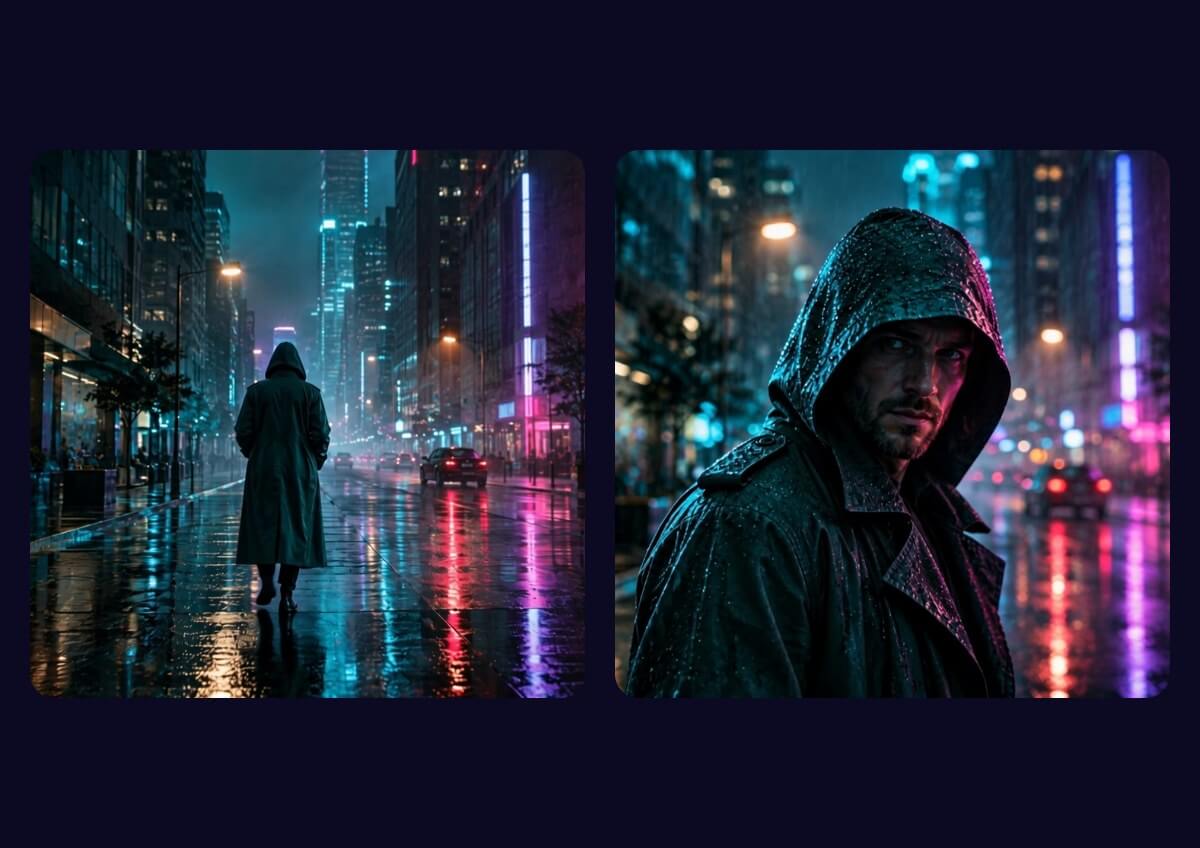
How to Use Kling 4.0 in YouCam Online Editor
Go from still images to a directed video in three steps, right in your browser.
Upload your images
Add 1 to 10 PNG, JPG or WebP images (up to 7MB each). Use sharp, well lit photos for the cleanest motion.


Pick Kling 4.0 and write your prompt
Select Kling 4.0 as the AI model, describe the action and camera move, then choose a duration and resolution.
Generate and save your video
Press Generate, preview the result and download it. Not happy with the motion? Adjust the prompt and try again.
Kling 4.0 AI Video Generator FAQs
What is Kling 4.0?
Kling 4.0 is a video model from Kling AI. It is designed for directed scenes, with continuous takes of up to 30 seconds, up to 10 keyframe images, stereo audio and long prompts.
Can I use Kling 4.0 in YouCam Online Editor?
Yes. Open the AI Video tool, choose Kling 4.0 in the AI model list, upload your images and generate.
How long can a Kling 4.0 video be?
The editor lets you pick 5, 10, 15, 20, 25 or 30 seconds. Extending a video up to 2 minutes is listed by Kling as coming soon.
How many images can I upload?
You can upload 1 to 10 images. You can also turn on Start & End Frame to set the first and last image of a shot.
What is the difference between Kling 4.0 and Kling 4.0 Flash?
Kling 4.0 is the full model for longer, directed scenes. Kling 4.0 Flash is a faster variant for frequent, high-volume clips.
What is not available yet?
10-bit HDR, a 21:9 ultrawide format and longer video extension are listed as coming soon by Kling, so they may not be available in the editor yet. Results also depend on your images and prompt, so a few tries may be needed.

