

AI Waist Slimmer Online
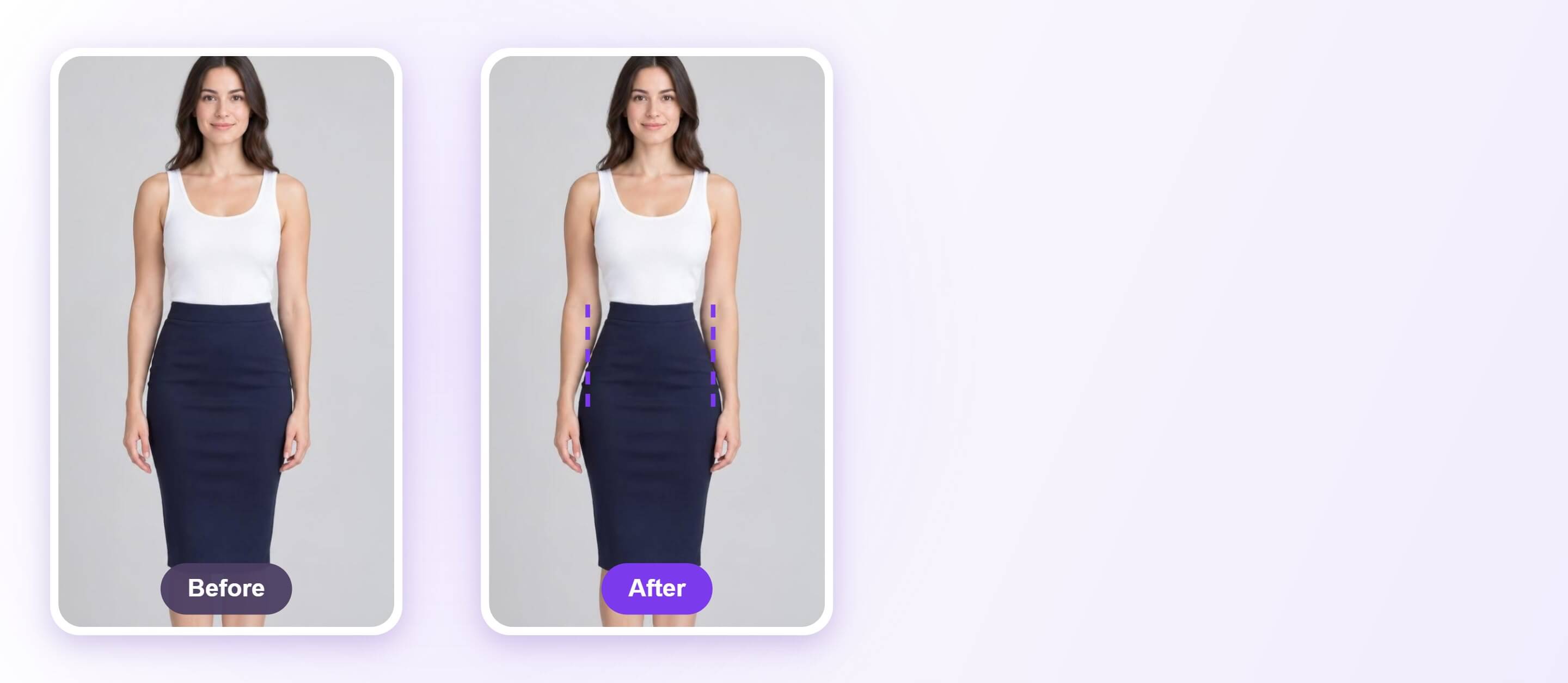
Slim your waist in a full-body photo with AI Waist Slimmer. Drag one slider to narrow your waistline, then compare it with the original photo.





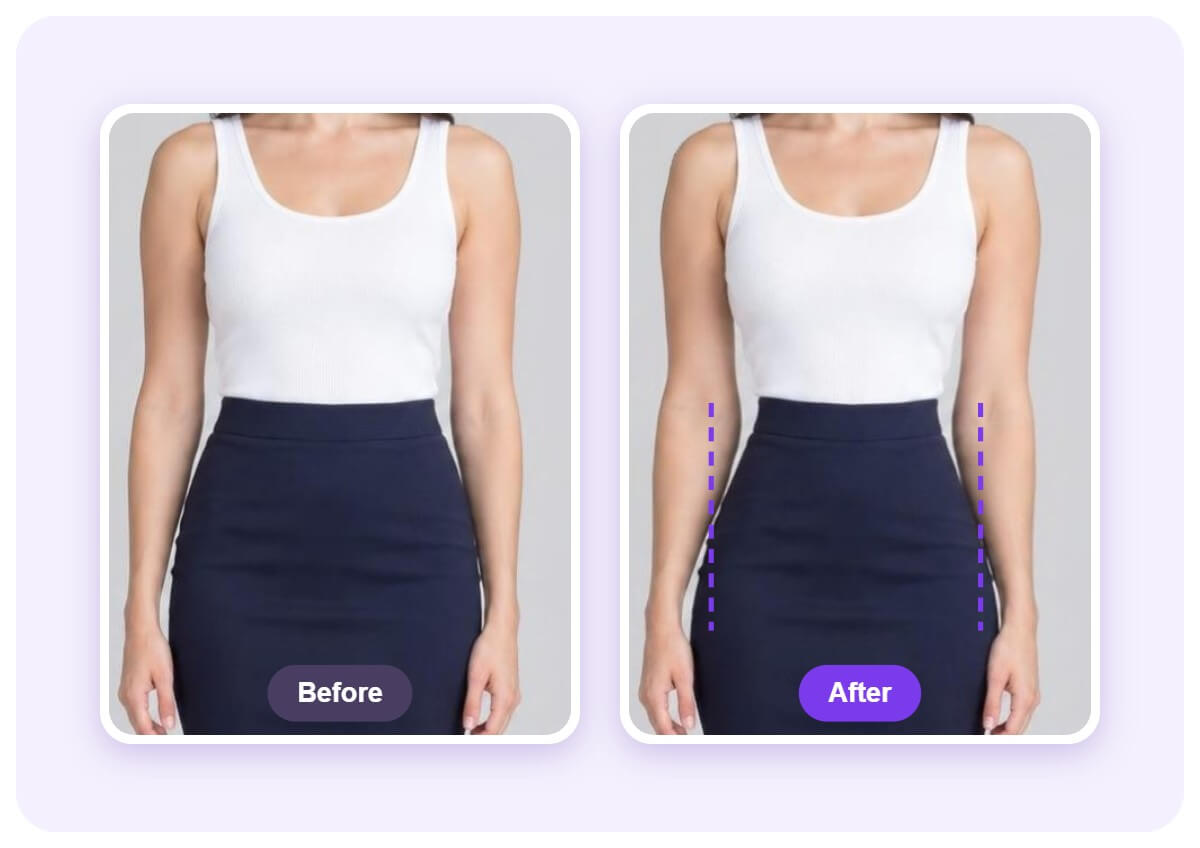
See Your Waist Before and After
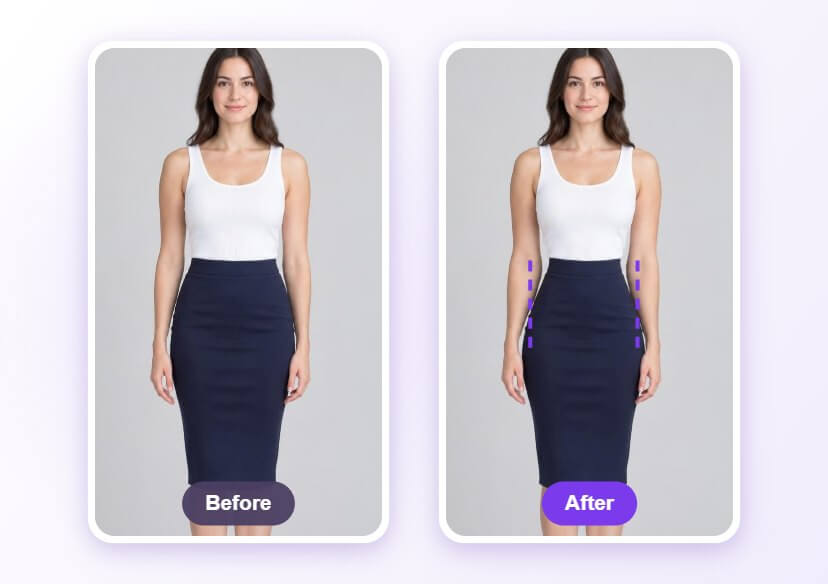
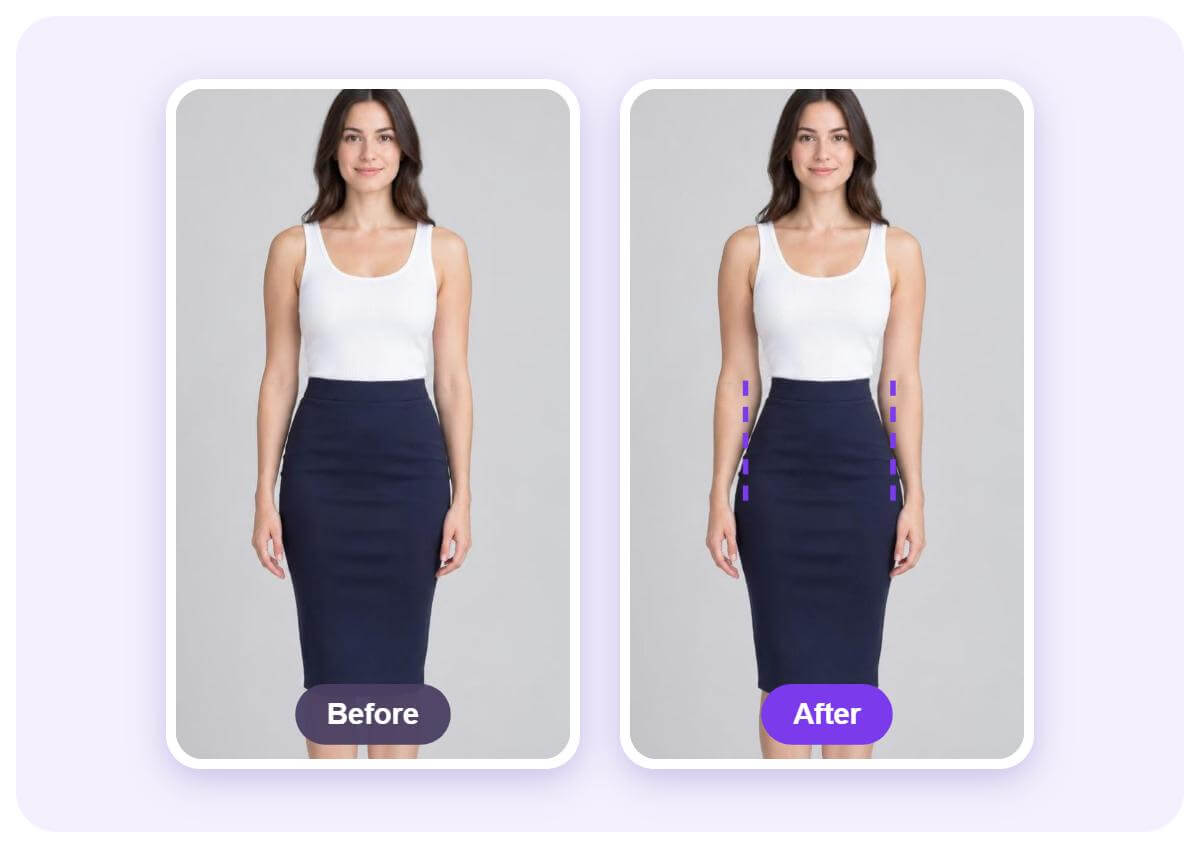
A waist change is easier to judge side by side. Drag the Waist slider and the tool narrows the waistline, so you can compare the result with your original photo. Fitted tops and skirts show the change most clearly.
How to Slim Your Waist with AI
Upload a Full-Body Photo
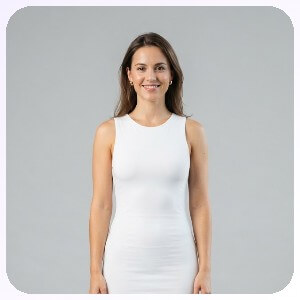
Pick a photo where your whole body is visible and you stand facing the camera with your arms slightly away from your body. Fitted clothing and a plain background make the waist outline easier to detect.

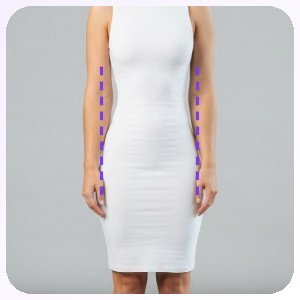
Slide the Waist Control
Open Waist in the Body Reshape panel and drag its slider to the left to slim. The slider starts at zero in the middle, so small moves look most natural.
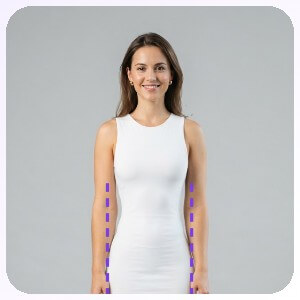
Apply and Download
Click Apply to render the change, compare it with the original, then download the photo as a JPG, PNG or TIFF file.
Check the Full Figure, Not Just the Waist
After slimming, look at the whole figure. If the hips or shoulders start to look off, lower the slider a little. Slim, Hip Size, Legs and other areas have their own sliders in the same panel if you want to balance the result.
FAQs: Waist Slimmer
What is an AI waist slimmer?
An AI waist slimmer narrows the waistline in a photo. You upload a full-body photo, the tool detects the body, and you drag the Waist slider to slim the area, then compare it with the original.
How do I slim my waist in a photo?
Upload a full-body photo, open Waist in the Body Reshape panel and drag the slider to the left. Click Apply, check the result against the original and download it.
What kind of photo works best?
Use a full-body photo where you face the camera in even light, with your arms slightly away from your body. Fitted clothing and a plain background help the tool find the waist outline.
Why is the change hard to see on my photo?
Loose tops and trousers hide the waistline, so the edit looks subtle. Fitted clothing shows the change clearly. If it still looks small, move the slider a little further and compare again.
Can I change other areas too?
Yes. The same panel lists Arms, Slim, Chest, Legs, Shoulder, Hip Size, Neck, Hip Lift and Belly, and each one has its own slider.
Which file formats can I download?
The download window offers JPG, PNG and TIFF, with High, Medium and Low quality options.

