




AI Video Repair
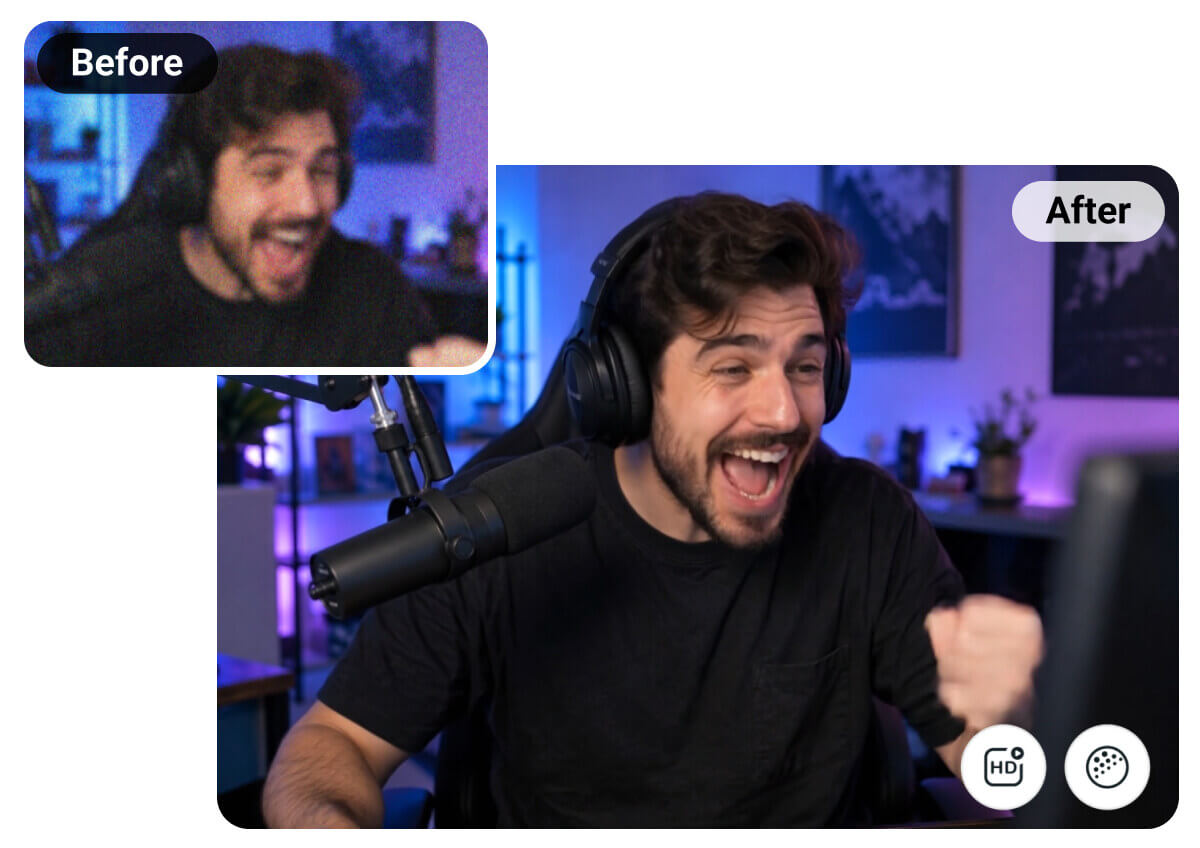
Give every clip a premium finish. AI Video Repair sharpens detail to 4K quality, removes grain, smooths motion and brightens dark scenes in one pass.
Turn Old, Dark, Choppy Clips Into Smooth 4K-Quality Video
AI Video Repair reads your footage and applies exactly what it needs — 4K-quality detail, cleaner texture, smoother motion, and better lighting — with no manual tuning.
How to Use AI Video Repair: One Upload, Every Fix, Simple Steps
No editing software required, just upload, click, and download.

Upload your footage
Add your video and let AI Video Repair take it from there.

Get auto-suggested settings
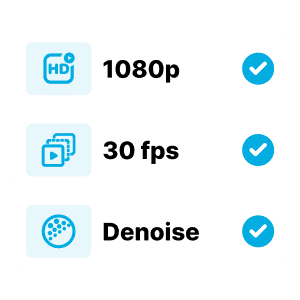
AI Video Repair reads your footage's real resolution and frame rate, then pre-sets the fixes it thinks you'll want.
Fine-tune, then repair
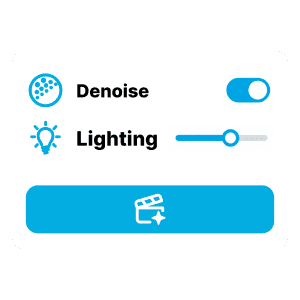
Grainy night footage? Turn on Denoise. Faces too dark? Set AI Lighting to Medium or High. Your credit cost updates live, so there are no surprises.

Compare, then save
View the original and repaired clip side by side before you commit. Need another pass? Adjust settings and repair again — no need to start over.
Beyond Resolution. 3 Fixes That Make Your Video Look Premium
Video Denoise: Make Night Shots Look as Clean as Daytime Footage
Filmed a concert or fireworks and got a screen full of grain? AI Denoise clears it out while keeping skin, hair and fabric detail, so night reels and old camcorder tapes look clean, not smudged. It's off by default, so you use it only when needed.

Frame Interpolation: Give Everyday Clips a Cinematic Glide
Does your travel vlog stutter on every pan, or your dance video jerk mid-move? Frame Interpolation fills them in, so sports highlights, pet clips and product spins play back as smoothly as pro footage.

AI Lighting: Professional-Grade Lighting for Every Scene
Filmed a sunset portrait or an evening event, only to find faces lost in shadow? AI Lighting balances exposure with a simple setting, bringing out faces, color and shadow detail while keeping highlights intact.

Why Use YouCam AI Video Repair
Restore Old Family Tapes to Modern Quality
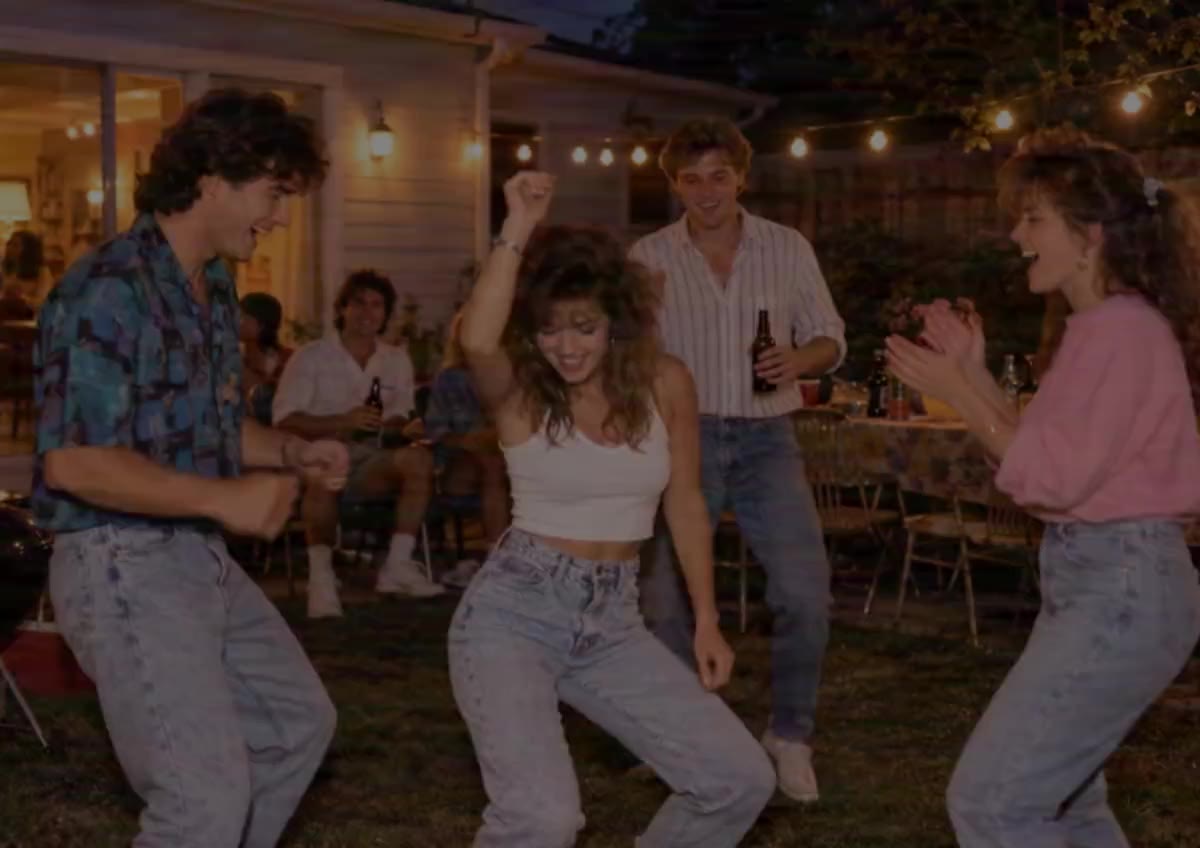
Digitized a VHS or camcorder tape, only to find it grainy, soft and choppy? AI Video Repair removes the noise, rebuilds detail at up to 4K quality and smooths the motion in one pass, so decades-old memories look at home next to footage you shot yesterday.

Relive Every Concert in Clear, Vivid Detail
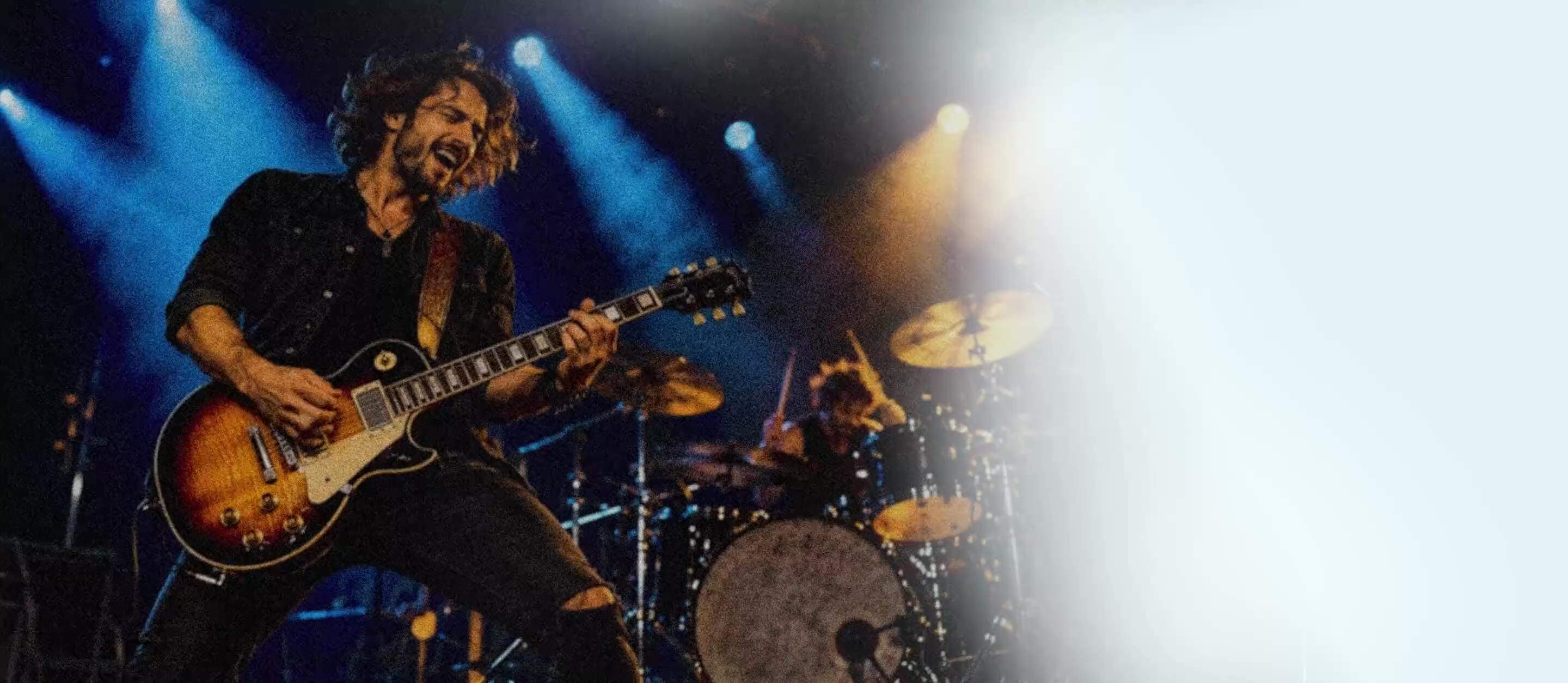
Recorded your favorite artist live, only to get dark, grainy, stuttering footage? AI Video Repair brings faces and stage detail out of the shadows, clears the grain and smooths choppy motion, so the performance looks as vivid as you remember it.

Turn Live Stream Recordings Into Highlight-Ready Content
Saved your live stream, only to find the replay soft and noisy from heavy compression? AI Video Repair sharpens detail to 4K quality and cleans up noise, so your recording holds up when you cut it into polished highlights for TikTok, Reels or YouTube.
AI Video Repair FAQs
What exactly does AI Video Repair fix, and how?
Four fixes, each its own technique: Enhance rebuilds detail with super-resolution, Video Denoise removes grain, Frame Interpolation smooths choppy motion, and AI Lighting rebalances exposure. Run all four together, or switch off what you don't need.
How is this different from the Video Enhancer tool?
Video Enhancer only upscales. Video Repair uses that same technology as one of four fixes, bundled with denoise, frame interpolation, and lighting correction — auto-detecting which ones your footage needs.
What video formats, sizes, and lengths are supported?
MP4, MOV, and M4V, up to 2GB, under 60 minutes, and up to 4096px resolution. Export in H.264 before uploading — H.265/HEVC files aren't accepted for upload and may bounce back.
Does AI Video Repair cost credits?
Yes — each fix is billed by the second it runs, with a lower bundled rate when all four run together. The exact cost updates live on the Repair button before you commit, so turning on only what your footage needs keeps the cost down.
Can it fix extremely low-quality, corrupted, or heavily compressed video?
Not fully. It sharpens real detail, reduces real noise, and smooths real stutter, but can't invent detail a file never captured. Heavily pixelated or badly compressed footage will improve, but won't become native high-resolution.
Why are some toggles already switched on, or greyed out?
The tool reads your real resolution and frame rate on upload and pre-sets Enhance and Frame Interpolation accordingly. A greyed-out toggle just means your footage already exceeds that fix's useful range.
When does Enhance turn on or off automatically?
Enhance turns on automatically for footage at 1080p or below, since that's where it makes the most visible difference. It stays off above 1080p and is disabled at 4K, where there's no missing detail left to rebuild. It's most useful on soft phone or downloaded clips; it won't help pixelated screenshots, since no tool can invent detail that was never captured.
When does Frame Interpolation turn on or off automatically?
It turns on automatically for footage at 16fps or below, stays off between 16 and 60fps. It's best for old, slideshow-style clips; skip it on fast action already shot at a high frame rate, since it can warp moving edges there.
Any tips for using AI Lighting?
It's most useful on dim interiors or backlit clips. On footage that's already well-lit, keep it on Off or Medium — High can wash out contrast.
Is Video Denoise on by default?
No — it's off by default since not every clip needs it, and over-denoising can soften texture. Turn it on for night or old camcorder footage; skip it on clean daylight shots.

