





AI Video Enhancer: Fix Blurry Videos
Turn blurry, pixelated, or low-resolution footage into sharp, 4K-ready clips. YouCam's AI analyzes every frame to rebuild real detail — not just stretch pixels or apply a filter.


How AI Video Enhancer Works
YouCam's AI analyzes your video frame by frame, identifying edges, texture and motion, then rebuilds missing detail instead of just stretching or sharpening. The footage looks captured at higher quality, not merely resized.

Sharper Videos Create Sharper Memories
Restore Old & Low-Quality Footage
Fix blurry videos, early-2000s recordings or old videotapes. The AI refines noise and upscales resolution so your memories can be archived in clearer form.
Tip: VHS and camcorder transfers have analog softness baked in. Enhancement sharpens real detail but won't remove tracking lines or color bleeding from the tape.
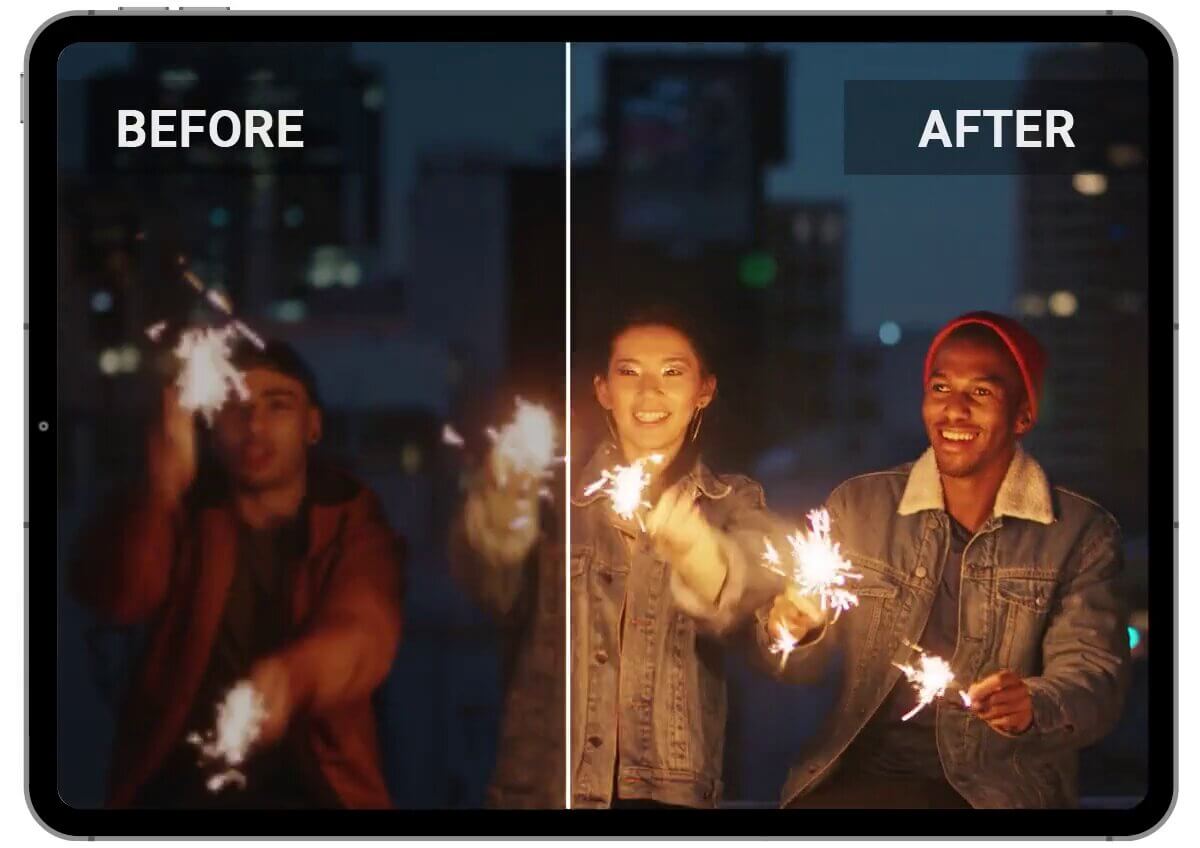
Upgrade Videos for Social Media Posts
Turn low-resolution demos and raw footage into polished clips for social media. The AI restores clarity frame by frame, with no reshoot.
Tip: export at the resolution your platform actually displays. Enhancing to 4K and letting Instagram or TikTok recompress it wastes the extra detail.

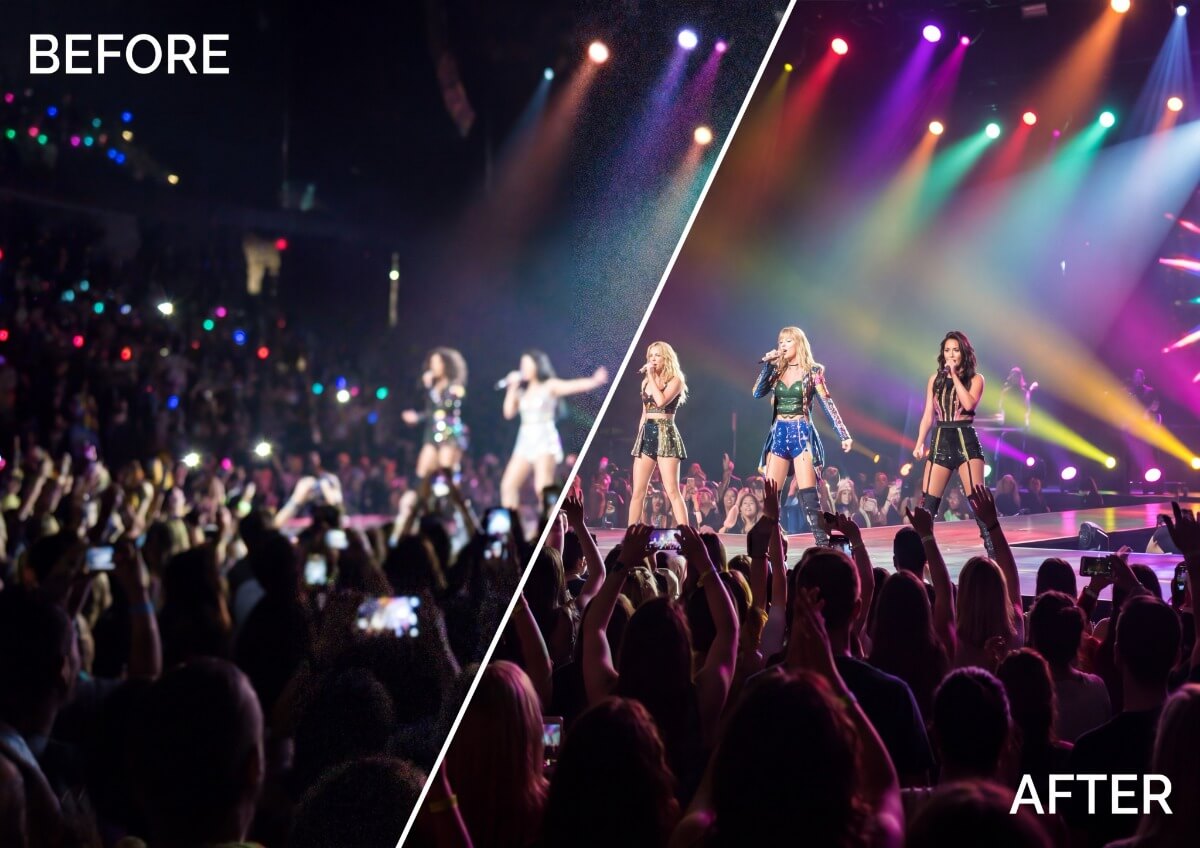
Get the Best Out of Your Concert Videos
Concert and nighttime clips are hard to shoot well. YouCam reduces grain and lifts brightness so they look clearer on your phone.
Tip: fast-moving colored stage lighting is harder to clean up than a simple dark room. Expect less grain and better brightness, but very fast light changes may still look soft.
3 Simple Steps to Enhance Your Videos Online

Upload Your Video
Choose the clip you want to fix; the tool analyzes every frame. Start from the original export if you can: each re-save loses detail, like re-saving a JPG.
Tip: trim clips over a minute to the best segment before uploading, so the part that matters gets a full-quality enhancement.


Preview & Enhance
Before clicking “Enhance Video,” use “Preview” to compare the details, noise, and resolution that will be improved. Previewing matters more for video than for photos — a full enhancement takes real processing time, so checking the preview first helps confirm it's worth running before you commit.
Tip: Check the Preview on a fast-motion section of your clip specifically — that's where quality issues are most visible and most worth a second look before you commit to the full render.

Download the Video
Download the sharpened video at up to 4K resolution depending on your plan. You may also use other features from YouCam Online Editor for further editing. Higher-resolution exports mean larger file sizes — worth factoring in if you're uploading straight to a platform with its own file-size limits.
Tip: If you're posting straight to social media, downloading at 1080p instead of 4K often looks identical once the platform recompresses it — and it uploads faster.
Tips for Best Results
For the best results, upload your original video file rather than a re-shared or re-compressed copy — each re-save loses detail the AI can't recover. Trim clips over a minute to the best segment before uploading, and use Preview to check a fast-motion section first, since that's where any remaining quality issues are easiest to spot.
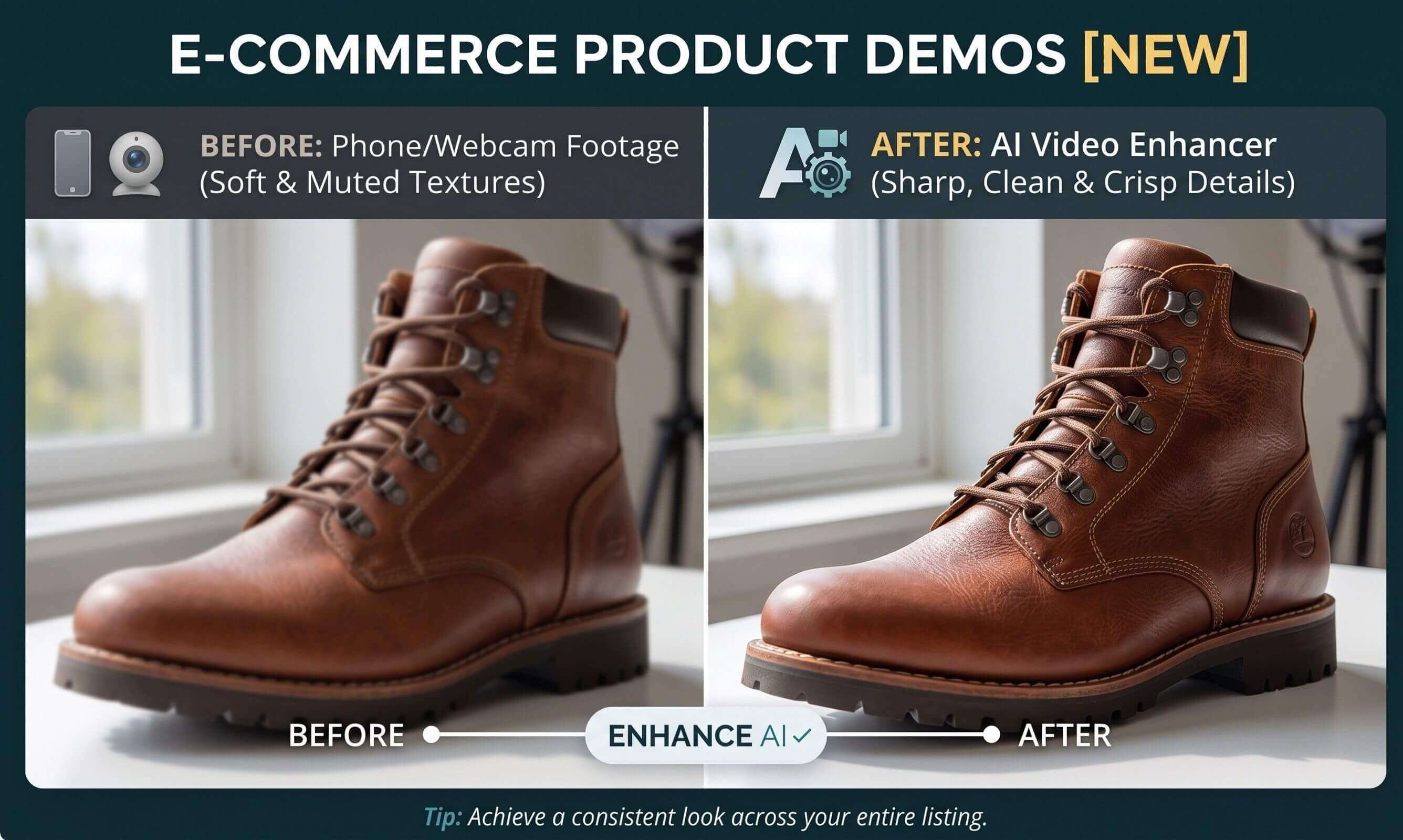
Product demo clips shot on a phone or webcam often look soft compared to your product photos — enhance footage to match the same sharp, clean look across your listing.
Tip: Consistent lighting matters more than fancy equipment — a demo shot near a window in daylight enhances better than one shot under mixed indoor lighting.

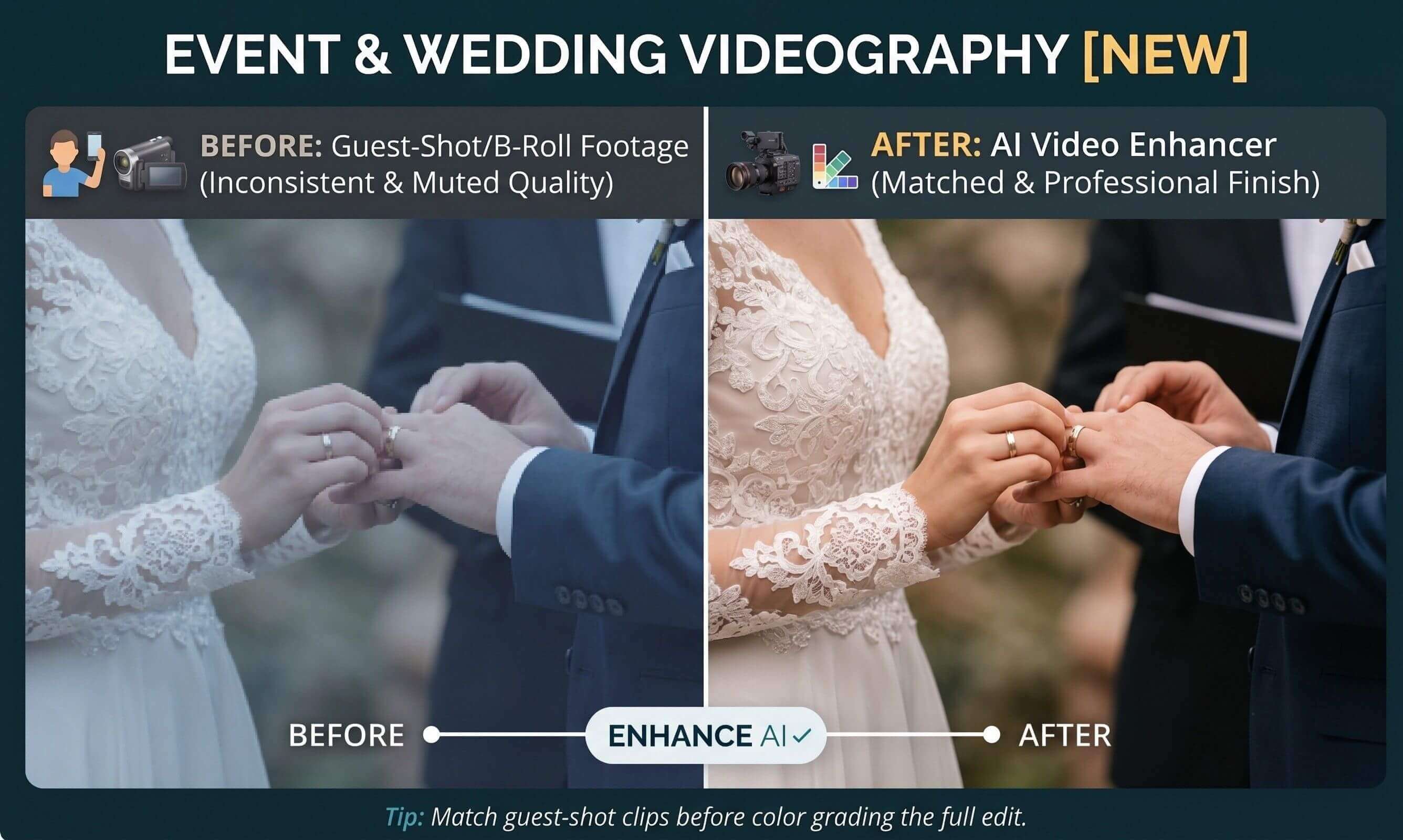
Guest-shot clips and secondary-camera footage rarely match the quality of the main camera — enhance them so they cut together more consistently in the final edit.
Tip: Enhance guest clips before color grading the full edit — grading a mix of sharp and soft footage together makes the quality gap more obvious, not less.
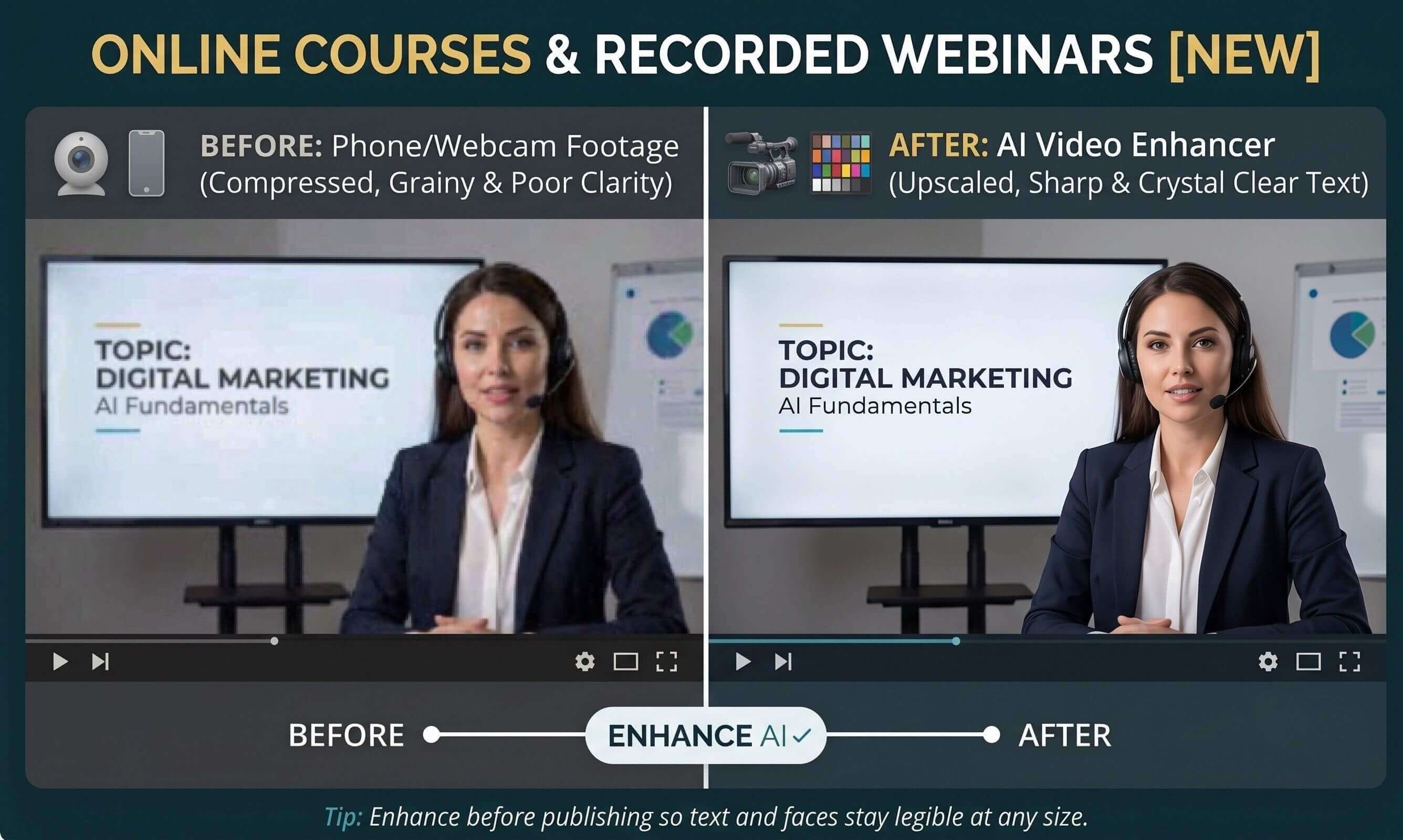
Screen recordings and webcam footage often get compressed hard by recording or conferencing software — enhance before publishing so text and faces stay legible at any size.
Tip: Check the recording's original resolution before enhancing — a webinar recorded at a low resolution to save bandwidth has less real detail to reconstruct than one recorded at a higher source resolution.
Frequently Asked Questions: Enhancing Videos with AI
What is an AI video enhancer?
An AI video enhancer is a tool that uses machine learning to automatically improve video quality. It analyzes frame by frame to sharpen details, reduce grain and noise, and upscale resolution all at once. In other words, you may fix your old and blurry footage without using any video editing tool.
Do AI video enhancers really make a difference?
Yes, AI enhancement works best on footage that is soft, slightly out of focus, or degraded by compression. It can effectively sharpen and clarify these problems in videos. However, severely out-of-focus or over-pixelized footage may see limited improvement, as the AI needs some underlying details to work with.
How do I upscale a video to 4K with YouCam?
Upload your clip, choose the upscale or 4K enhancement option, and click “Enhance” to let the AI rebuild missing details. The AI Video Enhancer processes every frame and delivers a sharper, cleaner result you can preview and download. No software installation needed.
Can AI restore old or low-quality videos?
Of course. The AI sharpens details, upscales resolution, and improves blurry videos to bring your old clips back to life. Whether it’s a commemorable footage or a vintage videotape, YouCam Video Enhancer can optimize them to fit modern high-quality displays.
Can AI improve dark or grainy videos?
Yes, the AI Video Enhancer is trained on thousands of tasks to automatically brighten videos, remove grain and noise, and recover lost details. The AI can smartly fill in missing pixels to improve video quality. The “inpainting” technique the AI uses is an algorithm that analyzes differences among pixels and auto-fills missing areas in light of the context of the input.
What is the difference between AI upscaling and standard video enhancing?
Standard upscaling simply stretches the existing pixels, which often results in a blurry or mosaic look. YouCam’s AI Video Enhancer uses deep learning to "inpainting" and reconstruct missing details, actually creating new pixels to deliver a true high-definition or 4K result that looks natural.
Which video formats are supported?
YouCam's AI video enhancer supports common formats including MP4, MOV, and M4V. For best results, upload high-quality source footage; avoid heavily compressed files, as starting quality affects the final output.
Is the YouCam AI Video Enhancer free to use?
New users receive free trial credits to try the AI Video Enhancer. Ongoing use or higher-resolution exports may require a plan. You can start enhancing without a subscription to test the results first.
Is it safe to upload my videos?
Absolutely. Your privacy is our priority. All uploaded videos are encrypted and processed through secure servers. We do not store your content longer than necessary for the enhancement process, and your data is never shared with third parties.

Remove unwanted objects, people, and watermarks from your videos automatically.

Turn your footage into cinematic pieces using only AI prompts. No editing skills required.
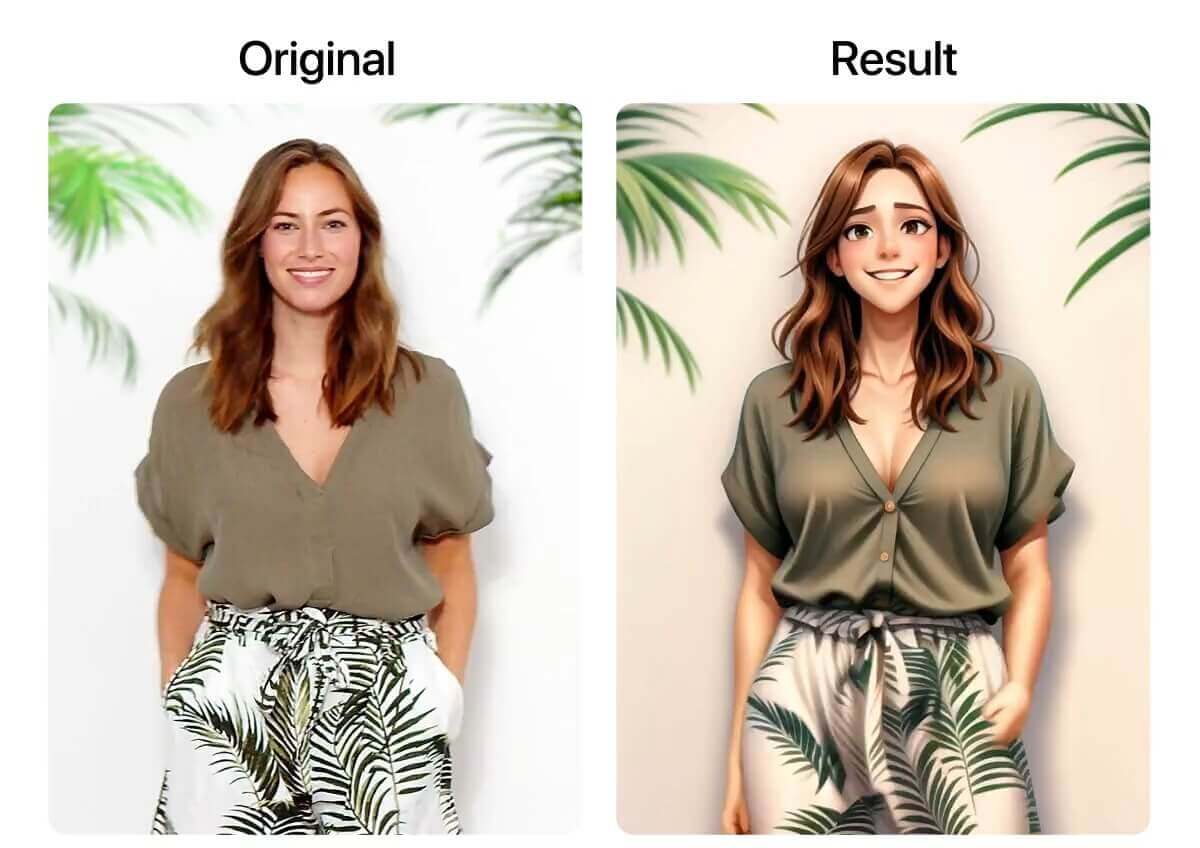
Explore a wide range of filters from YouCam and give your videos a new look.

Enhance Videos Easily on Your Phone with our App.
Download Now!