





Remove Objects from Video Online
Clean up video footage by removing unwanted objects, people, watermarks, logos, and text. Upload your clip, and let AI track it frame by frame for a more natural-looking result.


Why Use The YouCam AI Video Object Removal
- Remove unwanted objects automatically: Brush over the object once, and AI follows it across the clip to erase distractions with less manual work.
- Erase people, logos, and watermarks: Remove tourists, photobombers, old branding, timestamps, and overlays from short video clips online.
- Clear text and subtitles from video: Clean up hardcoded captions, subtitles, or text overlays before relocalizing or repurposing content.
- Keep the background looking natural: Our AI reconstructs the area behind the removed object so the final result blends more smoothly into the original scene.

How to Remove Objects from Video in 3 Steps
Upload your video, select the area you want to erase, and let AI remove objects, people, watermarks, or text from your footage online.

Upload Your Video
Upload an MP4, MOV, or M4V file from your device. This tool works best for short clips under 1 minute, making it ideal for quick video cleanup and social content editing.


Brush over the Object
Highlight the unwanted object you want to remove. Adjust your brush size to cover the target area more accurately before processing.

Erase & Download
Start the removal process and let AI track the selected area through the clip. Once processing is complete, preview the result and download a cleaner version of your video.
What Can You Remove with AI Video Object Removal?
Remove People & Tourists from Videos
Erase unwanted people, tourists, or passersby from the background of your video to create a cleaner, more professional-looking shot. This is especially useful for travel clips, street footage, event videos, and outdoor content.

Remove Watermarks & Logos from Video
Repurposing content? Easily remove watermarks, logos, timestamps, and branded overlays from video footage without needing complex desktop software. It is a practical option for cleaning up reused clips, demo footage, or old branded assets. Our specific "Remove Watermark" tool allows for box-selection to clear logos from the corner of your videos instantly

Remove Clutter & Unwanted Objects
Delete small distractions like signs, wires, cups, trash cans, or other objects that pull attention away from your subject. This helps keep product videos, lifestyle clips, and short-form content looking cleaner and more intentional.

Erase Hardcoded Text & Subtitles from Video
Remove subtitles, captions, and text overlays from video when you want cleaner visuals or need to replace old text with a new localized version. This is especially useful for repurposing social content across markets or campaigns.

FAQs: Video Object Removal
What is video object removal?
A video object remover is a tool that helps erase unwanted elements from a video, such as people, watermarks, logos, text, subtitles, or background clutter. AI analyzes the selected area and rebuilds the surrounding background so the final clip looks cleaner.
How do I remove an object from a video online?
To remove an object from a video online, upload your clip (MP4, MOV, or M4V) to the YouCam Video Object Removal. Use the brush tool to paint over the unwanted object or person, and click "Start." Our AI will automatically track and erase the element across all frames, filling in the background seamlessly.
Can I remove a person from a video?
Yes. You can remove people such as photobombers, tourists, or passersby from short clips by selecting them in the frame and letting AI follow their movement through the video.
Can I remove logos and watermarks from videos?
Yes, you can remove watermarks from videos using our specialized watermark removal feature. Upload your video, select the watermark or logo with our precise bounding box or brush tool, and let the AI reconstruct the background frames to erase the watermark cleanly without leaving a heavy blur.
Can I remove text or subtitles from a video?
Yes. You can remove hardcoded text, subtitles, and captions from video frames, which is useful when you want cleaner footage or need to replace old text with a new version.
Does the eraser work on moving objects?
Yes. YouCam uses AI motion tracking. Once you select the object in one frame, the AI analyzes the video flow to ensure the object is removed throughout the clip, even if it moves.
Can I adjust the selection area if I make a mistake?
Absolutely. The tool provides a Select (Brush) button to add to the mask and an Eraser button to remove parts of the mask. You can also adjust the Brush Size slider for precision editing.
Will removing objects lower my video quality?
Our goal is to maintain the highest quality. The AI fills in the removed area intelligently to match the surrounding pixels, keeping the rest of your video sharp and in high resolution.
What video formats are supported?
YouCam’s AI Video Object Remover supports popular video formats including MP4, MOV, and M4V. To ensure fast cloud-processing speeds and optimal results, we currently support video clips with a duration of under 1 minute.
Does this work on moving objects?
Yes. AI motion tracking helps follow the selected area across frames, so removal can continue even when the object or camera is moving.
When does AI object removal work best?
AI object removal works best on short clips with relatively stable backgrounds and clearly defined distractions, such as people, text, subtitles, logos, or small objects. It may look less natural when a large object covers important parts of the scene for a long time.
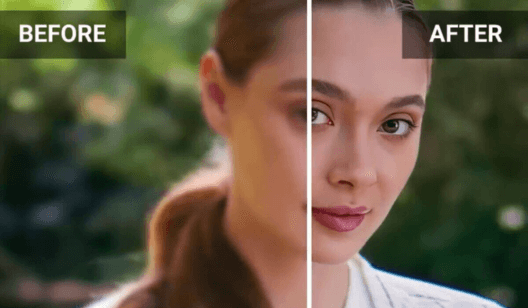
Ramp up your Video Quality with You Cam's AI Video Enhancer. Our powerful AI achieves a professional look and clear visuals within minutes!


Bring any photo to life with our advanced Image-to-Video Generator. Explore our wide library of templates or set your own tone, it's all your choice!
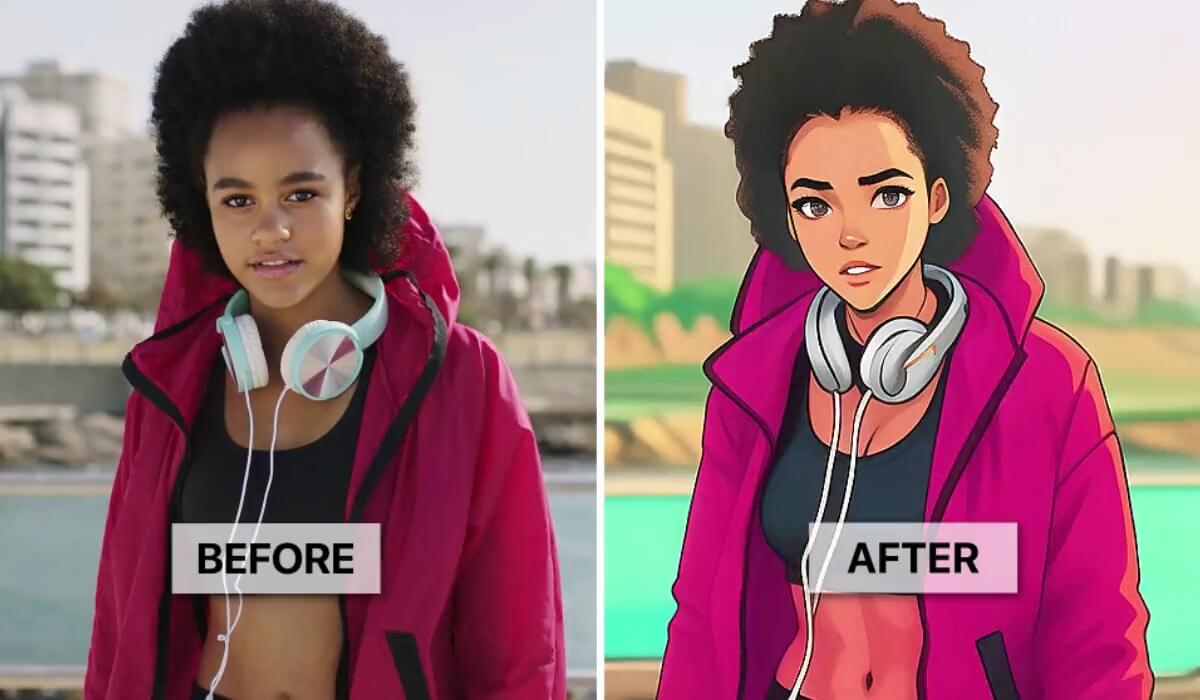
Give your videos the last artistic touch with the perfect Video Filter. Explore YouCam's wide range of styles and moods to find the perfect setting of your story.

