





AI Replace
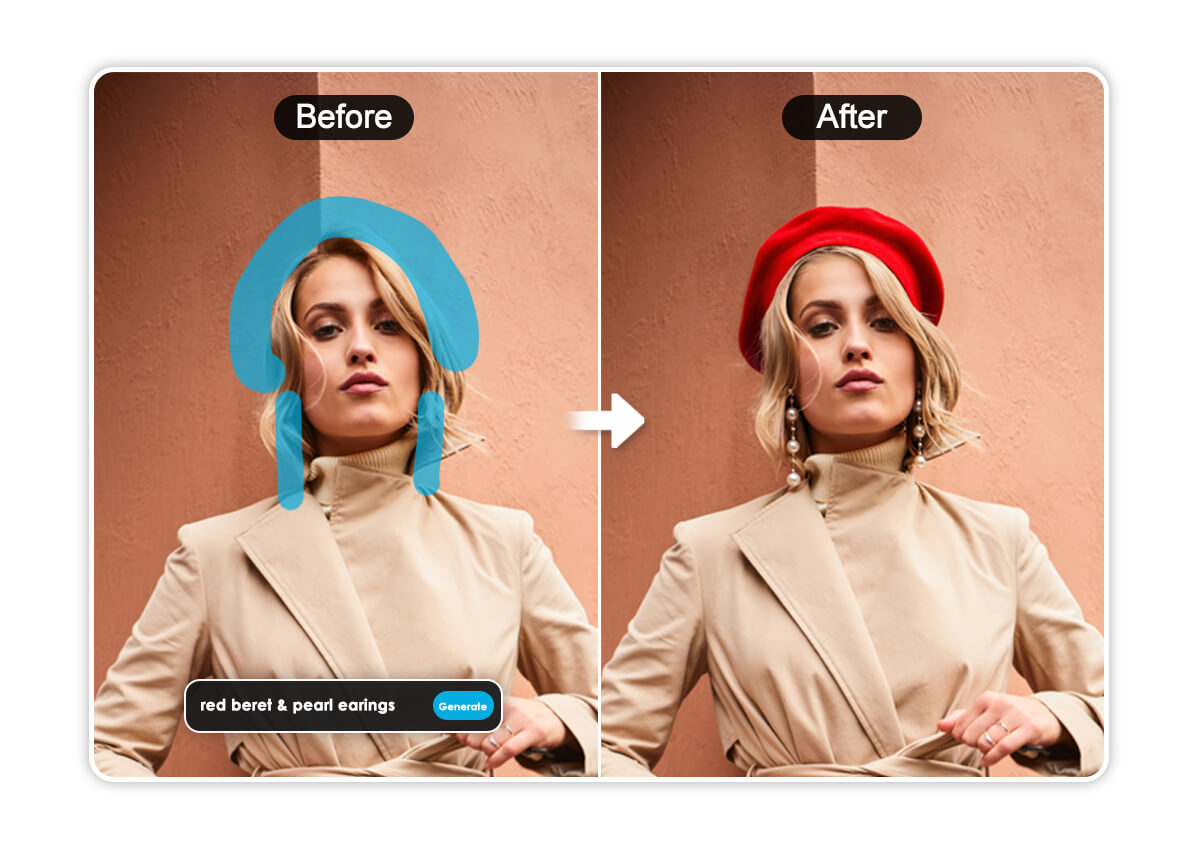
Swap out a jacket, a background, any object — just describe it. AI Replace generates new, context-matched pixels that follow your photo's lighting and perspective. Brush, prompt, and watch it blend in seconds.




How Do You Replace an Object in a Photo Using AI?
Upload Your Photo
Choose an image from your device. Clear lighting and defined objects work best for a seamless blend of your new generative elements.

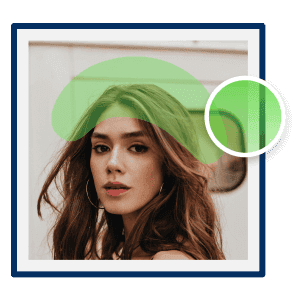
Brush Area or Object
Use the Brush to highlight the specific object or area you wish to transform.
Pro Tip: For the most realistic results, brush slightly outside the edges of the object to give the AI enough "context" to blend the new textures.

Enter a Text Prompt
In the prompt box, describe exactly what you want to see.
Pro Tip: Make sure to be specific of what you want to replace. Write “Place a red flat cap beret on head” instead of “Add hat to photo”.
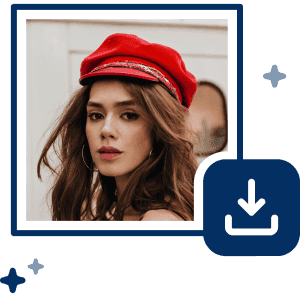
Click "Generate" to Start
Click "Generate," and watch as the AI replaces your selection with a brand-new, realistically rendered object.
Infinite Creative Possibilities For Your Photos with AI Replace
Why Does AI Replace Match Lighting and Shadows Automatically?
AI Replace looks at the light source, shadow direction and surface texture in your photo before generating new content, so a replaced object or background fits the shot as closely as possible.
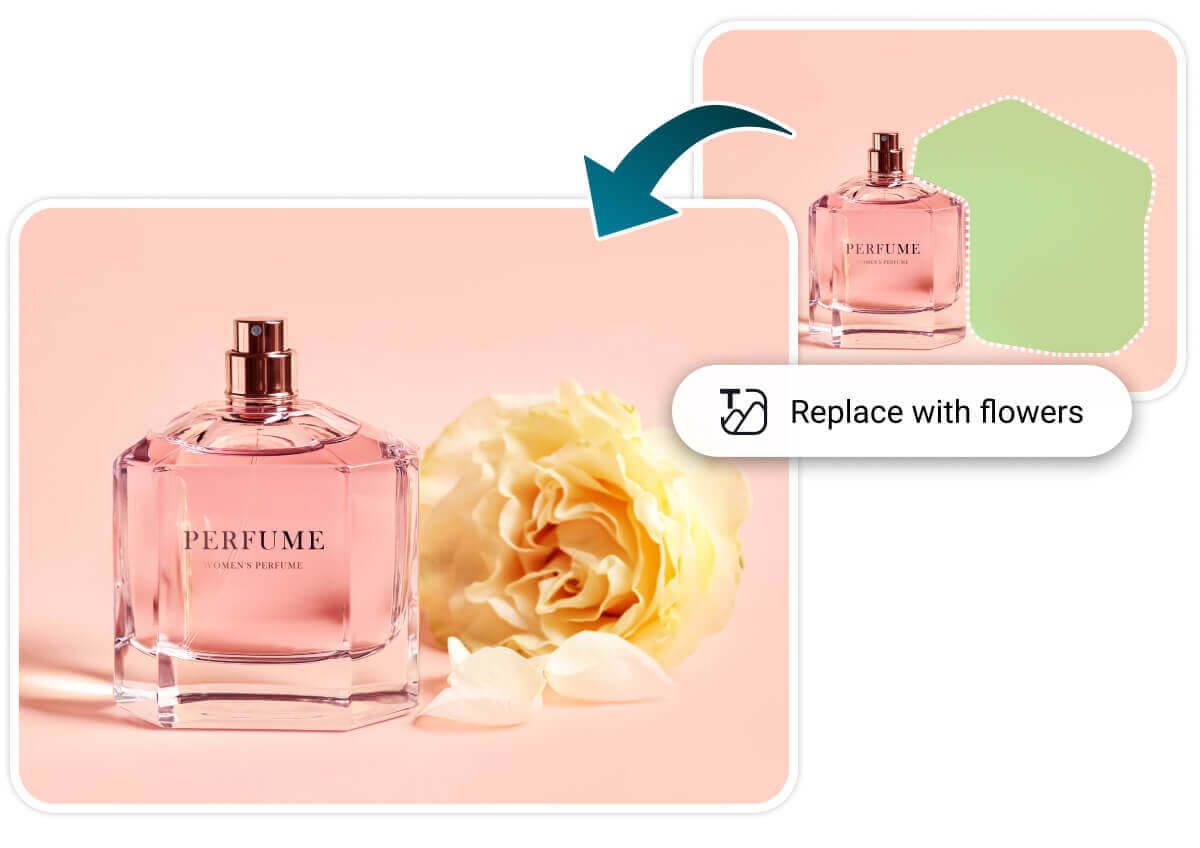
Can You Add Objects That Weren't in the Original Photo?
Use generative fill to add objects that weren't there, change backgrounds or try new styles. Describe 'a birthday cake' or 'a bouquet of roses' and the AI generates it from scratch, matching the surrounding lighting and composition.
How Specific Should Your AI Replace Prompt Be?
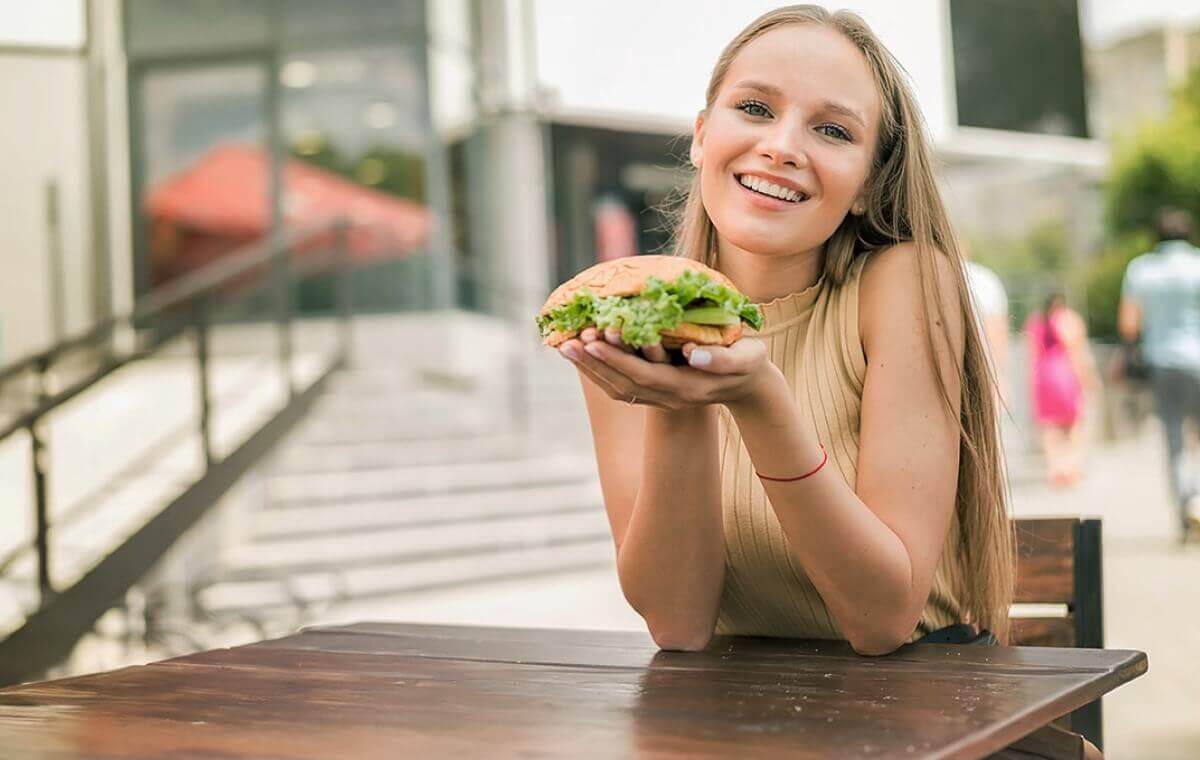
Be specific: describe the object, material, color and style. 'Red wool beret with a small bow' beats 'hat.'
Vague prompts leave the AI guessing. The more detail you give, the more consistent and realistic the result.
AI Replace: People Also Ask
What is AI Generative Fill and how does it work?
AI Generative Fill (also called AI Replace) lets you select an area of a photo and transform it with a text prompt. It uses AI inpainting to read the surrounding pixels, lighting and shadows so the new object blends in as naturally as possible.
What is the difference between AI Replace and AI Object Removal?
Object removal erases something from your photo and fills the gap with background. AI Replace goes a step further — it generates entirely new content in that space based on your text prompt, whether that's a different outfit, a new background, or an object that wasn't there at all. Use removal when you just want something gone; use Replace when you want something new in its place.
How do I write the best prompts for AI image replacement?
The more specific your prompt, the more consistent your results. Structure it around four things: object, material, color, and style — for example, "black leather biker jacket, fitted, matte finish" beats a one-word prompt like "jacket" every time. Vague prompts leave too much open to interpretation, so the AI fills in gaps with generic guesses. If your first result isn't quite right, don't just tweak the brush — refine the prompt with more detail and regenerate.
Why do shadows or reflections look mismatched after a swap?
Your brush mask probably covers the object but misses its cast shadow or reflection. The AI only matches lighting inside the selected area, so a shadow outside the mask stays as it was. Brush over the shadow or reflection too, then regenerate.
Can I use AI to add objects to a photo that weren't there before?
Yes! This is different from a simple swap. Brush an empty area of your photo, describe what you want to see (like "a bunch of roses" or "a birthday cake"), and AI Replace generates it from scratch based on your prompt and the surrounding scene's lighting and perspective. It works best when the added object makes sense within the photo's context (same lighting direction, same general scale) so the result blends in rather than looking pasted on.
Why did my AI-generated image look blurry or unrealistic?
Usually mask size and prompt detail. Brush slightly outside the object's edges so the AI has context to blend with, and be specific: 'red wool beret with a small brim' beats 'hat.' If it still looks off, regenerate; quality can vary between attempts.
Can I use this to match an accessory to a new hairstyle?
Yes — swap a hat, headband, or other accessory to match a new look without redoing the rest of the photo. If you haven't picked the hairstyle itself yet, try the AI Hairstyle Changer first.

Replace Objects on Your Phone Directly
Download YouCam AI Pro Now!