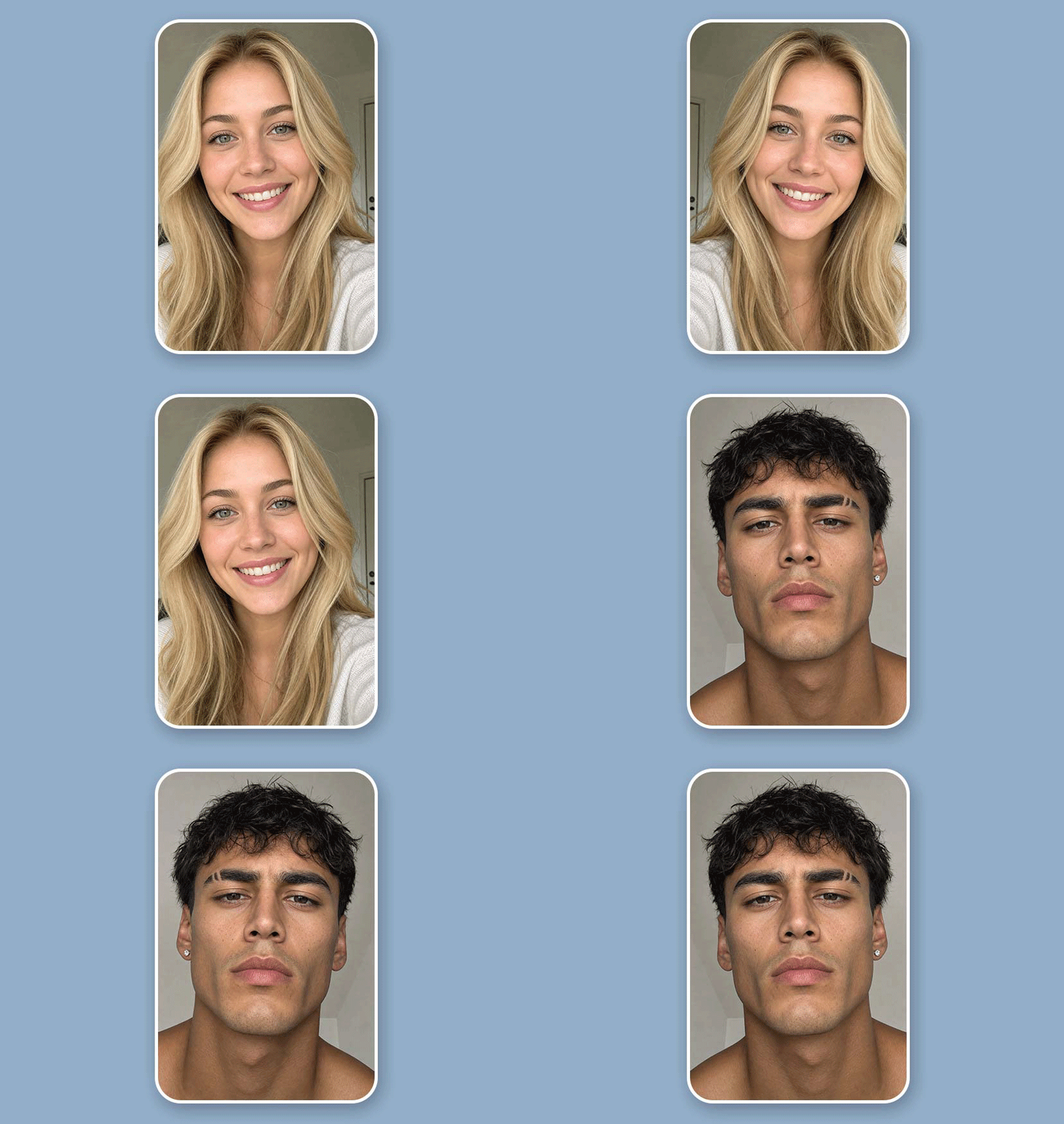




Inverted Filter: See Yourself Like Others Do
Flip your selfie horizontally with YouCam's Flip & Rotate tool to see yourself from the opposite view, not from your mirror's reflection. Free and instant, right in your browser.

Mirror Your Selfies with Inverted Filter
- Natural Results: Retains the original facial details, lighting, and image quality, providing most clear inversions.
- Free Online Tool: Upload, flip, and download all in the browser. No apps or any editing skills needed.
- Rotate & Flip: More versatile than inverting photos horizontally or vertically. Rotate to the right angle, then flip the images over.
- Ready to Share: Offers realistic results that are perfect for self-comparison, before/after posts, or video thumbnails.
How to Get Your Inverted Photo
Flipping your photo takes just a few seconds with YouCam's Flip & Rotate tool.
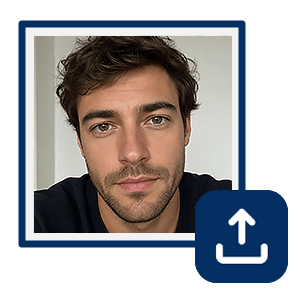
Upload Your Photo
Go to YouCam Online Flip & Rotate tool and upload a clear, front-facing selfie.
Note: A neutral expression and even lighting make the comparison to your original more meaningful.

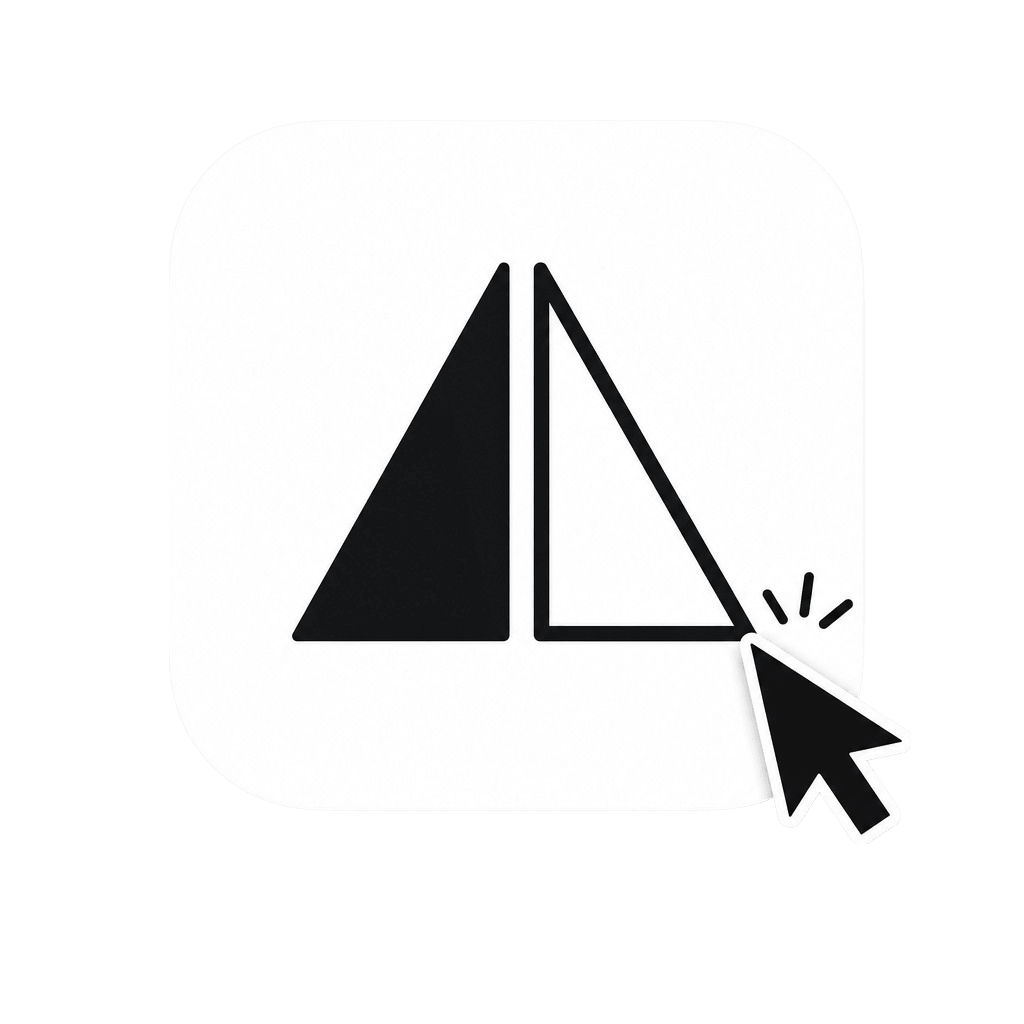
Flip Left and Right
Click the icon with two triangles aligning horizontally to instantly mirror your photo.
Note: Rotate your image to adjust head tilt for the most accurate comparison.
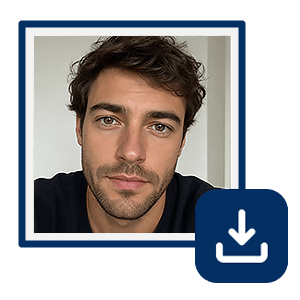
Save and Compare
Download the inverted image to compare with the original or constantly click the invert icon to see the difference online.
Where to Use an Inverted Filter
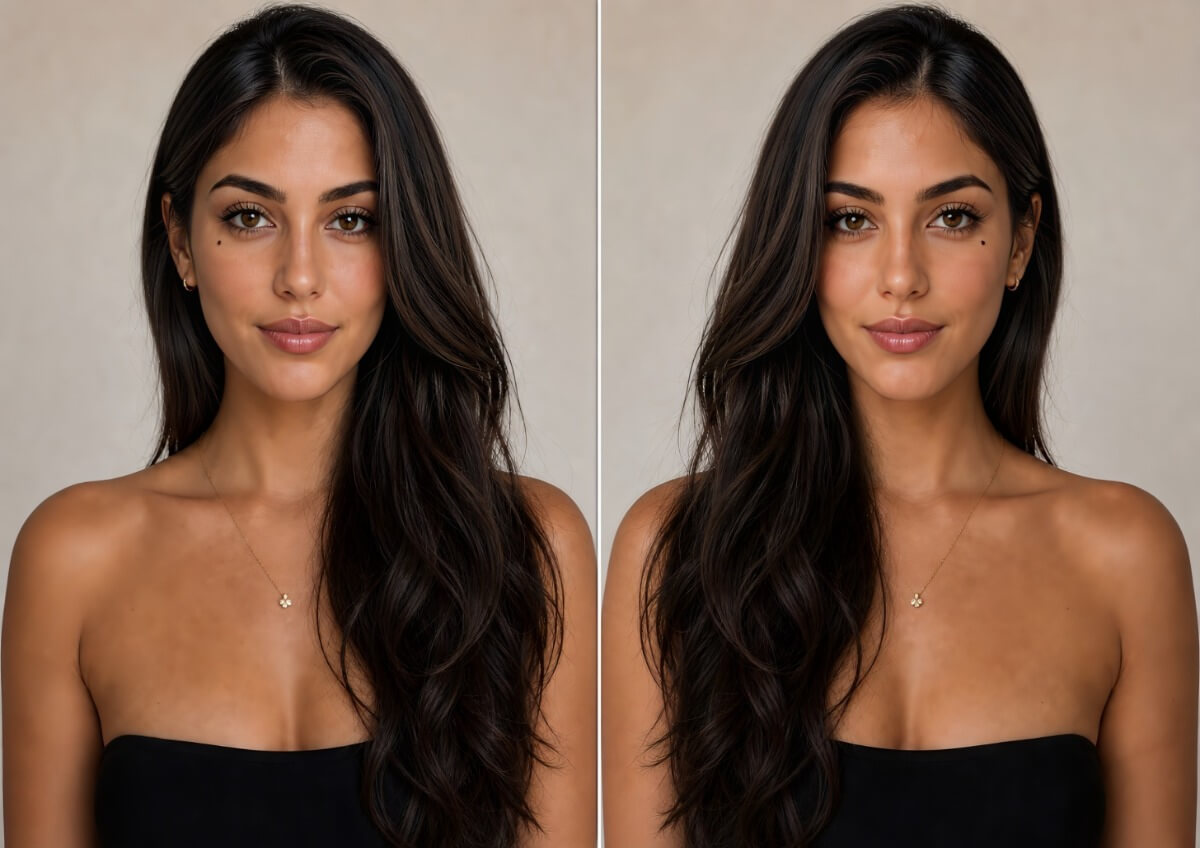
Quick Symmetry Check
Invert your image back and forth to quickly spot differences between the left and right sides of your face, such as eye size, mouth position, or cheekbone height. It’s a simple way to get a quick look at your facial symmetry.
Tip: Use a straight-on, front-facing photo for a more consistent comparison.
Profile Picture Preview
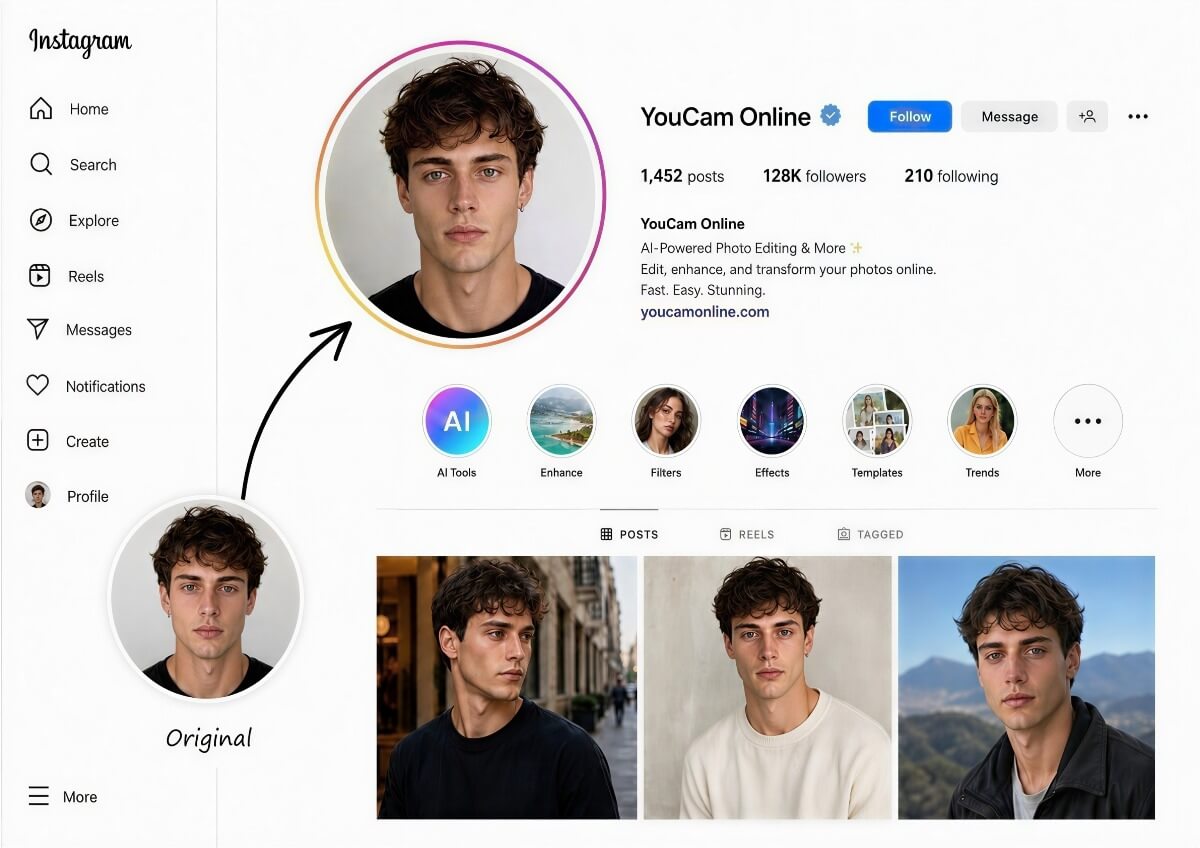
Upload a headshot or profile photo and flip it to see which orientation looks best. Facing a different direction gives you a different look!
Tip: Pair it with our Crop tool to resize your image using our preset ratios or customize your size.
Social Media Content
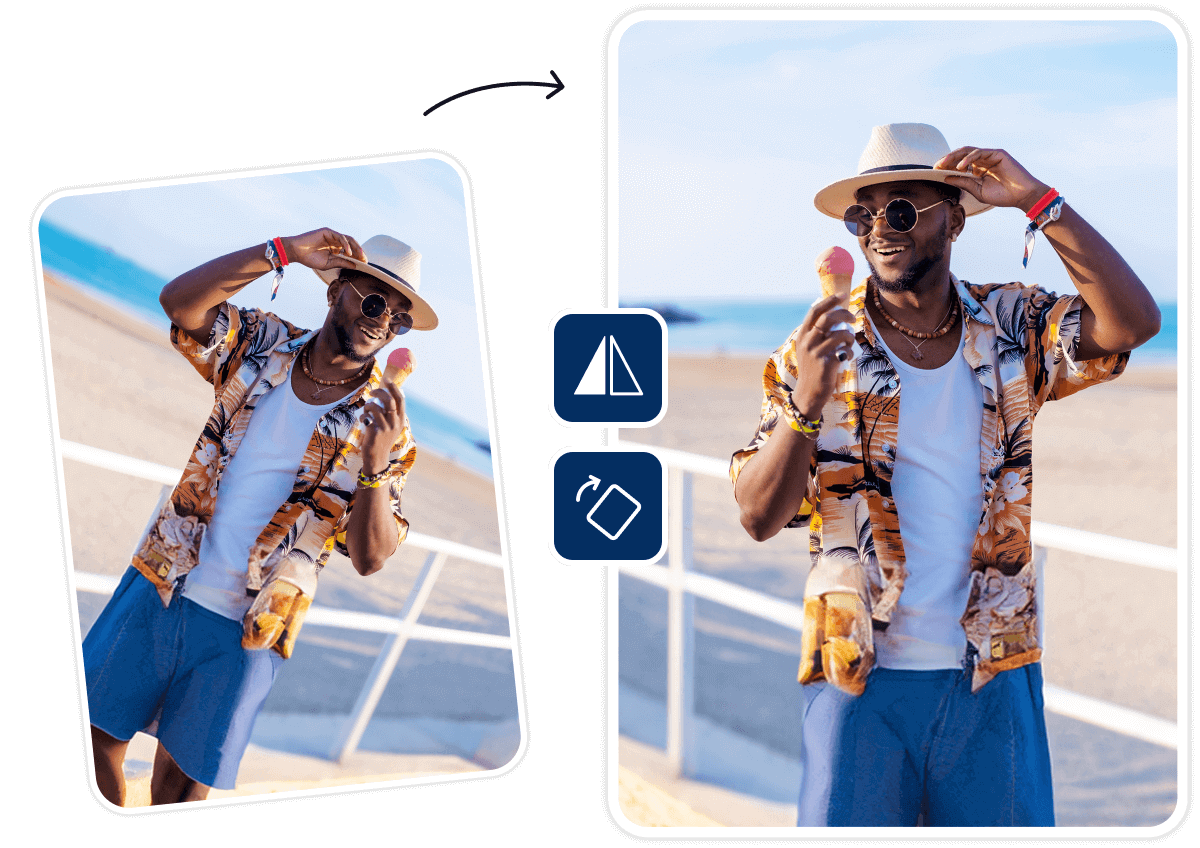
Flip your image with one click and compare different orientations for your posts, visuals, or video thumbnails.
Tip: Use preset crop sizes for Instagram posts, Facebook covers, and YouTube thumbnails. Flip and crop your image—all in one tool.
Inverted Filter FAQ
What is an inverted filter?
An inverted filter flips your image horizontally (or vertically) without losing image quality or altering your original image. It simply inverts the pixels to mirror your photo. Great for selfie comparisons, content creation, and profile picture decisions.
How do I flip an image left to right online?
Use an online image-flipping tool like YouCam’s Flip & Rotate. Upload your image, then click the horizontal flip icon to reverse it from left to right. Your flipped image will appear in seconds.
Is the inverted filter the same as a mirror filter?
No, an inverted filter simply flips the image left to right or upside down. It does not change your facial features. A mirror filter is slightly different because it reflects the left side of your face to the right, or vice versa. You can see a perfectly symmetrical face with a mirror filter but not with an inverted filter.
Why does the inverted filter look so weird or worse?
Your inverted image looks weird because your brain is used to your reflection. Most of the time, you see yourself through a mirror, which is the opposite of your real look. When you invert your reflection, your brain has to deal with a brand new look because your face is asymmetric. The strangeness reduces as your brain gets used to the inverted look.
Does flipping change my facial features?
No, the Flip & Rotate tool only turns the image over. Your facial features, image lighting, and colors remain the same. It may look weird to you because the inverted version isn’t what you usually see through a mirror.
Can I use the inverted filter to check my face symmetry?
Partly. You can use the Flip feature to compare the left and right sides of your face and spot visible differences, such as eye size or mouth position. However, the tool is not designed to provide a comprehensive facial symmetry analysis or measurement. For a more detailed assessment, consider using a dedicated facial analysis tool.
Can I make an inverted filter video for social media?
Yes, after you finish the inversion work, you may go to YouCam’s Image to Video to animate your images. Upload your images and describe what you want the video to show. Our AI Agent is also capable of turning your images into short videos. Chat with it and release your creativity!
Is the Inverted Filter free on YouCam Online Editor?
Yes, the Flip & Rotate feature is completely free of charge! The photo editing tool lets you make basic photo adjustments to your images such as rotate, flip and crop. Check out here for more.

