





AI Photo Enhancer
Fix blurry, low-res, or noisy photos in one click. YouCam's AI restores original detail—sharpening, removing grain, and boosting resolution.





Resolution vs. Quality: What's the Difference?
Resolution is the number of pixels in an image; quality is how much real detail those pixels actually hold. You can have a high-resolution photo that still looks soft and lifeless, or a smaller image that's razor-sharp.
A quick way to tell which problem you have: pixelation (blocky squares when you zoom in) is a resolution problem. Blur, grain, or softness at normal size is a quality problem.
AI upscaling adds pixels and reconstructs detail, unlike simple resizing, which only stretches the pixels you already have. It can't restore detail that was never captured in the first place — only generate a realistic, plausible approximation of what was likely there.
How to Fix a Blurry or Low-Resolution Photo

Upload Your Photos
Drag and drop or upload your photo directly in the browser. You can also enhance a single image or upload a batch of up to 50 at once.
Tip: screenshots and heavily compressed messaging-app photos (Facebook, WhatsApp re-shares) usually have compression artifacts baked in — enhancement can smooth these but won't fully undo them.


Let AI Separate Signal from Noise
The AI identifies edges, textures, and facial detail, then rebuilds them at higher resolution while suppressing random noise and compression artifacts. This is different from simple sharpening (which just increases contrast at edges) — it's closer to informed reconstruction based on patterns learned from millions of photos.

Download Your Enhanced Photo
Review the result at 100% zoom, not just the thumbnail — over-sharpening artifacts are only visible at full resolution. Download in your original format, or PNG if you plan to edit further, since re-compressing a JPG loses additional data each time.
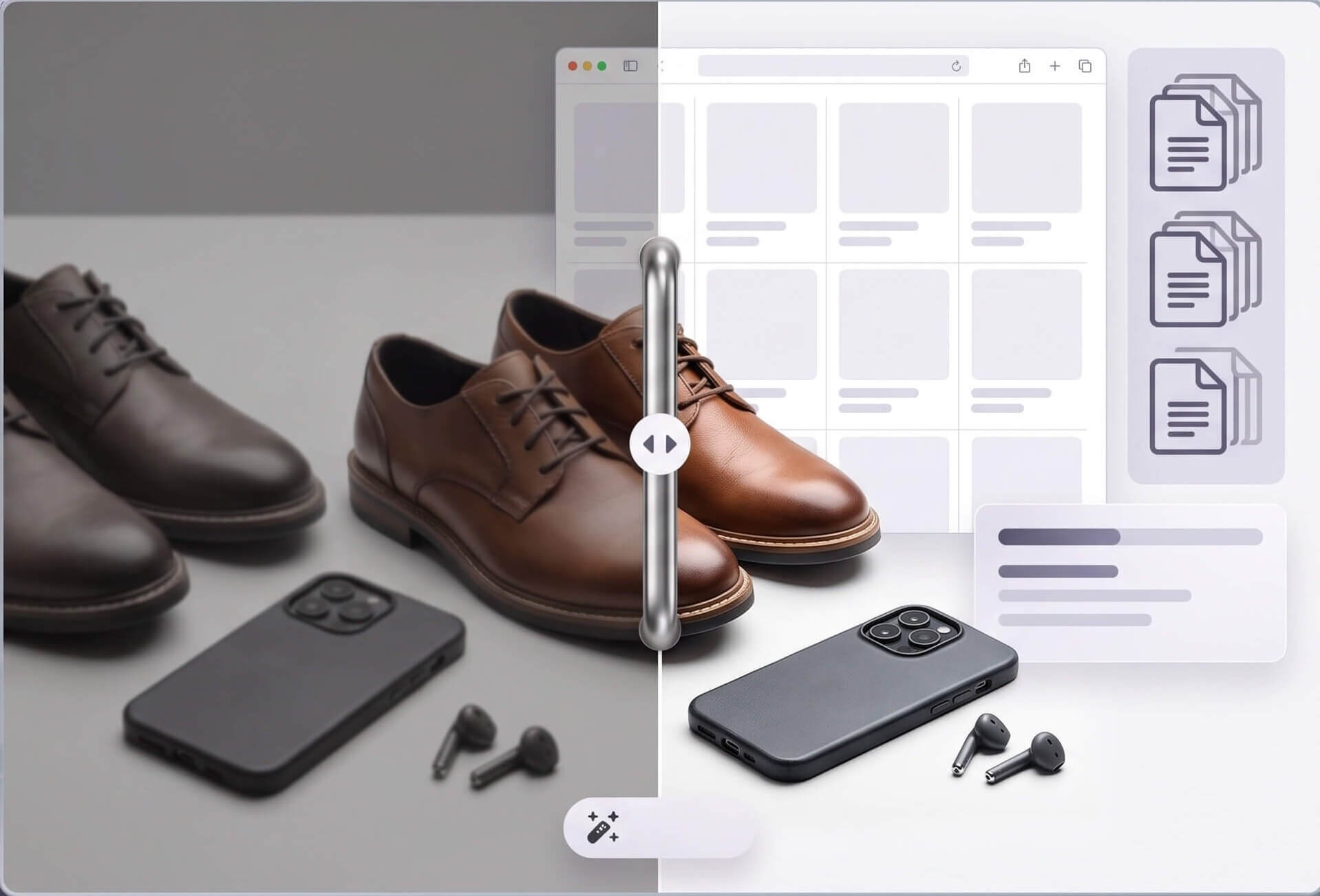
Clean, sharp product shots directly affect conversion — enhance batches of listing photos at once so every product page looks consistent, without re-shooting under better lighting.
Tip: Enhance before uploading — marketplaces like Amazon and Etsy recompress images on upload, so a higher-quality file holds up better afterward.

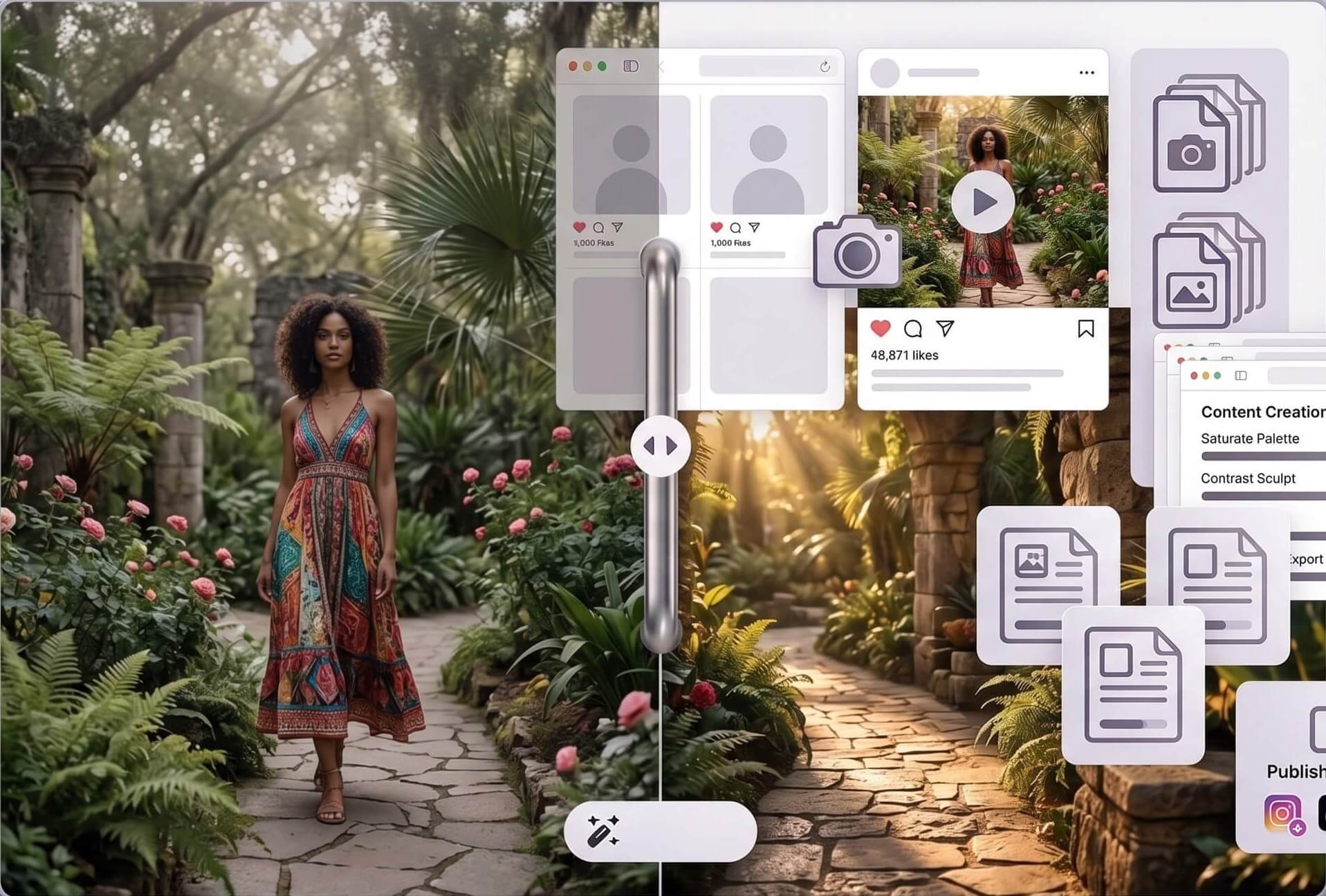
Screenshots, re-shared images, and phone photos all lose quality after repeated compression — enhance before posting to keep detail intact across platforms that recompress on upload.
Tip: Enhance the earliest version of an image you can find — each re-share compounds quality loss.

Print exposes quality issues a screen hides. Upscale and sharpen source images before they go to print, whether that's a flyer, a banner, or packaging artwork.
Tip: Viewing distance matters: a banner seen from across a room can use a lower resolution than something held close, like a business card.
What to Look for in a Photo Enhancer?
Increase Image Resolution Without Quality Loss
Blur usually comes from motion, missed focus, or repeated compression. Mild blur and compression recover well — heavy motion blur has less to work with, since the detail was never captured. Works on phone photos, downloads, and scans.
Tip: If a photo is both blurry and low-resolution, fix the blur first, then upscale — enhancing a still-blurry photo just makes the blur bigger too.
AI Photo Enhancer for Dark and Noisy Photos
Grain in low-light photos comes from the sensor amplifying a weak signal — brightening alone just amplifies the noise too. Enhancement separates real detail from that noise instead.
Tip: A slightly underexposed photo enhances better than an overexposed one — shadow detail can be recovered, but blown-out highlights are usually gone for good.
Batch Photo Enhancer – Edit Up to 50 Photos at Once
No time to edit image by image? Upload up to 50 photos at once and let AI improve quality across your entire batch automatically. Perfect for photographers, online sellers, and creators who need consistent results across large sets.
Tip: Keep similar lighting conditions in the same batch — mixing very dark and very bright photos together can make the automatic adjustments less consistent across the set.

AI Photo Enhancer for AI-Generated Images
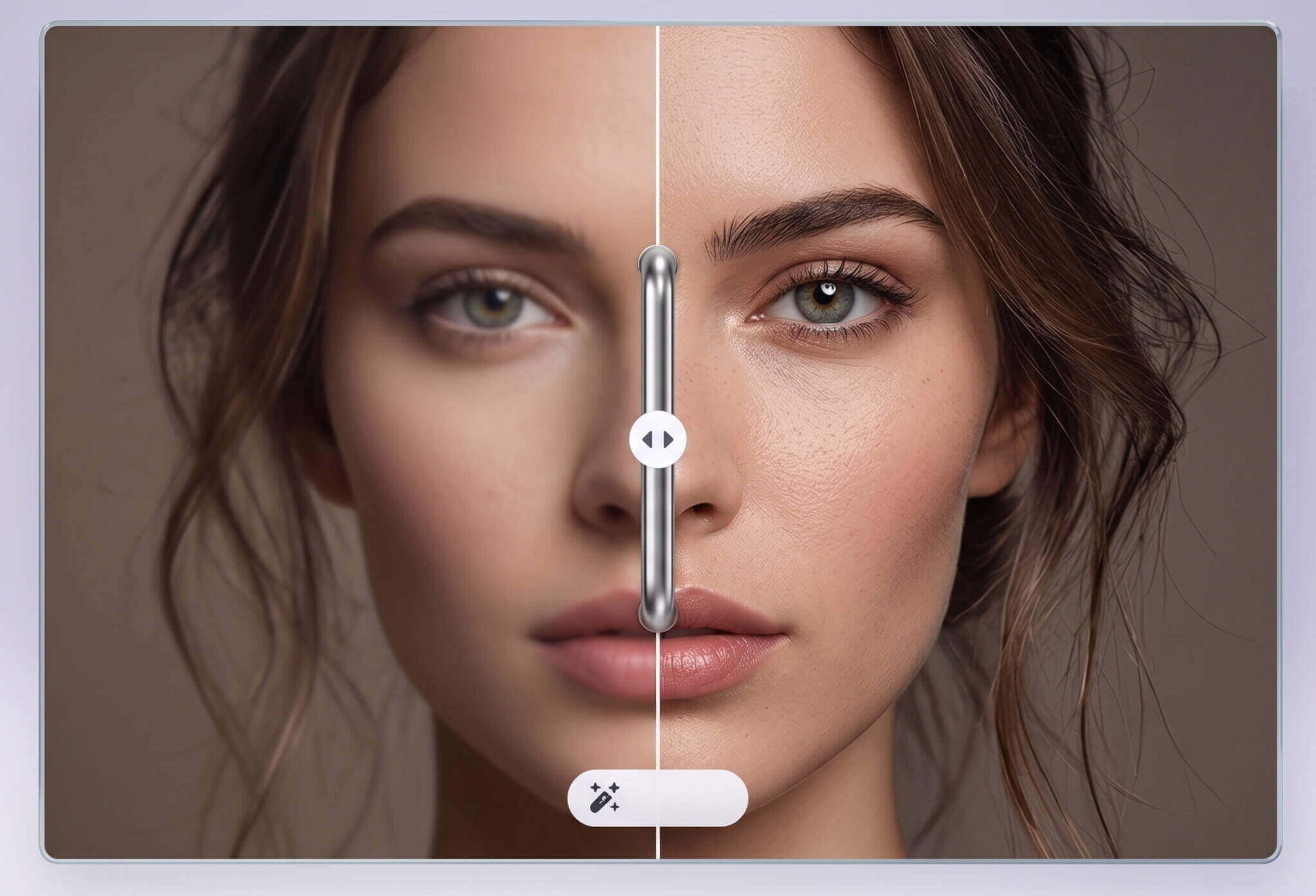
AI-generated images often have their own quirks — slightly waxy skin texture, inconsistent fine detail, or soft edges from the generation process itself. YouCam's enhancer can clean these up the same way it does with camera photos, sharpening real detail without exaggerating the artifacts already baked into the image.
Tip: Enhance works best on AI images that are already close to final — it sharpens and refines detail, but bigger structural errors (like a warped hand) need to be fixed at the generation stage, not after.
Why Users Love Our AI Photo Enhancer
Students, photographers, and small business owners rely on YouCam to rescue old, blurry, and low‑light photos, making them look crisp, clear, and professional with just a few clicks. Rated 4.7/5 stars (1,800+ reviews) for AI photo enhancement.
Saved my client deliverables
I received low-res assets from a client for a web design project. Instead of asking for a reshoot, I ran them through the 4x Upscaler. It didn't just resize them; it added the necessary texture to make them look professional on a Retina display.
— Amanda L., Freelance Web Designer
“Better than Lightroom for noise reduction”
I shoot concerts often, which means high ISO and lots of grain. This tool cleans up the noise better than my manual editing software, and it doesn't turn the singer's face into plastic. Highly recommended for low-light photography.
— Brian T., Photographer
“Fixed a dark, blurry group shot”
We took a group shot at a dimly lit restaurant. You couldn't really see our faces. The AI brightened it up without making it look grainy. Now it’s my profile picture!
— Melissa G., Student
As Reviewed by Vidmore
"YouCam Online Editor software is among the most helpful image editing software you can find on your browser." — Erica Ferreras, Vidmore
Frequently Asked Questions (FAQ): AI Photo Enhancer
Is there a difference between "enhance" and "upscale"?
Yes. Upscaling increases pixel count (making the file larger). Enhancing improves clarity, color, or noise at the existing resolution. Many tools, including AI-based ones, do both at once, but they're solving different problems — upscaling for print/display size, enhancing for visual clarity.
How do I fix a blurry photo online?
Upload your photo to YouCam's AI photo enhancer, and the AI will automatically detect and sharpen soft edges, motion blur, and compression artifacts. Download your clearer result in seconds.
Can I increase image resolution without losing quality?
Yes, YouCam's AI upscaler rebuilds missing detail when increasing resolution, so the result looks natural rather than stretched or pixelated. You can upscale images up to 4x their original size.
Does the AI photo enhancer work on dark or noisy photos?
Yes, the AI detects and reduces grain and noise while brightening underexposed areas, restoring natural-looking color and detail in low-light or high-ISO shots.
Is it safe to upload my photos?
Yes, all uploads are processed securely and your photos are protected with advanced encryption. YouCam does not use your images for training without consent.
What file formats are supported?
YouCam's AI photo enhancer supports JPG, PNG, and WEBP formats. For best results, upload the highest-quality version of your original image.
Can AI enhancement invent detail that wasn't really there?
To some degree, yes — this is worth understanding. AI upscaling infers plausible detail based on patterns from training data rather than recovering the literal original information. For casual use (sharing, printing, general clarity) this is not an issue. For anything requiring precise accuracy — identifying a specific detail, forensic use, documentation — treat AI-enhanced results as an approximation, not evidence.
Can I use this together with a new hairstyle?
Yes — if you've just previewed a new cut or color, enhance that same photo here to sharpen detail, fix lighting, and boost resolution before you save or share it. Try the AI Hairstyle Changer first if you haven't picked a style yet.
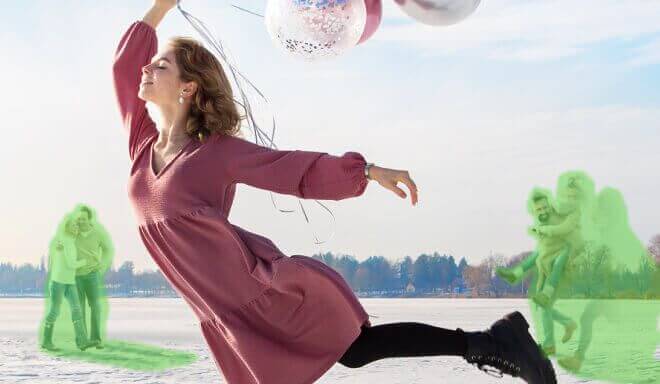
Clean up your background by removing unwanted people or items with our AI Object Remover.
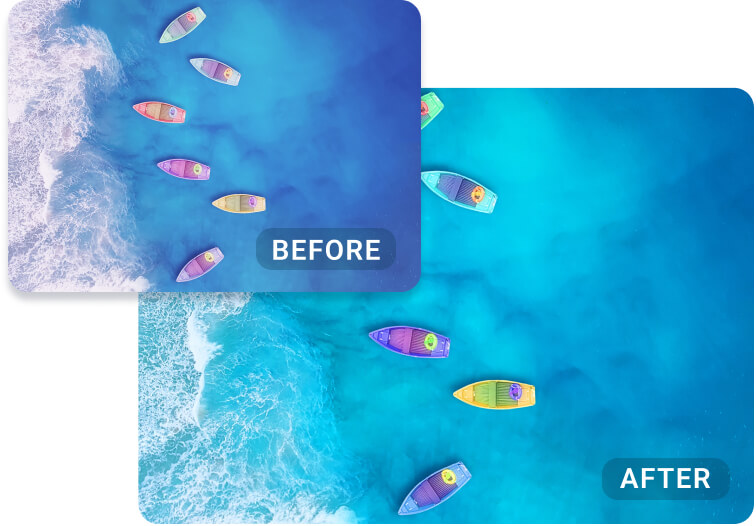
Restore natural tones and fix color imbalances with the YouCam AI Color Correction, making every photo pop.
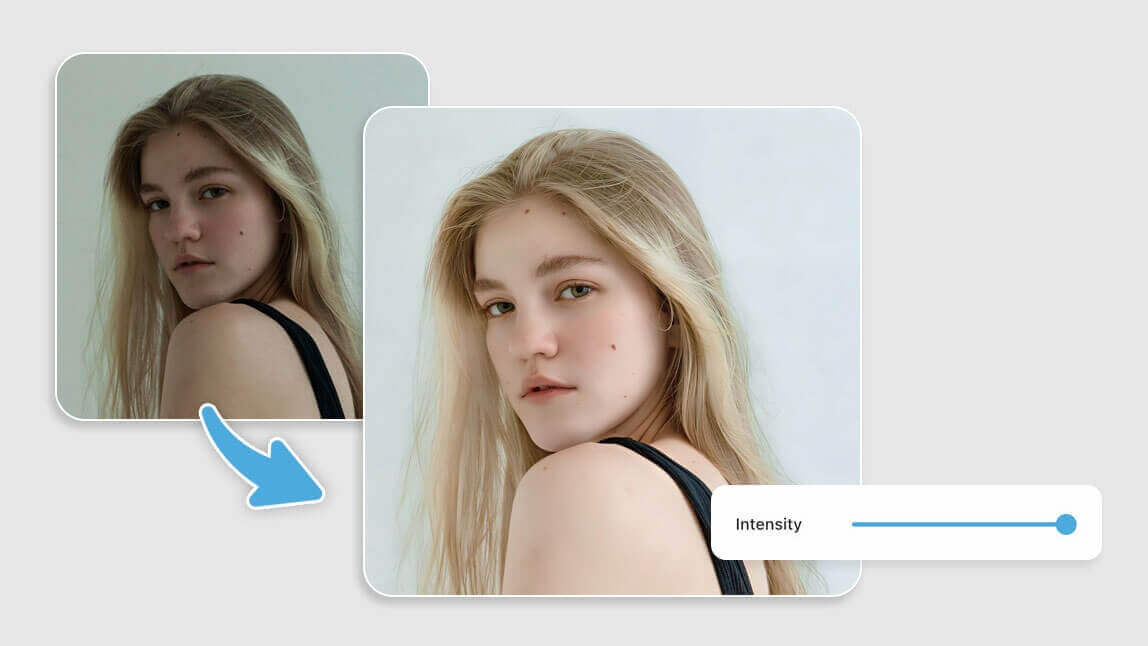
Light up dark or save overexposed photos in a tap with YouCam AI Image Brightener, bringing clarity and vibrance to every detail.

Enhance Photos With AI on Your Phone With Our App
Enhance your photos instantly on your mobile phone with our AI photo enhancer app, YouCam Enhance.