



Online Transparent Image Maker
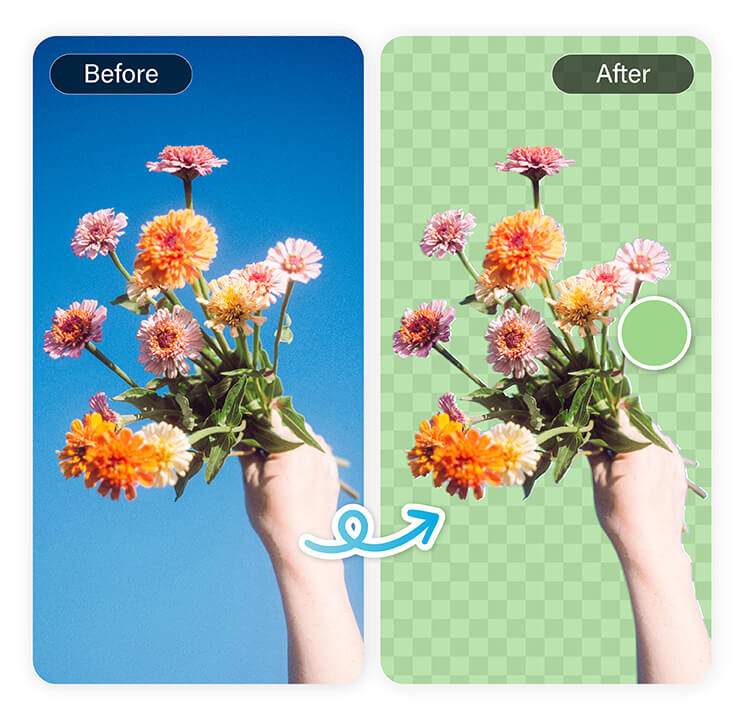
Transform any image into a flawless transparent PNG in seconds with ease and precision.





How to make an Image Transparent
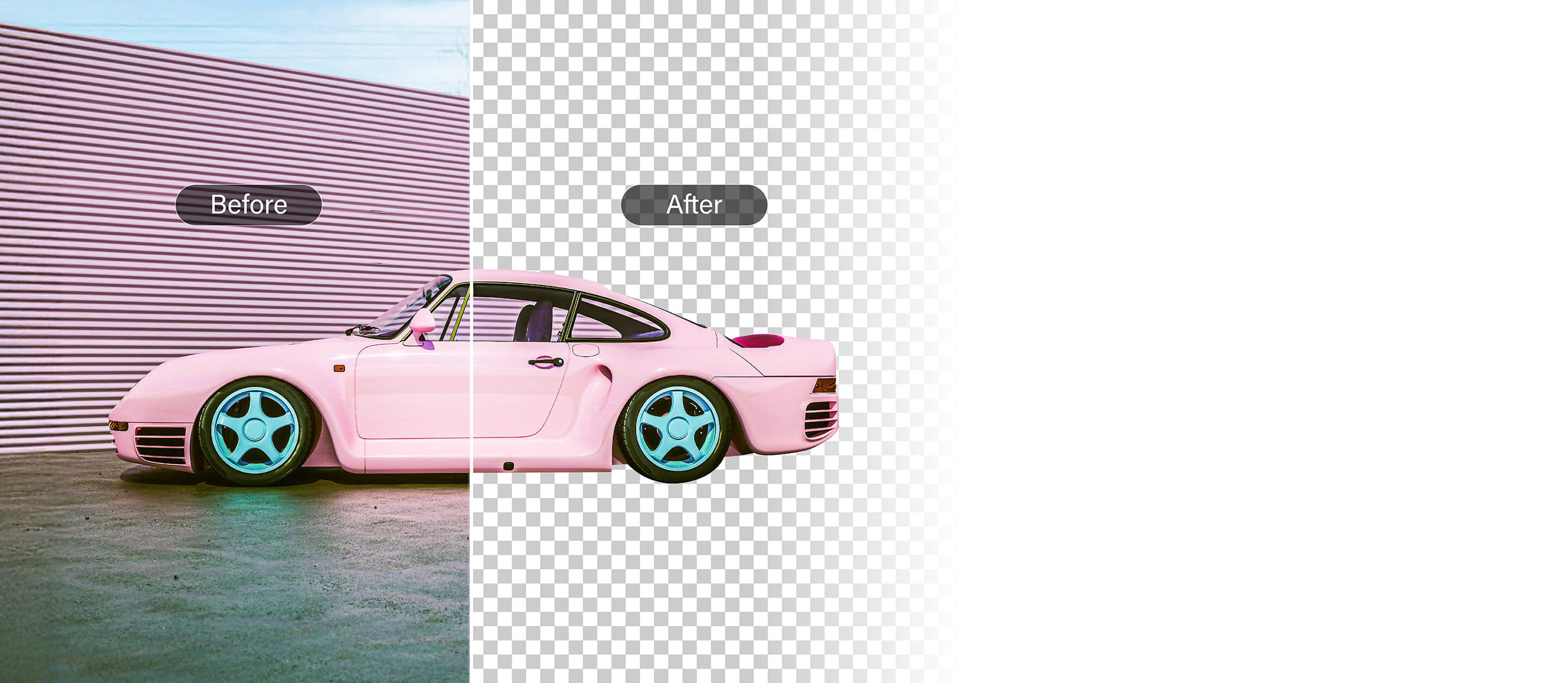
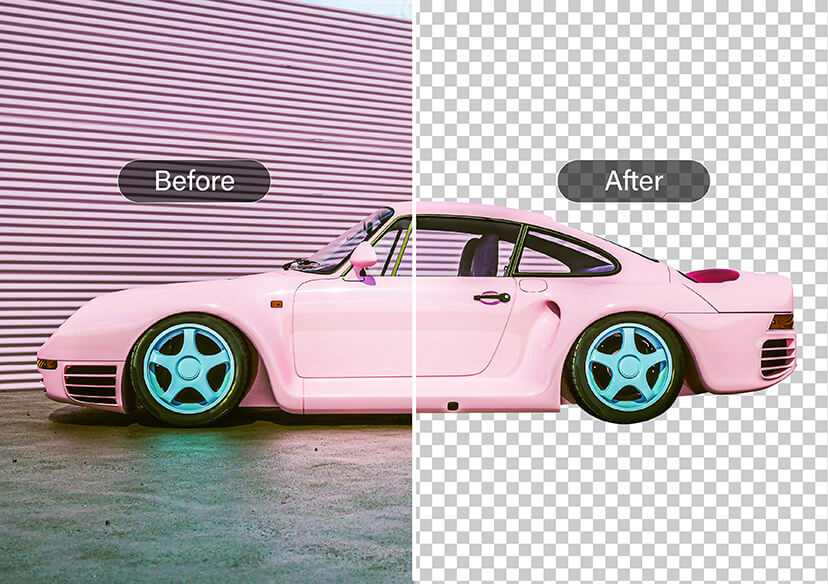
You don’t need to be a designer to create transparent photos. With YouCam Online Editor, the editing process is fast and free. In just a few clicks, you can make image transparent.

Upload your image
Select any photo from your device to upload and begin the process. For the best results, upload a high-resolution image with a clear subject. This helps the AI detect edges more accurately and produce cleaner transparent cutouts.


Remove the background
The transparent image maker automatically detects and removes the background to isolate your subject in seconds. You can also manually refine the edges for more precise and polished results.

Save your transparent photo
Download your new transparent image and use it anywhere you need. Transparent PNG images are ideal for logos, product photos, and presentations, because they can be placed on any background without visible borders.
Why Choose YouCam Transparent Image Maker?
Turn your Images Transparent for Maximum Design Versatility
Make your images transparent and elevate your designs. Remove backgrounds instantly, highlight key elements, and layer visuals effortlessly for logos, presentations, websites, and more.

Professional Portrait Editing
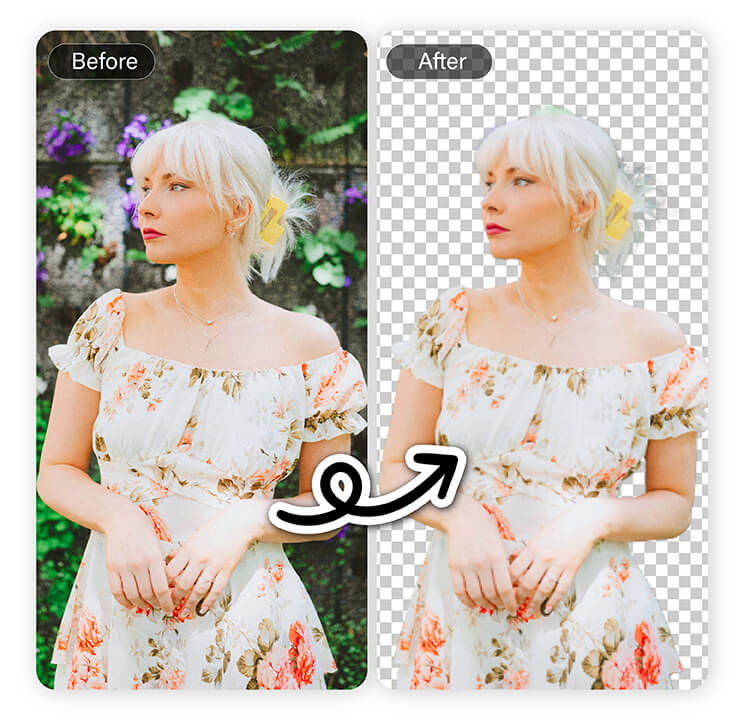
Manual editing enhances headshots, group shots, and candid portraits. Eliminate background clutter, perfect the edges, and position subjects on branded or themed backgrounds for professional profiles, resumes, or event materials.
Explore more:
Photo Background Changer, Best Photo Background Editor, White Background Photo Editor
Perfect Product Photography Made Easy
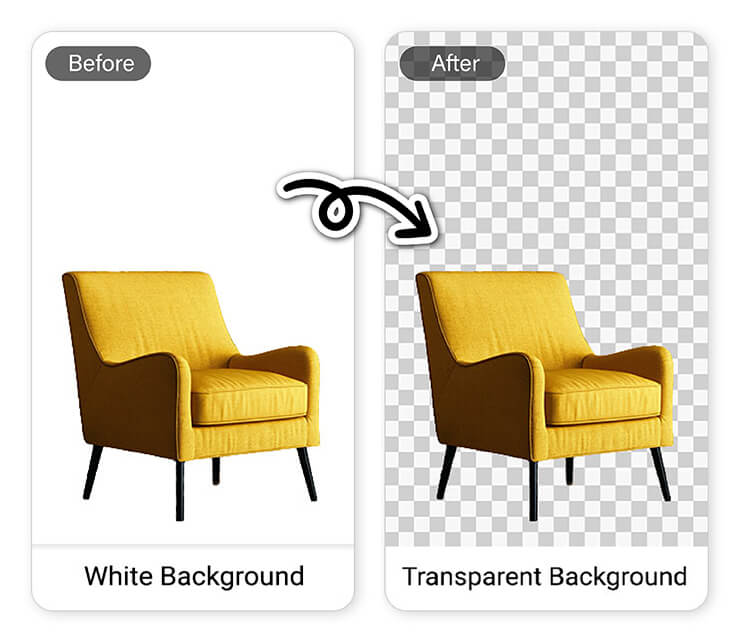
Clear, distraction free product images drive higher sales. Using a manual background remover, you can place products on white or transparent backgrounds for a professional look that builds trust and credibility.
Explore more:
Change Background, Remove Background, Free Online BG Remover
Achieve Perfect Image Cutouts
For precise photo editing, a manual background remover works perfectly alongside automated tools. While AI handles quick background removal, manual adjustments let you refine edges and perfect every detail with pixel level accuracy.
Explore more:
Remove Background From Text, Remove Bg Tools, Passport Photo Background Remover
Transparent Image Maker FAQs
Can a PNG file have a transparent background?
Yes. PNG files support transparent backgrounds because the format includes an alpha channel, which allows parts of an image to be fully or partially transparent. This makes PNG ideal for logos, icons, stickers, and design elements that need to appear without a background.
If your PNG still has a background, you can easily remove it using YouCam Transparent Image Maker, which automatically detects the subject and exports a clean transparent PNG.
How to make JPG to PNG transparent?
Since JPG does not support transparency, you need to remove the background and save the image as a PNG.
Steps:
- Upload your JPG to YouCam Transparent Image Maker.
- The AI automatically removes the background.
- Download the result as a transparent PNG file.
How to put transparent effect on a picture?
To add transparency to a picture, you typically need to remove the background or adjust the image opacity in an editing tool.
The easiest method is:
- Upload the image to YouCam Transparent Image Maker.
- The AI removes the background automatically.
- Export the image as a PNG with transparency.
How do I turn PNG to transparent?
If your PNG has a solid background, you can make it transparent by removing the background layer.
Quick method:
- Upload the PNG to YouCam Transparent Image Maker.
- The AI detects the subject and removes the background.
- Download the image as a transparent PNG.
Can a JPEG have a transparent background?
No. JPEG files cannot have transparent backgrounds because the format does not support transparency or alpha channels. JPEG images always contain a solid background.
If you need transparency, you must convert the image to PNG after removing the background. Tools like YouCam Transparent Image Maker can automatically remove the background and export the image as a transparent PNG in seconds.

